

Four layouts to pick from
The dashboard has a view switcher in the navigation that lets you change how the dashboard tiles are arranged. Pick the one that fits how you work.
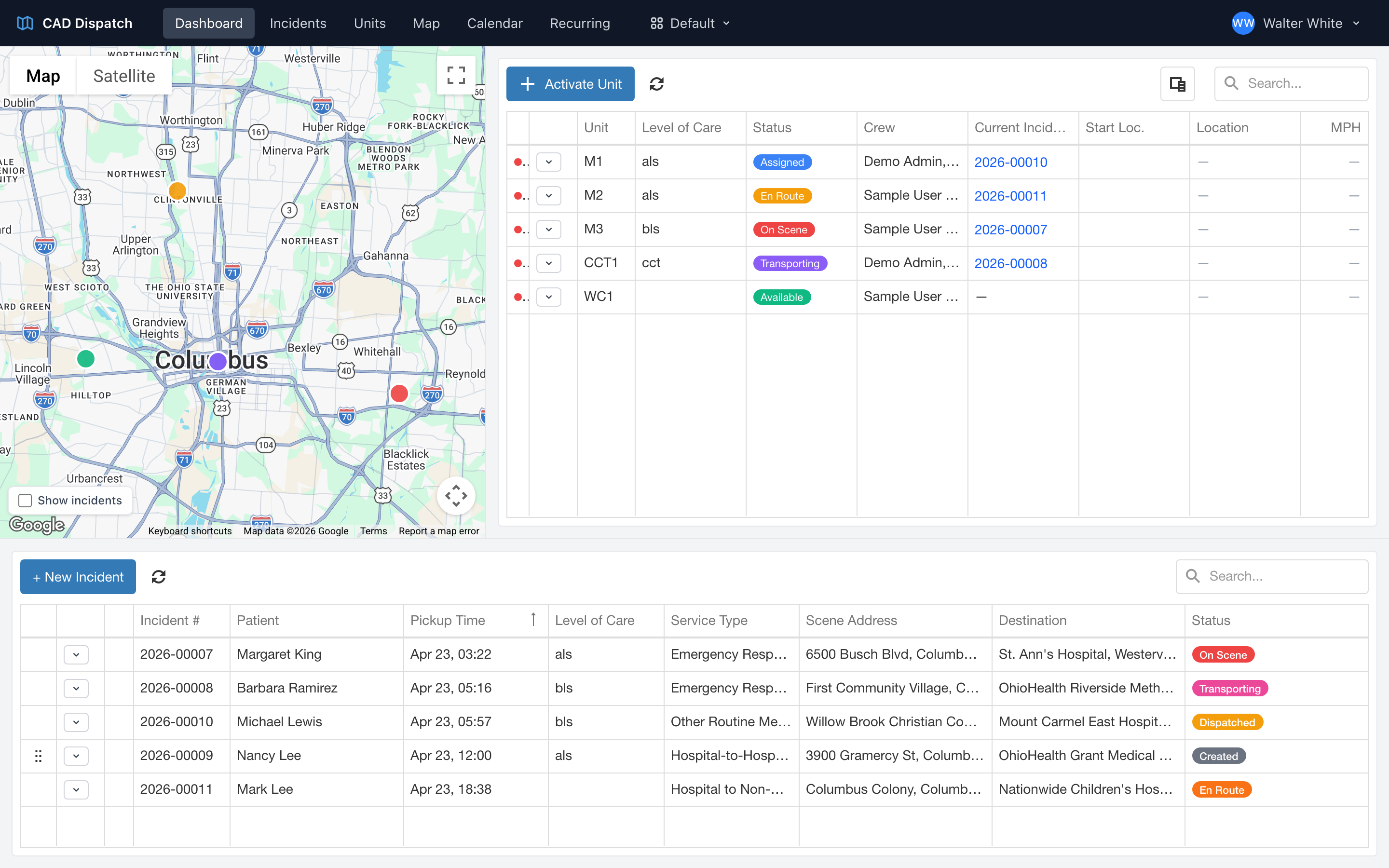
- Default — the map, your active units list, and today's incidents list all shown together on one screen. Good for the typical dispatcher workstation.
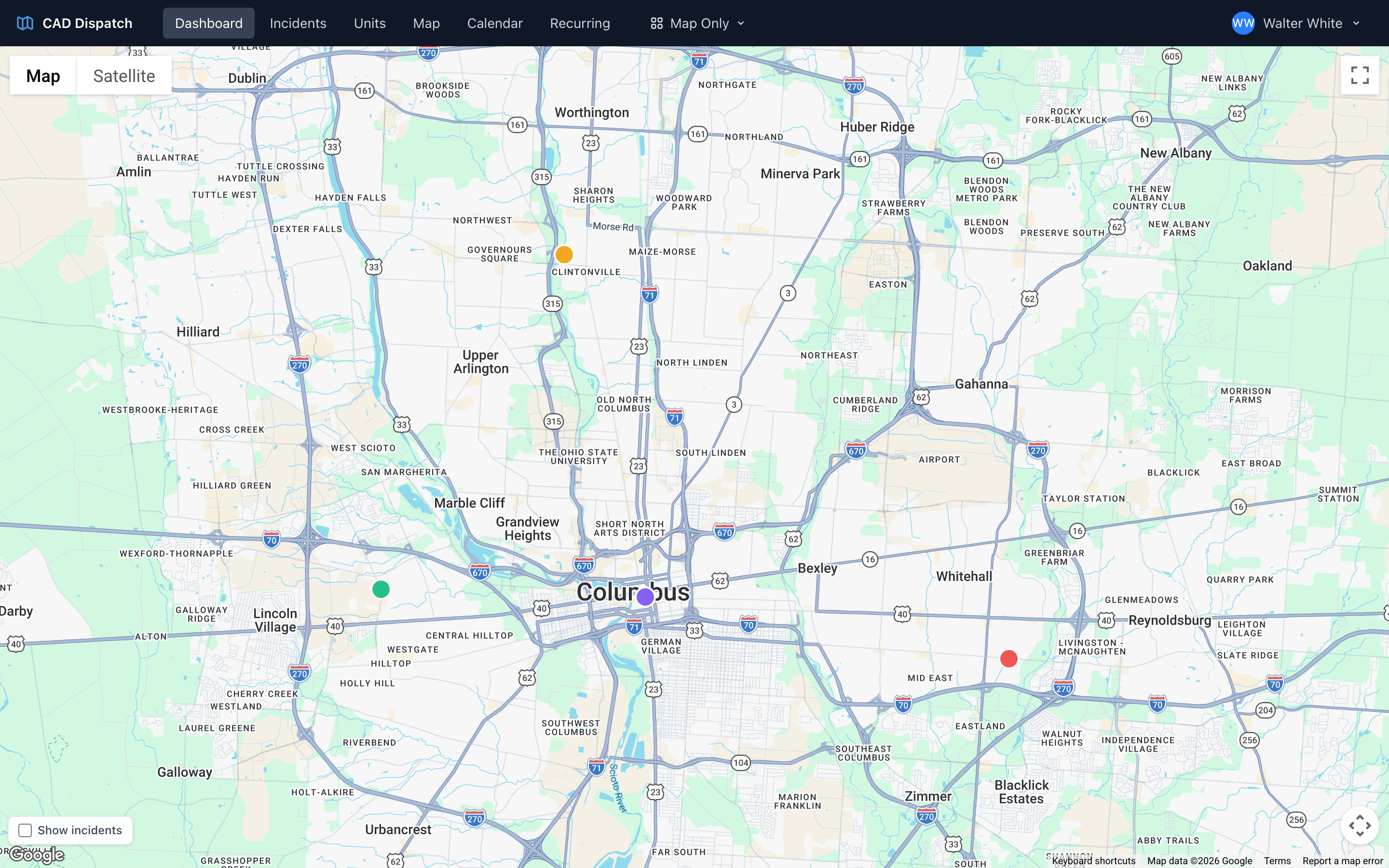
- Map Only — a full-screen map with no other tiles. Good for a wall monitor you just want to glance at.
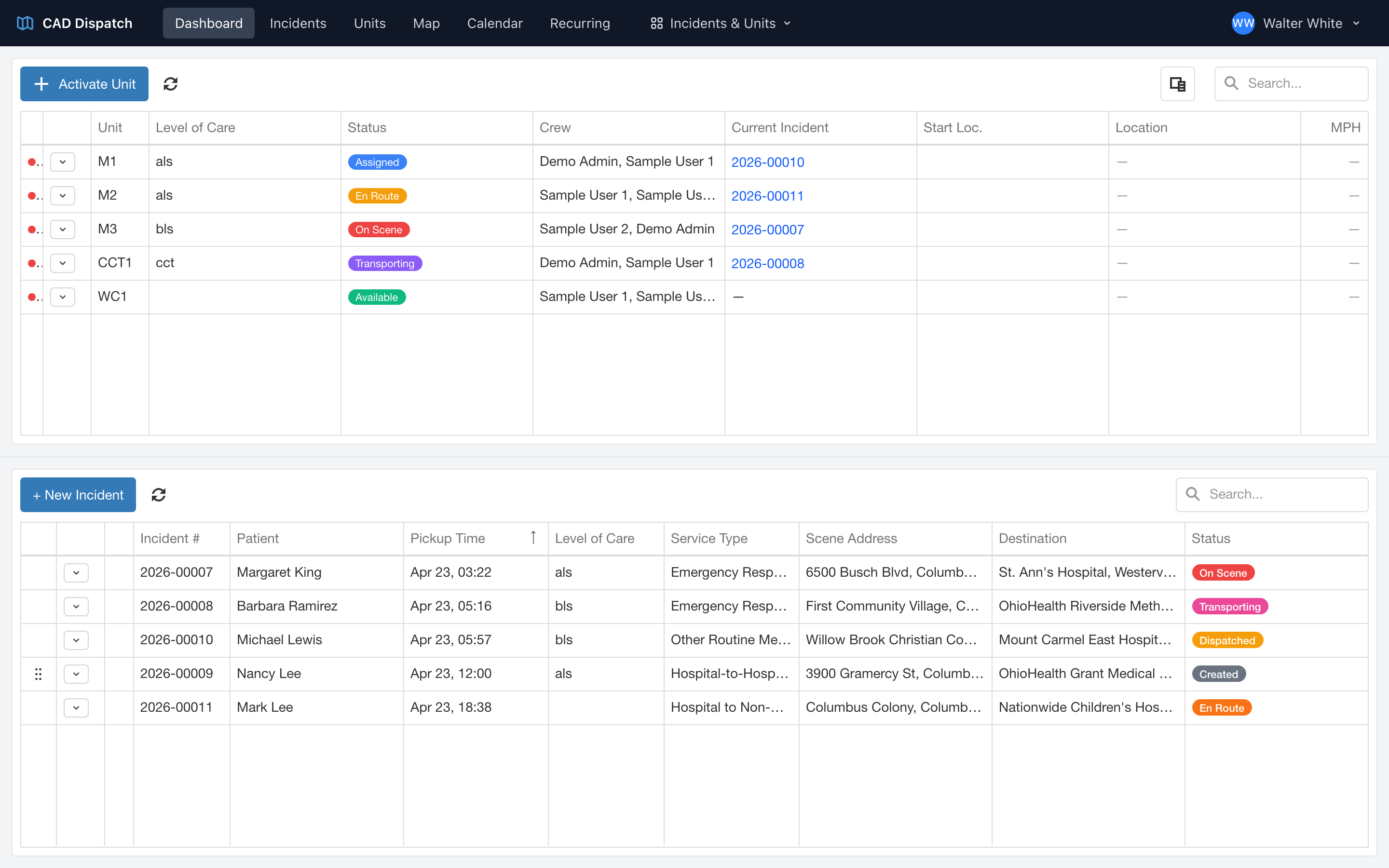
- Incidents & Units — your incidents list and active units list shown together with no map. Good for a dispatcher who works primarily off the tables.
- Map & Grids — the map plus both the active units list and the incidents list in a side-by-side layout. Good when you want everything visible at once on a wider monitor.
How the switcher works
- In the navigation, click the button that shows the name of the current layout (for example, Default).
- Pick the layout you want.
- The dashboard reloads with that layout.
Your choice stays in place while you are signed in.
Multiple monitors
If you have a multi-monitor workstation, you can open CAD in multiple browser windows and pick a different layout in each one — for example, Map Only on a big wall display and Default on your working monitor.