
Opening reports
Click Reporting in the menu. This opens the Reporting app in a new tab, on the Financial reports page. Each report is a card. Click a card to open it:
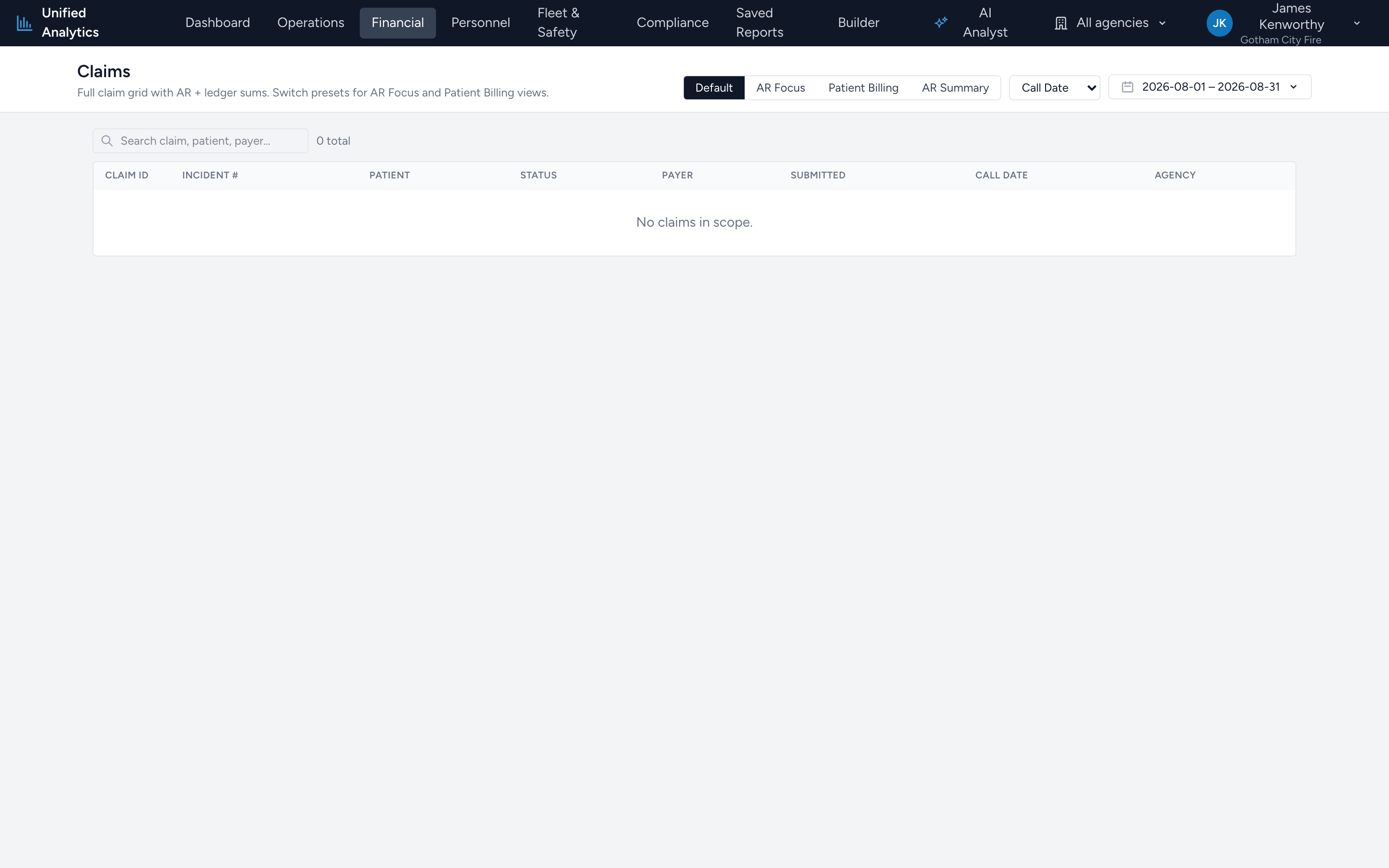
- Claims - one row per claim, with status, payer, AR balance, and totals.
- Payments - one row per ledger entry, split by payer category, with reference and posted-by detail.
- Billing History - one row per billing or ledger activity (rebills, payments, adjustments) on a single timeline.
- Bill Log - one row per claim: bill number, status, account, service date, and the payer chain.
Other cards, like AR Report, Billed Charges, Contractual Adjustments, and Write-offs, open these same reports with a view and filter already applied.
Setting date ranges
Use the date range picker above the grid. The built-in presets are:
- Last 7 days
- Last 30 days
- Last 90 days
- This month
- Last month
- This quarter
- Last quarter
- Year to date
- Last year
- Last 12 months
Or pick your own start and end dates in the date picker.
On the Claims report, a dropdown next to the date range chooses which date the range applies to: Call Date, Submitted, Created, Billed, or Last Billed.
Report views
Each report has view buttons above the grid that change which columns show:
- On Claims: Default, AR Focus, Patient Billing, and AR Summary.
- On Billing History: Default, Rebills Only, and Payments & Adjustments.
- On Payments: Default, Cash Receipts Summary, Contractual Adjustments, and Write-offs.
Use the search box above the grid to narrow the rows.
Exporting to Excel
Click Excel above the grid to download the current view as an .xlsx file. The file contains the columns of the view you have selected and respects your search filter.
Example
Your billing manager asks for every payment posted last month. Click Reporting in the menu, open the Payments report, pick Last month from the date range picker, and click Excel. Email the resulting spreadsheet to your manager.
Tips
- Start with a preset date range and adjust from there. It is faster than typing dates manually.
- If a report seems to have too many or too few results, double-check the date range first. On Claims, also check which date field is selected. An incorrect date is the most common cause.
- The reports cover everything in Billing, however you bill. Claims printed as paper CMS-1500 forms and payments you posted by hand show up the same as electronic ones.
- To build and save a custom report layout, see Saving report configurations.