
What the QA work queue is
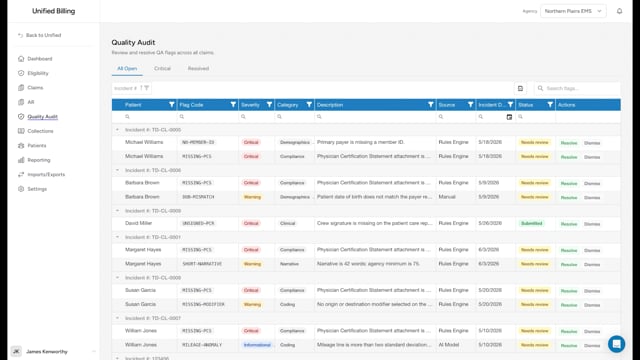
Quality audit (QA) flags are alerts that mark problems on claims. The QA work queue shows all flagged claims in one place so you can fix issues before submitting claims to insurance companies.
Opening the work queue
Click Quality Audit in the menu. You see flags grouped by incident number, each flag attached to a specific claim.
Tabs
The top of the page has three tabs:
- All Open - every open or in-review flag.
- Critical - only open critical-severity flags.
- Resolved - flags that are already resolved or dismissed.
Filtering the queue
Use the filter boxes under the Severity, Category, Source, Description, and Flag Code column headers to narrow the list. Use the search box to search across incident number, patient name, flag code, and description.
Understanding severity levels
- Critical - a problem that must be cleared before the claim goes out. Examples: missing patient name, no insurance payer, or an invalid diagnosis code.
- Warning - something looks unusual and should be reviewed, but it does not have to hold up the claim. Example: the loaded miles are unusually high.
- Informational - a suggestion or note for awareness. Example: a reminder that this payer requires prior authorization for non-emergency transports.
Example
You start your morning by opening the QA work queue and clicking the Critical tab. You see 8 flags across 5 claims. You open the first claim, fix the missing date of birth, then come back and click Resolve on the flag. You work through the rest in about 20 minutes. Now those 5 claims are ready to move forward in the billing process.
Tips
- Handle critical flags first thing each day. Clearing them keeps claims moving out the door.
- If the same flag keeps appearing on many claims, there may be a systemic issue, like a data mapping problem during import. Talk to your administrator about adjusting QA rules or fixing the import source.