
What QA rules do
QA (quality audit) rules are checks that run automatically as claims move through Billing. Each rule looks for one specific problem, like a thin narrative or a transport with no mileage, and writes a flag on the claim when it finds one. Flags land on the QA work queue for your team to work.
Rules run the same way no matter how a claim got into Billing: imported from CloudPCR, loaded from a file, or created by hand. No outside connection is involved.
Before you start: QA rules live in Settings, which only company admins can open. If you do not see Settings in the menu, ask your admin.
Where to find it
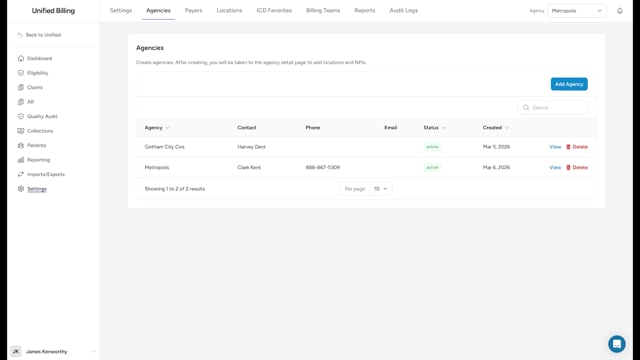
- Go to Settings → Agencies and click View on the agency.
- Open the Quality Audit tab.
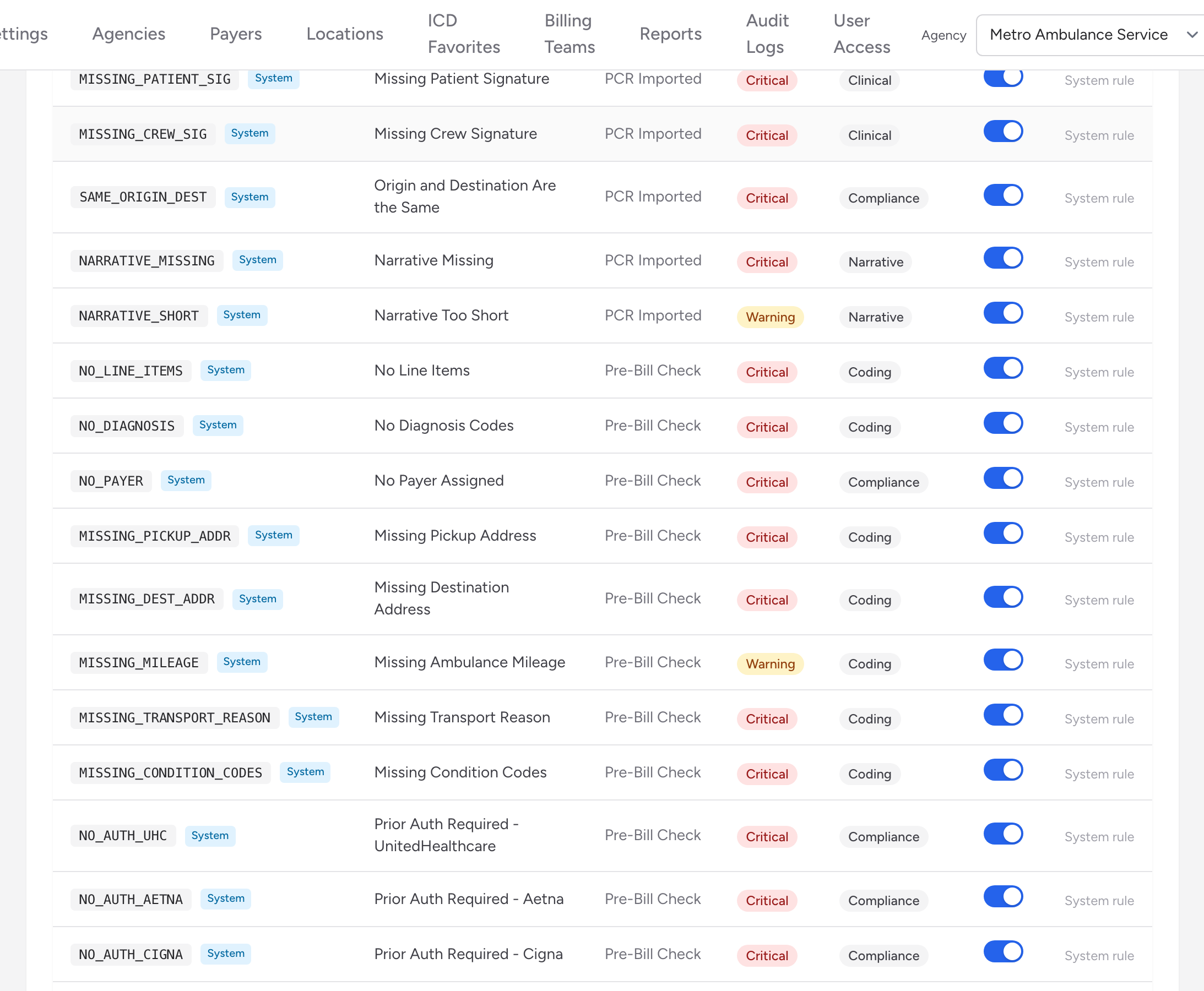
- Scroll to the QA Rules panel. It sits below the Quality Audit Configuration panel, which is covered in Quality audit configuration.
Every rule in the table carries a System or Custom badge next to its flag code. System rules are built in and cannot be edited or deleted. Custom rules belong to this agency and can be changed freely.
Creating a rule
- Click New Rule.
- Fill in Name, Flag Code (a short code like
MISS_SIG), and Description. - Pick a Trigger Event, the moment the rule runs: PCR Imported, Claim Updated, Code Assigned, Pre-Bill Check, Claim Submitted, Payment Received, or Denial Posted.
- Pick a Severity: Critical, Warning, or Informational. Severity controls how the flag is sorted and badged on the QA work queue, with Critical flags shown first.
- Pick a Category: Clinical, Coding, Compliance, AR, Posting, Demographics, or Narrative. Category labels the flag and lets the team filter the QA work queue by type of problem.
- Leave Payer Scope on All Payers.
- Enter a Condition Expression (JSON) describing what the rule checks for, following the format shown in the field, for example
{"field": "narrative_word_count", "operator": "<", "value": 50}. A rule with no condition never fires, so this step is required for the rule to do anything. - Leave Active on and click Create Rule.
Adjusting or disabling a rule
Custom rules have Edit and Delete actions on their row; when editing, the button to save your changes reads Update Rule. Any rule can be paused with the Active toggle in its row. Turning Active off keeps the history of past flags but stops the rule from generating new ones.
Example
You notice claims are going out without the loaded mileage, which is costing you denials. Open the agency's Quality Audit tab, click New Rule, name it "Transport miles missing," pick Trigger Event Pre-Bill Check, Severity Critical, and Category Coding, leave Payer Scope on All Payers, enter a condition that checks the loaded mileage field is missing or zero, and click Create Rule. From then on, claims with zero or blank miles get a critical flag at the top of the QA work queue so a biller sees and fixes them before the claim goes out.
Tips
- Start with the built-in system rules and layer custom ones on top. You do not have to rebuild everything.
- If a rule is being dismissed more than resolved on the QA work queue, it is probably too strict. Edit it and tighten the condition. See Resolving QA flags for how your team works the flags a rule creates.