
When to merge
Duplicate patient records happen when the same person is entered into the system more than once, maybe with a slightly different spelling, or from two separate imports. Merging combines them into a single record so all their claims are in one place.
How to merge
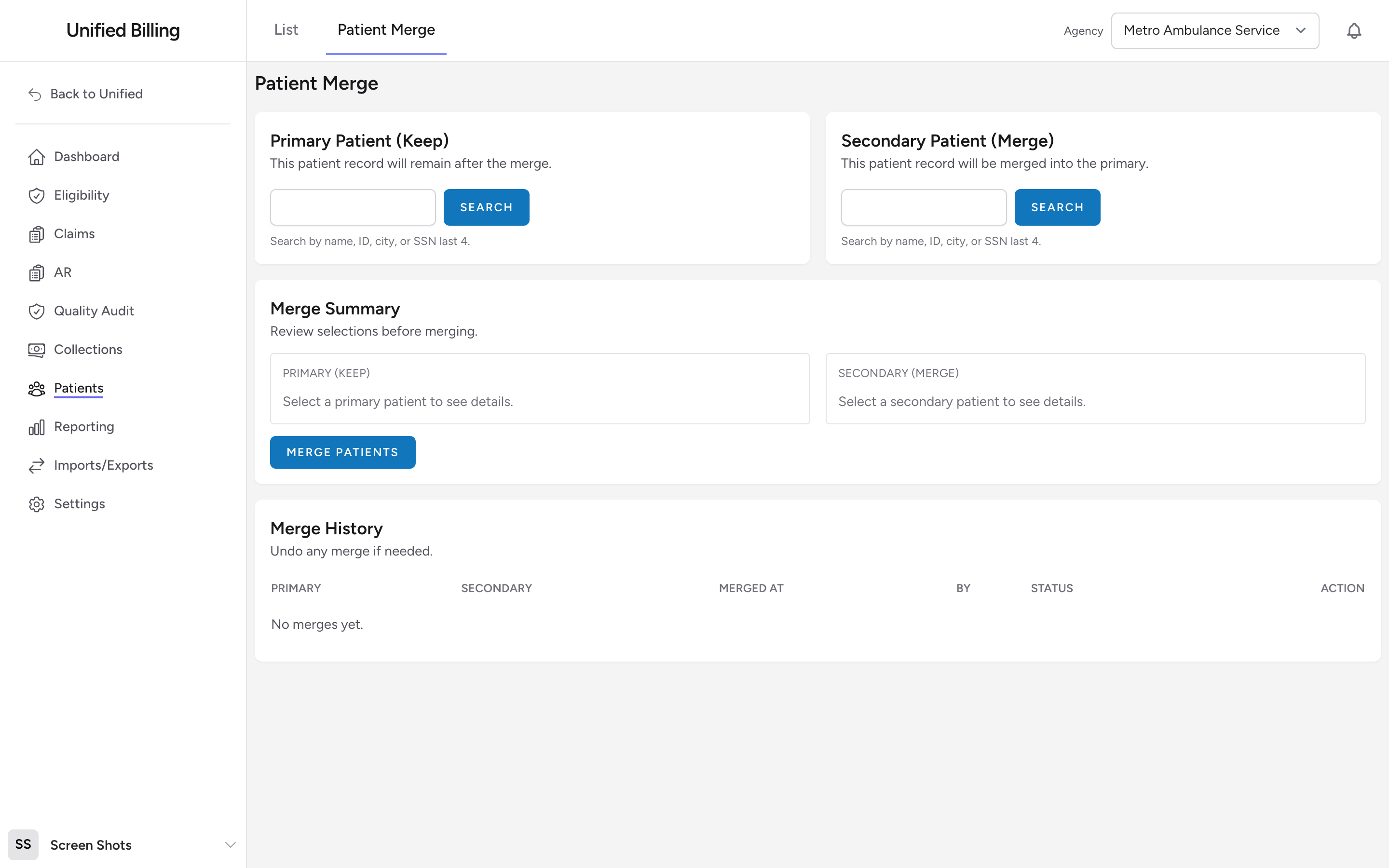
- Click Patients in the menu, then click the Patient Merge sub-tab.
- Under Primary Patient (Keep), search for the patient you want to keep and click Use as Primary on the matching result. You can search by name, ID, city, or the last 4 of the SSN.
- Under Secondary Patient (Merge), search for the duplicate you want to merge in and click Use as Secondary.
- Review the Merge Summary in the middle of the page. It shows both patients side by side plus the payers and claims that will move to the primary. Any statements already generated for the secondary patient move over too.
- Click Merge Patients at the bottom of the form.
All claims from the secondary are moved to the primary record. The secondary record is hidden from the patients list and a link on it points back to the primary.
Undoing a merge
The Patient Merge page has a Merge History section at the bottom. Every merge has an Undo button while its status is Merged. Click Undo to split the patients back apart. Each claim goes back to the record it came from.
Example
You search the primary pane for "Robert Smith" and pick the record with the January claim. You search the secondary pane for "Rob Smith" and pick the record with the March claim. The summary confirms same DOB, same address, and shows that the March claim will move over. You click Merge Patients. Both claims now appear under the Robert Smith record.
Tips
- Always verify the date of birth and address before merging. Two people can have the same name but be different patients.
- Merge sooner rather than later. The longer duplicates exist, the more confusing the patient's billing history becomes.