
What this does
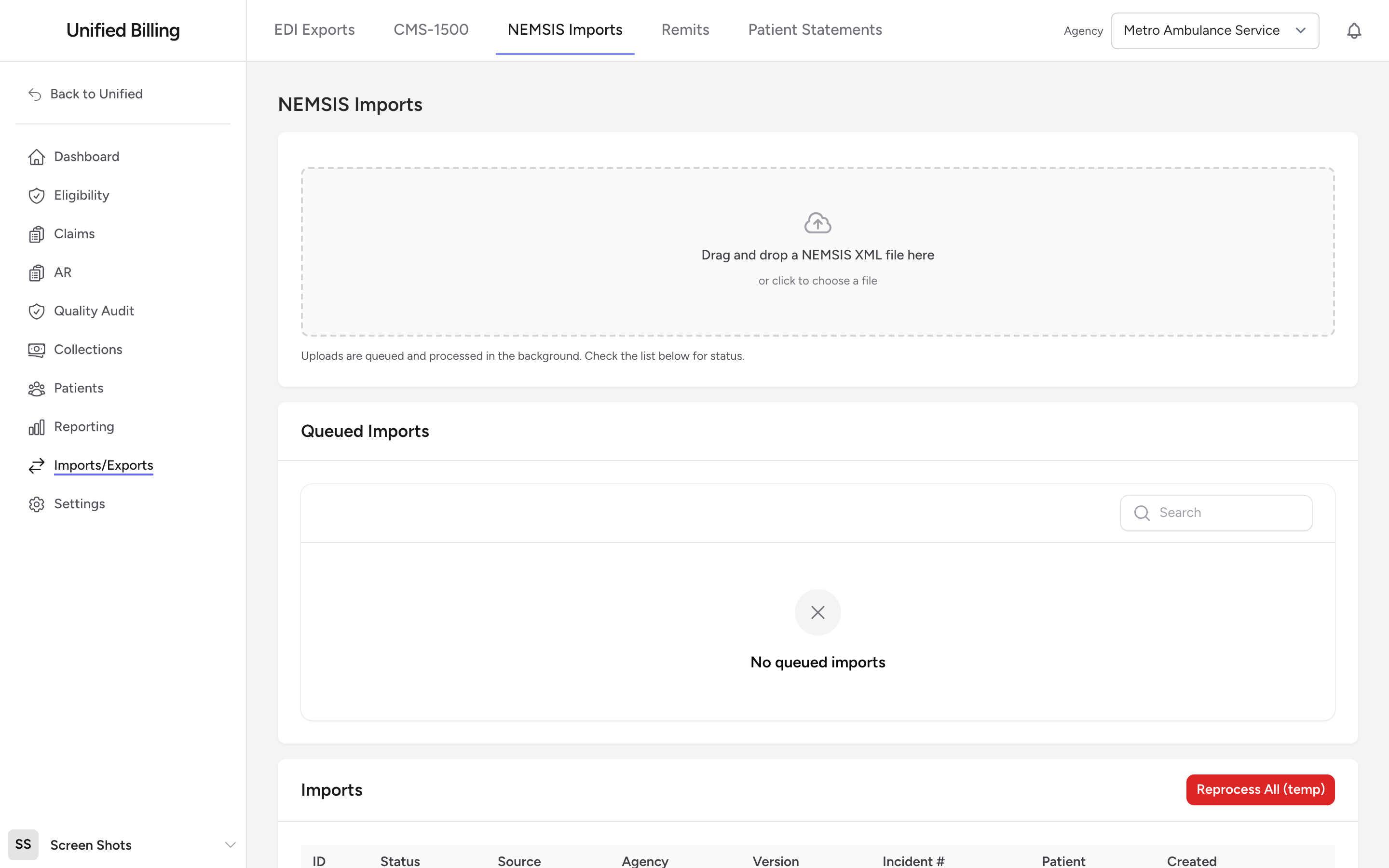
When your crews complete patient care reports in CloudPCR, those reports can be exported as NEMSIS XML files. You upload those files into Billing, and the system automatically creates claims from the report data. This saves you from retyping everything by hand. No connection between the two systems is required: the whole page works by hand-uploading a file.
How to import
- Click Imports/Exports in the menu, then click the NEMSIS Imports sub-tab.
- Drag and drop your NEMSIS XML file into the upload area at the top of the page, or click the area to browse for a file.
- The file uploads with a progress bar. Once the upload finishes, the import is queued and processed in the background.
- Watch the Queued Imports and Imports tables on the same page to see progress. Large files are split into individual PCRs and processed in parallel; small files go straight through.
- Once processing is complete, the new claims appear on the Claims page, ready to work and send out (see Transmitting claims).
Tracking import status
Each row in the Imports table shows the status, source, agency, version, incident number, patient, and when it was created. Click View at the end of a row to open the import and see the parsed report data. The View link appears once the file has finished processing. A Delete link on each row removes an import you uploaded by mistake.
If an import fails
A batch in the Queued Imports table can show Failed (nothing imported) or Completed with errors (some reports failed). Click View on that row to see why each report failed, fix the file if needed, then click Retry to re-queue it. Retrying is safe: reports that already imported are not duplicated.
Reprocessing
Open any import and click Reprocess to re-run the claim creation from the stored XML. This is useful if your agency configuration changed after the original import or if you need to retry after fixing a data mapping issue.
Example
Your CloudPCR administrator exports Monday's completed reports as a NEMSIS XML file and emails it to you. You open Billing, go to Imports/Exports, then NEMSIS Imports, and drag the file into the upload area. Five minutes later, the Imports table shows each PCR's status. Completed rows have new claims on the Claims page; you open a few to spot-check the patient and insurance data before moving them forward.
Tips
- Import daily or as often as reports are completed. The sooner claims enter Billing, the sooner you can bill them.
- After each import, spot-check a few claims to make sure the data mapped correctly, especially the patient name, date of birth, and insurance information.
- Only NEMSIS XML files are accepted (file extension .xml). If an upload is rejected, check the file type and size (the upload cap is 50 GB).