

Before you start
Before you submit your first real claim, make sure all these pieces are in place. Skipping a step can cause claims to be rejected or delayed.
The checklist
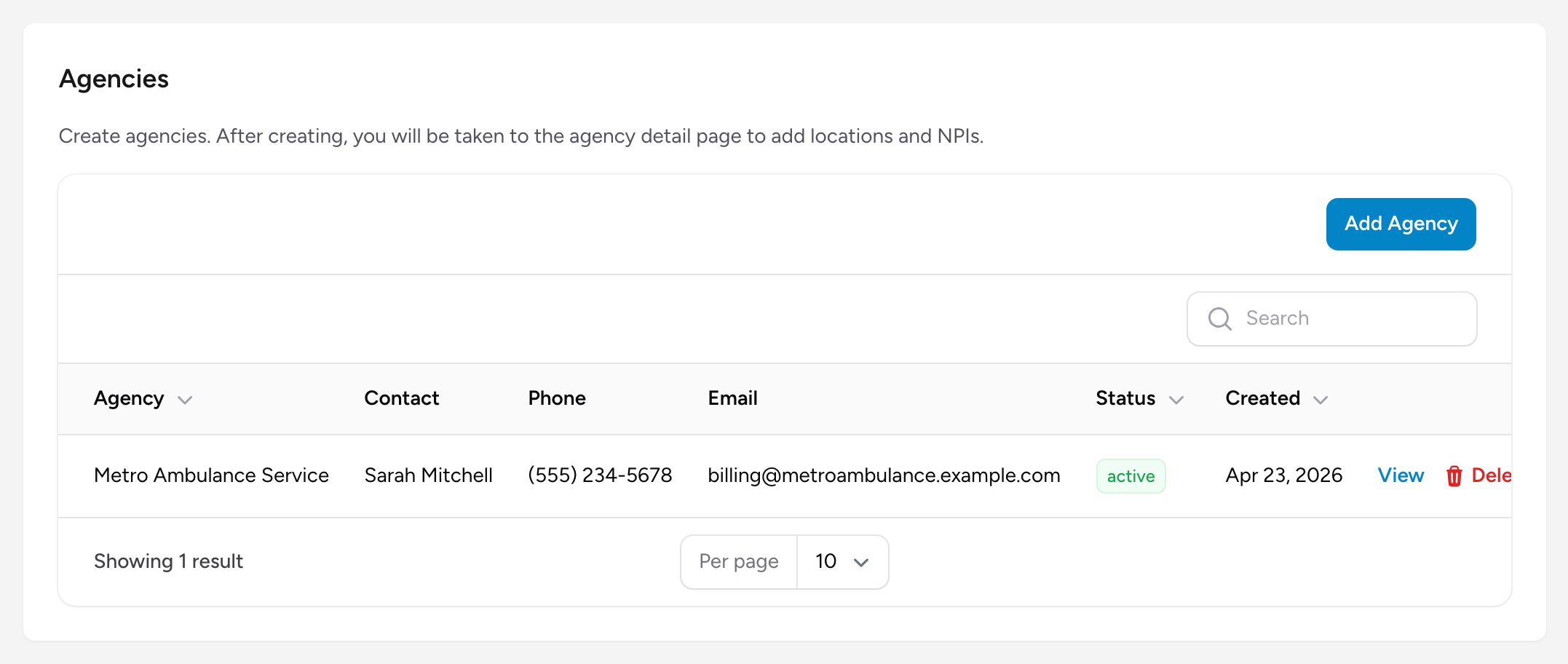
- Create your agency — Go to Settings and add your agency. Enter the agency name, address, and tax information. This appears on every claim you send.
- Add payers — In Settings, add the insurance companies you bill most often. Include their name, address, and payer identification. You can add more later, but start with your top five or ten.
- Set up locations — Each agency needs at least one location. Go to your agency settings and add your stations or bases. Each location can have its own fee schedule.
- Configure fee schedules — For each location, set your base rates and mileage rates. These rates fill in automatically when you create a claim, saving you time.
- Add crew credentials — Enter the qualifications and license numbers for your crew members. Claims require the attending provider to have a valid credential on file.
- Set up QA rules — Define the quality audit rules that will check your claims for problems before you send them. Start with the built-in rules and adjust the severity levels to fit your agency workflow.
- Build your ICD favorites list — Go to Settings → ICD Favorites and add the diagnosis codes your agency uses most often. This speeds up coding later. You can also download the CSV template and upload codes in bulk.
- Submit a practice claim — Create a test claim with made-up patient information. Walk it through every section of the claim form, run validation, check the QA flags, and transmit it. This confirms your setup is correct before you go live.
After going live
Once everything checks out, you are ready to start billing real claims. Keep an eye on the QA work queue for the first few days. If you see the same flag appearing on many claims, it usually means a setting needs adjusting — like a missing fee schedule or an incomplete payer record.