
What the Transmit button does
Once a claim has been submitted, it is queued for transmission. The Transmit button on the Claims page bundles everything currently queued for the selected agency into a single run: the 837 file for electronic payers, a combined CMS-1500 PDF for paper payers, and patient statement files for anyone in a statement cycle.
Before you start: Transmitting requires write access to the agency. If you do not see the green Transmit button on the Claims page, ask your administrator to update your access.
How to transmit
- Go to Claims in the menu.
- Make sure the correct agency is selected in the agency switcher at the top.
- Click the green Transmit button.
- The Transmit Results modal opens and shows a row for each output with a count: 837 EDI, CMS-1500 PDF, and Patient Statements.
- Click Download on each row. The 837 file is what goes to your clearinghouse.
If your agency has a direct file connection to your clearinghouse, Billing sends the 837 for you when you click Transmit, and the downloaded file is your copy. If you do not have a connection set up, upload the downloaded file to your clearinghouse web portal yourself. Both paths are normal; nothing else about the run changes.
Running Transmit takes the CMS-1500 and statement batches out of the queue immediately, and downloading the 837 takes its batch out too, so the same claim is not re-sent next time you click Transmit. Download every file the modal offers before closing it. If you miss one, reprint CMS-1500 forms from the CMS-1500 page and re-download the 837 from EDI Exports.
Tracking batches
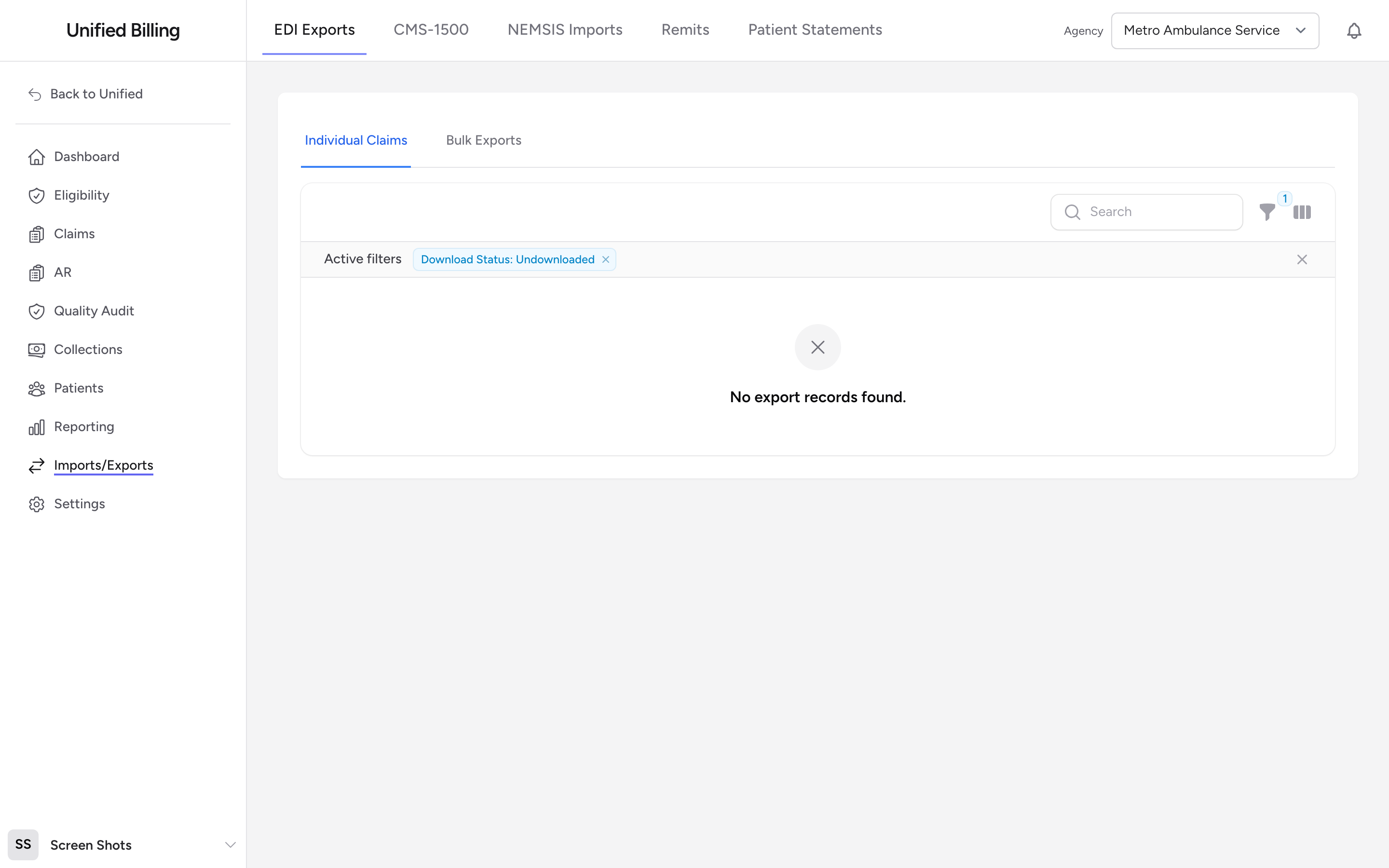
Go to Imports/Exports and open EDI Exports to see every claim and batch you have sent, broken out into Individual Claims and Bulk Exports tabs (see The EDI Exports page). CMS-1500 batches are tracked on the CMS-1500 page, and patient statement batches are tracked on the Patient Statements page in the AR area.
After the file goes out
Your clearinghouse portal shows whether each claim was accepted or rejected. When payers pay, download the 835 remittance file from the portal and upload it on the Remits page so the payments post automatically (see Importing remittance files). If you are switching from another billing system, you can also compare your old system's 837 output against Billing's before go-live (see Uploading external 837 files).
Example
It is Friday afternoon and you have 30 claims in Submitted status waiting to go out. You go to Claims, click Transmit, and the modal shows 837 EDI with 28 claims, CMS-1500 PDF with 2 claims, and Patient Statements with 5 statements. You download all three files, upload the 837 to your clearinghouse portal, print and mail the CMS-1500 PDF, and hand the statements to the person who mails them.
Tips
- Transmit regularly, daily if possible. The sooner the 837 reaches your clearinghouse, the sooner you get paid.
- If the modal shows "No claims to transmit," there are no submitted claims queued for this agency. Submit claims first, then transmit.
- If you need to re-send claims, open the EDI Exports page, select them on the Individual Claims tab, and click Re-Transmit Selected. They are included the next time you transmit or download a combined 837.