
The Patient Payments tab on an agency is where you connect a Stripe account so patients can pay their balances online. Patient statements carry a payment link and a QR code that open the payment portal, and the money lands in the Stripe account you connect here.
Before you start: You need billing admin access and a Stripe account for your organization. Have your Stripe publishable key, secret key, and webhook signing secret ready; Stripe shows all three in its own dashboard.
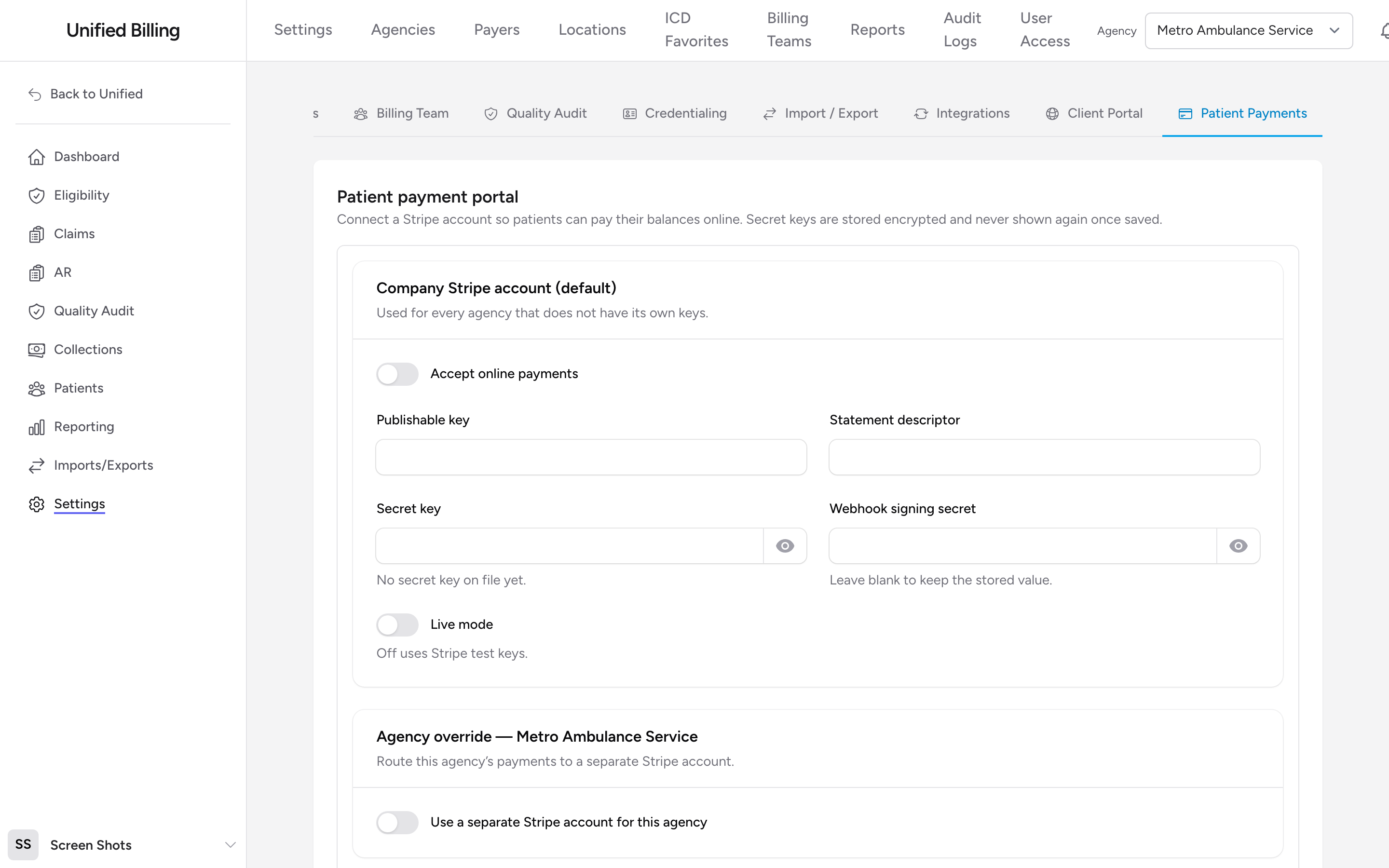
Where to find it
- From the menu, click Settings, then Agencies.
- Click View on the agency.
- Click the Patient Payments tab. The panel is titled Patient payment portal.
Connecting your Stripe account
- In the Company Stripe account (default) section, switch on Accept online payments.
- Enter the Publishable key and Secret key from your Stripe account.
- Enter a Statement descriptor. This is the short text (up to 22 characters) patients see on their card statement, like RIVERCITY EMS.
- Paste the Webhook signing secret. Billing uses it to confirm that payment updates really came from Stripe.
- Leave Live mode off while you test with Stripe test keys. Switch it on when you are ready to take real payments.
- Click Save Stripe settings.
Secret values are stored encrypted and never shown again once saved. When a secret is on file, the field says so; leave it blank on later saves to keep the stored value.
One account, or one per agency
The default section covers every agency in your account. If one agency needs its payments routed somewhere separate (a different bank account, for example), switch on Use a separate Stripe account for this agency in the Agency override section and enter that agency's own keys. Agencies without an override keep using the default.
What patients see
Once connected, each patient statement includes the payment link and QR code. The patient looks up their balance in the portal and pays by card, and the payment posts back to their account in Billing. See Patient statements for how statements go out.
Tips
- Test before going live: leave Live mode off and run a payment with a Stripe test card number, then flip Live mode on and save again.
- Make the statement descriptor recognizable as your agency name. A patient who does not recognize the charge is a patient who disputes it.