
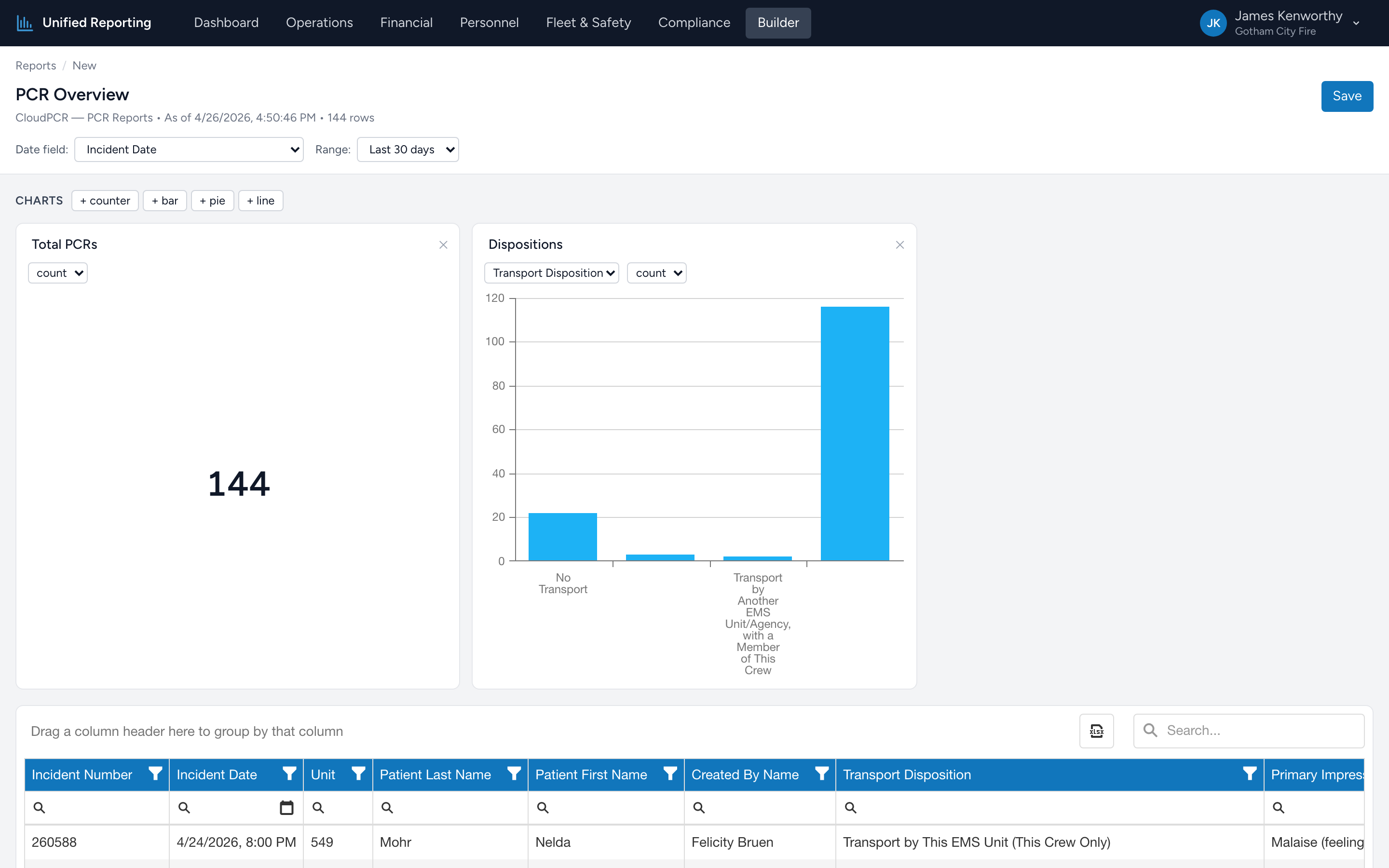
If "blank workspace" is intimidating, start with a template. Templates are pre-built layouts — columns, date range, and charts (or rows, columns, and a measure for pivots) already in place. Click one and you land in the right editor with the layout applied. Tweak as much or as little as you want, then save as your own.
The Templates section
From the menu, click Builder. The Templates section is at the top. Three filter pills let you narrow the list:
- All — every template, both Workspace and pivot.
- Grid / Chart — Workspace-style templates with a data grid and chart panel.
- Pivot — cross-tab templates that open the pivot editor.
Each card shows the name, a short description, the data source it pulls from, and a colored badge — purple for Grid, amber for Pivot.
How template loading works
Clicking a Grid / Chart template card takes you to a fresh Workspace with the template's configuration applied. The report does not exist yet — nothing is saved. Tweak the layout, then click Save to make it your own. Saving from a template creates a new saved report; the template itself is unchanged and remains available for next time.
Clicking a Pivot template card opens the pivot editor. Pivot templates work differently — see Pivot templates for the details.
When to start from a template vs from scratch
If your goal looks roughly like one of the templates, start there — you save 5–10 minutes of column setup. If your goal is unusual, start from scratch with a Grid / Chart or Pivot button on the data source you want.