
The Pivot Templates section on the Builder landing page lists pre-built pivots. Click one and you land on the pivot page with the layout applied. The data populates from your most recent date range; you can then drag fields to change the shape, switch the date range, or save the layout.
The four templates
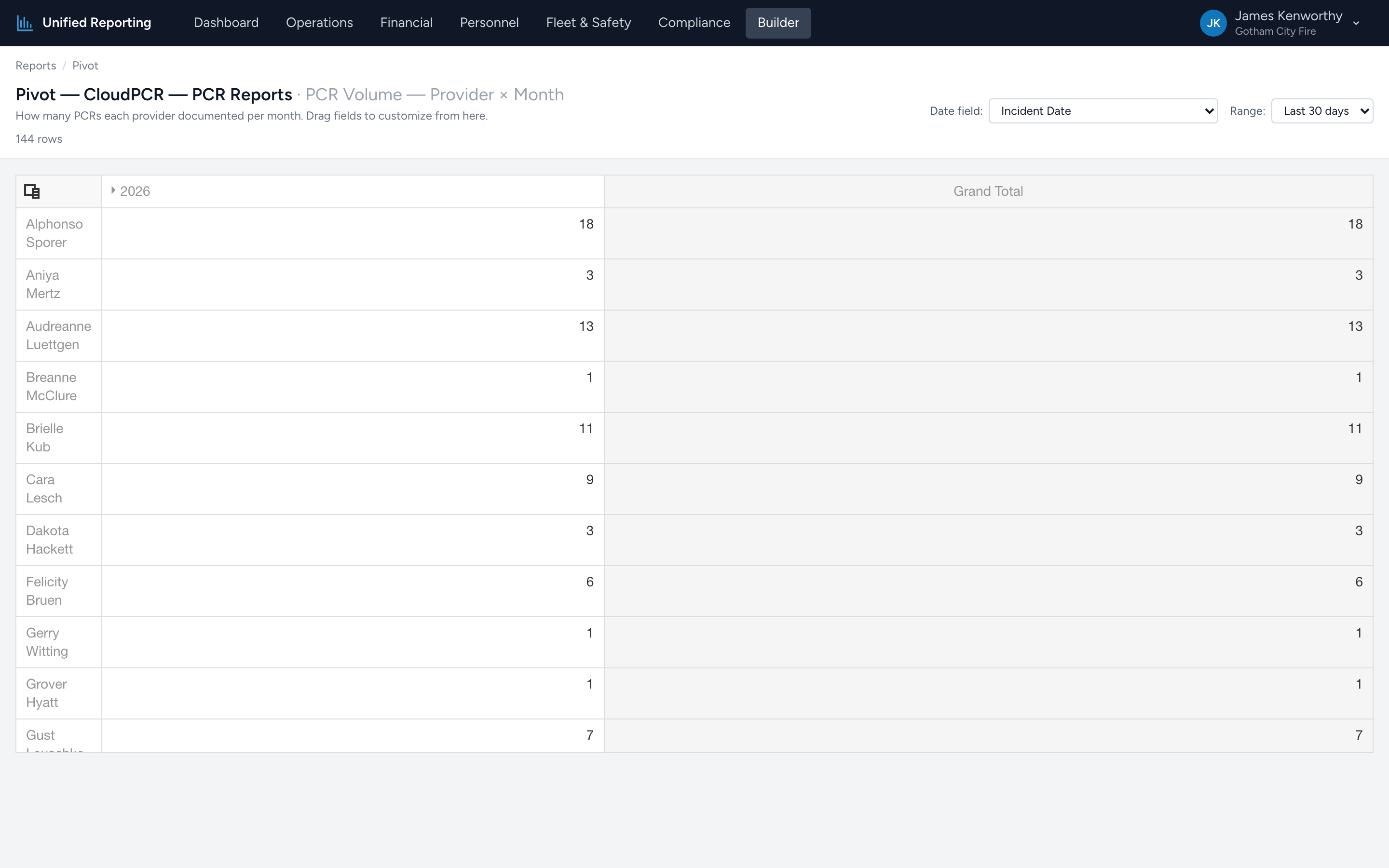
- PCR Volume — Provider × Month (PCR Reports). Row: Crew Member. Column: Incident Date (month). Data: PCR count.
- Medication × Provider (Medications). Row: Medication. Column: Crew Member. Data: Dose count.
- Medication × Month (Medications). Row: Medication. Column: Incident Date (month). Data: Dose count.
- Procedure × Provider (Procedures). Row: Procedure. Column: Crew Member. Data: Attempt count.
How template loading works
The template name passes through the URL. Opening a template URL builds the pivot data source with the row/column/data assignments baked in. Once loaded, you can drag any field to a different area — the template is just a starting point. Refreshing the page (or going back to the Builder landing page and picking the same template again) re-applies the original layout.
Customizing
- Drag any field from the Field Chooser into a row, column, or data area.
- Drag any field out of an area back to the Field Chooser to remove it.
- Change the date range up top to refresh the data.
- Right-click cells for "Show details," which gives the underlying rows that produced that cell's aggregate.