
Scheduled reports run on their own and send the result to a list of recipients. Use them when the same person wants the same report every Monday morning, or when you want a daily snapshot to land in the right inbox without anyone having to open Analytics.
Where schedules live
Schedules are not their own page. They live on the report they belong to. The Saved Reports page is where you see and manage every scheduled report at your agency, all in one table.
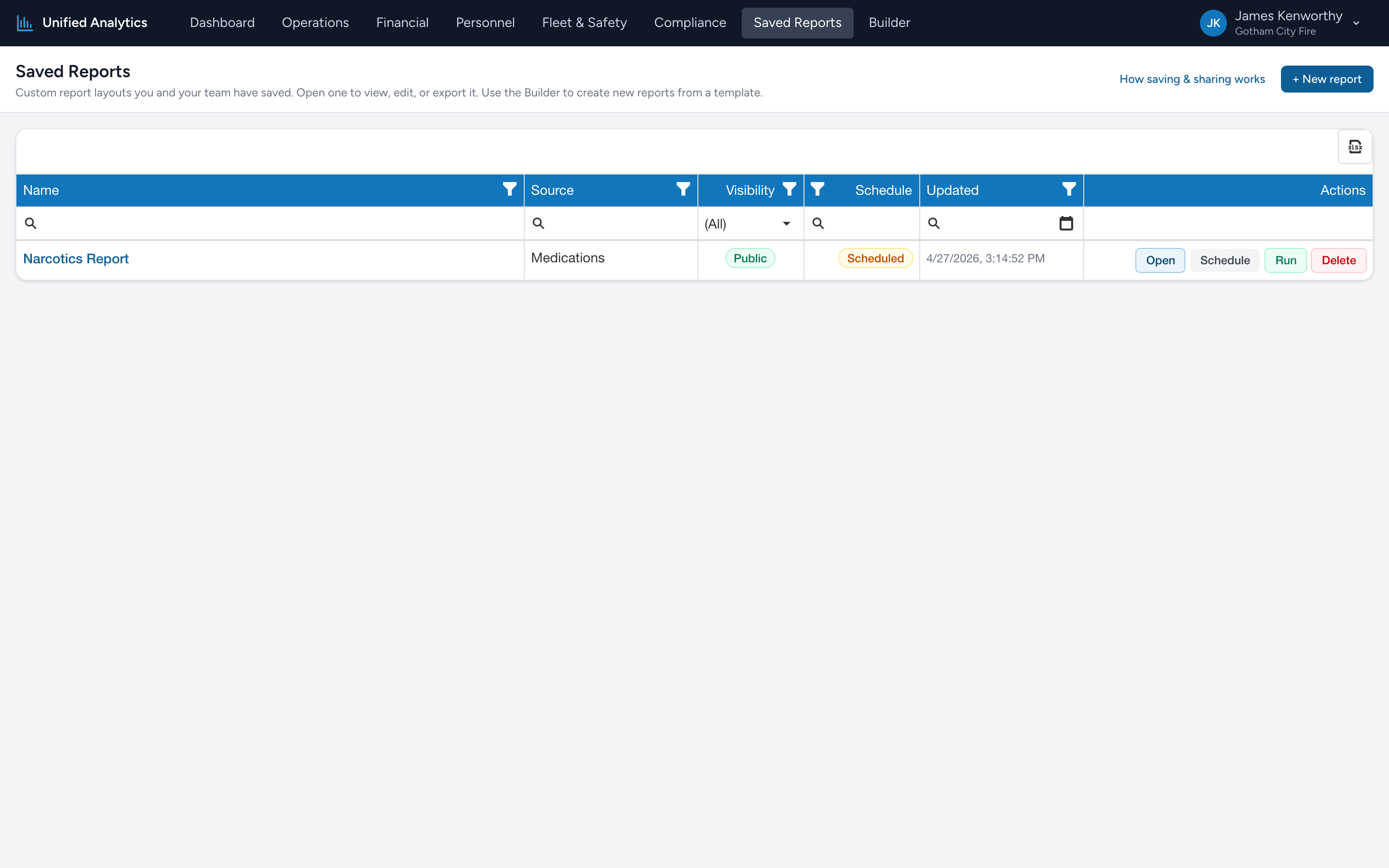
From the menu, click Saved Reports. The Schedule column on every row tells you the state at a glance:
- Scheduled (amber badge) — this report has a recurring delivery set up.
- Not scheduled (gray badge) — no delivery set up yet.
The Run button in the row's Actions follows the Schedule state — it lights up green for scheduled rows and stays gray and disabled for the rest.
What you can schedule
Today, scheduling is available on:
- Every saved report on the Saved Reports page (the most common path).
- Some canned reports — for example, PCR Volume Trend under Operations has a Schedule button on its toolbar.
More canned report pages will pick up a Schedule button over time. For anything not yet wired up, the workaround is to save your own version in the Builder and schedule that.
Setting up a schedule
From the Saved Reports row, click Schedule. The Schedule report delivery dialog opens. Set the name, frequency, time of day, timezone, formats, and recipients, then save. The full walkthrough is in Creating a scheduled report.
After saving, the row's Schedule badge flips to Scheduled and the Run button becomes active.
Running a schedule on demand
Click Run on the row. The recipients receive the latest snapshot in a few minutes — without waiting for the next scheduled time. A confirmation message tells you the run was queued.
This is the right move when a stakeholder asks for a fresh copy off-cycle, or when you want to verify a brand-new schedule sends the way you intended.
Where to look next
- Saving and sharing reports — the Saved Reports page in detail, including all four row actions.
- Creating a scheduled report — what the schedule dialog asks for, what each option does, and how PHI changes the rules.