
The AI Analyst answers questions about your data in plain English. Type a question the way you would ask a coworker, and it looks through the same data your reports use, runs the numbers, and replies in the chat. From there you can export the answer to Excel or save it as a report that shows up next to your hand-built ones.
Before you start: The AI Analyst is available to agency admins. If you click AI Analyst and get an error instead of a chat, your account does not have admin access.
Opening the chat
- From the navigation, click AI Analyst.
- A chat panel opens on the side of the page. Type your question in the box that says
Ask about your data…and press Enter.
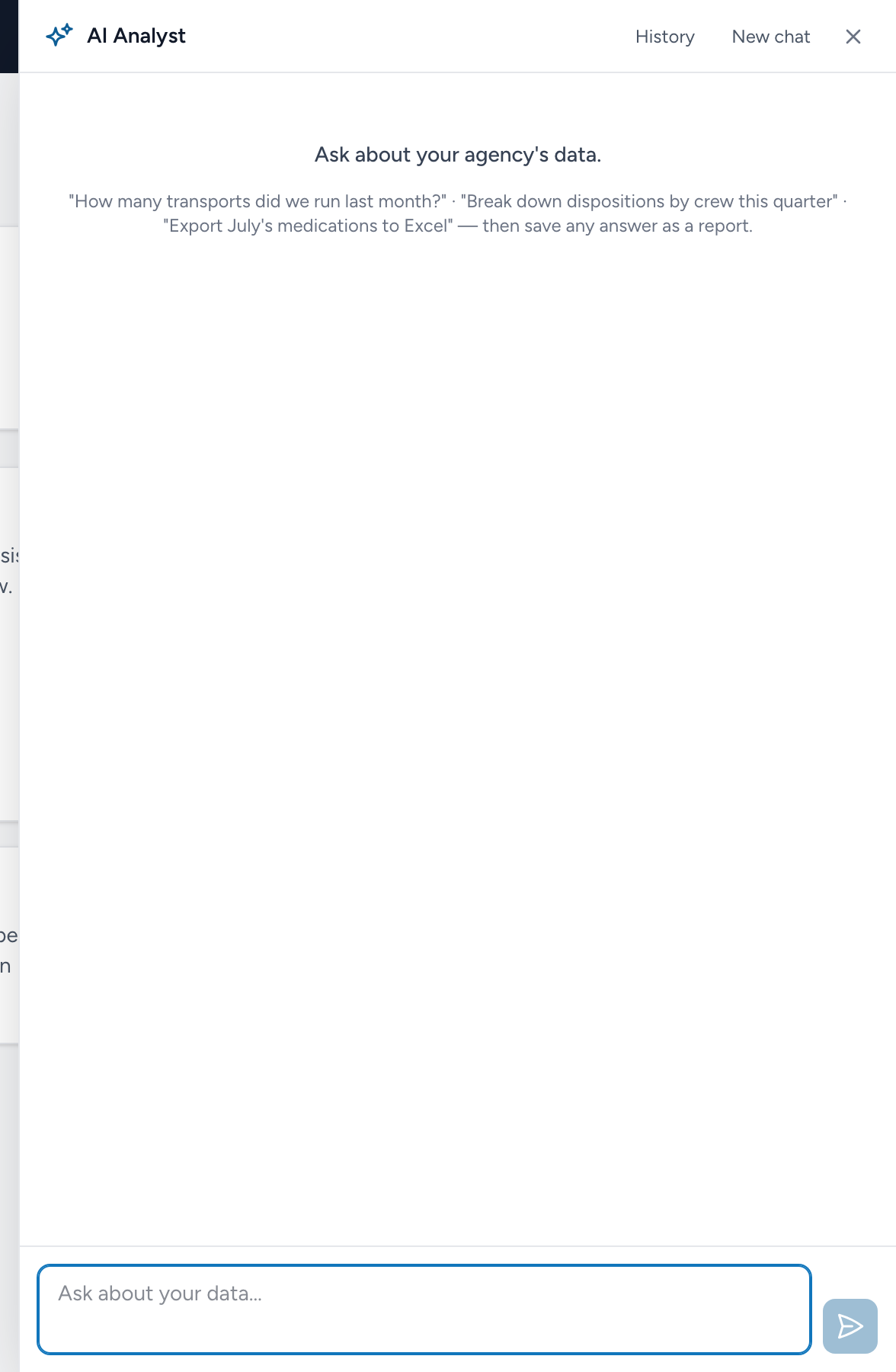
While it works, you will see short activity lines like "Looking at PCR Reports" so you know what it is checking. Longer questions can take a minute; it is reading real data, not guessing.
What it can see
The AI Analyst works from the same sources as the report builder: PCR reports, medications, and procedures from CloudPCR; timecards and time off from Crew Scheduling; personnel, certifications, and employment changes from HR; claims, payments, and billing history from Billing; and incidents from CAD. It never reads patient names or other identifying details. When you export to Excel, the file is built straight from your data without the assistant reading the contents.
Things to try
Copy one of these, or use it as a starting point and swap in your own dates and details.
Counting and comparing
How many transports did we run last month?Compare our call volume this month to the same month last year.Break down dispositions by crew this quarter.What were our ten busiest days so far this year?
Digging into a specific area
Which medications did we give most often in July?How many claims did we submit last month?Which certifications expire in the next 90 days?Show me pending time off requests.
Exports and reports
Export July's medications to Excel.A download card appears in the chat when the file is ready. Click it to save the file.Save that as a report called Monthly Transports.The report lands in your Saved Reports and opens in the report builder like any other, so you can adjust columns and charts or put it on a schedule.Update my Monthly Transports report to cover the last 90 days.It can edit reports you own; it will ask before changing anything shared.
Tips for better answers
- Give it a date range. "Last month" or "since January 1" beats leaving the timeframe open.
- Ask one thing at a time. Two focused questions get better answers than one question with five parts.
- Follow up in the same conversation. It remembers the thread, so "now just the 911 calls" works after a volume question.
- If an answer looks off, ask how it got the number. It will tell you which source and filters it used.
Conversations
Each conversation is saved and private to you. Click History at the top of the panel to reopen an earlier one, or New chat to start fresh. Starting fresh helps when you switch topics, since the assistant carries context from earlier in the thread.
To build a report by hand instead, see Custom Reports.