
Truck Checks uses your agency's timezone setting to display all times -- when a check was submitted, when the daily cutoff falls, and when reminders go out. If the times you see look wrong, the timezone may need to be updated. Only users with the Admin role can change this setting.
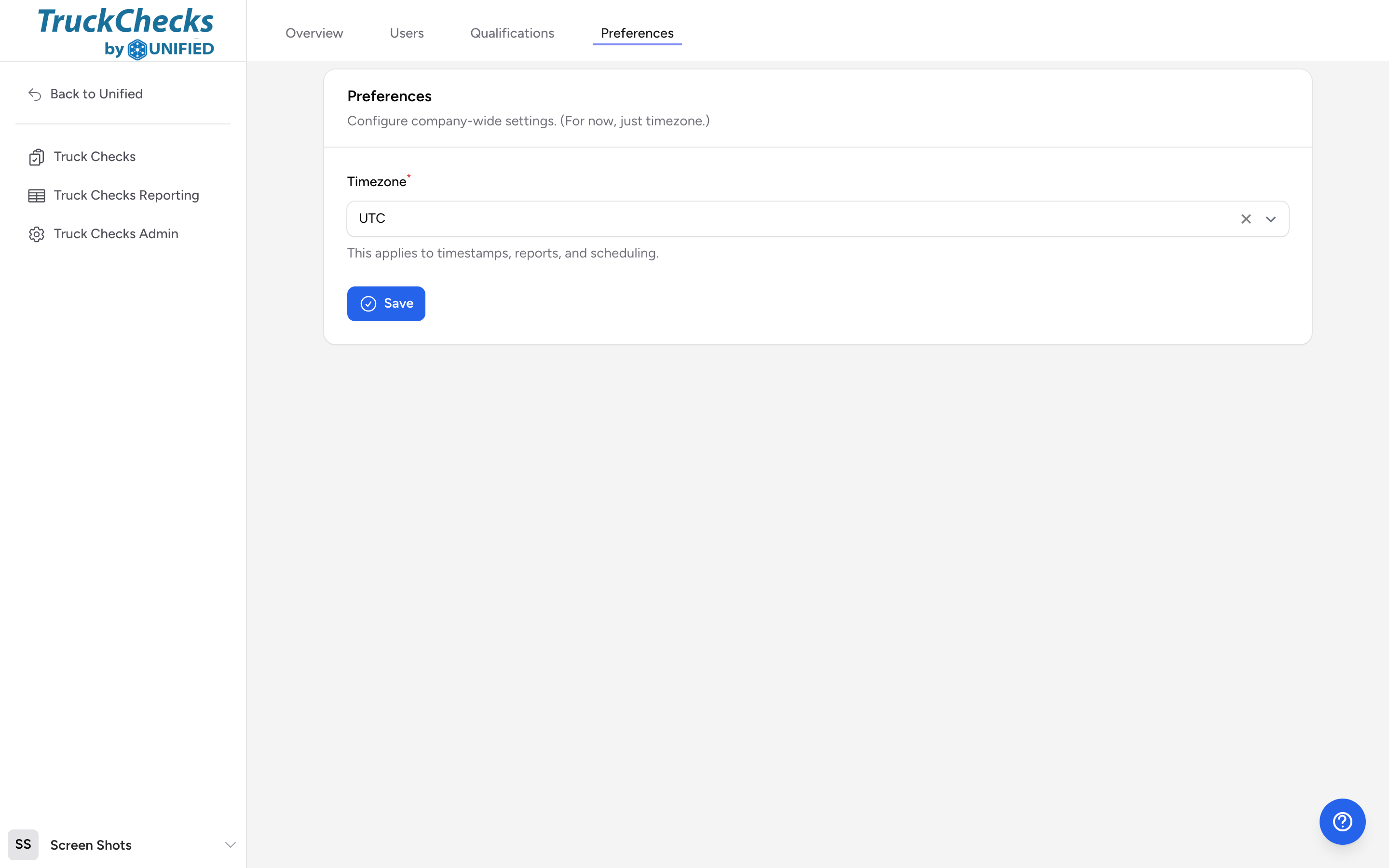
Changing the timezone
- Click your name at the bottom of the menu, then click Settings.
- On the Settings overview, click Manage preferences.
- Pick your timezone from the Timezone dropdown. Options include US, Canadian, and Mexican time zones, each shown with its current UTC offset.
- Click Save.
What it affects
The timezone applies to everything in Truck Checks: submission timestamps in the reporting table, the daily cutoff time, the auto-close window, and reminder delivery. If your agency operates in the Eastern time zone but the timezone is set to Pacific, everything will appear three hours off.
Tip
If your agency spans multiple time zones, pick the one where most of your crews are based. The daily cutoff and reminders only use one timezone.