
Profiles are the backbone of Truck Checks. Each profile ties a checklist and an optional inventory workflow to a set of vehicles. As an administrator, you create profiles so that the right checklist and drug tracking containers appear when a crew selects their vehicle.
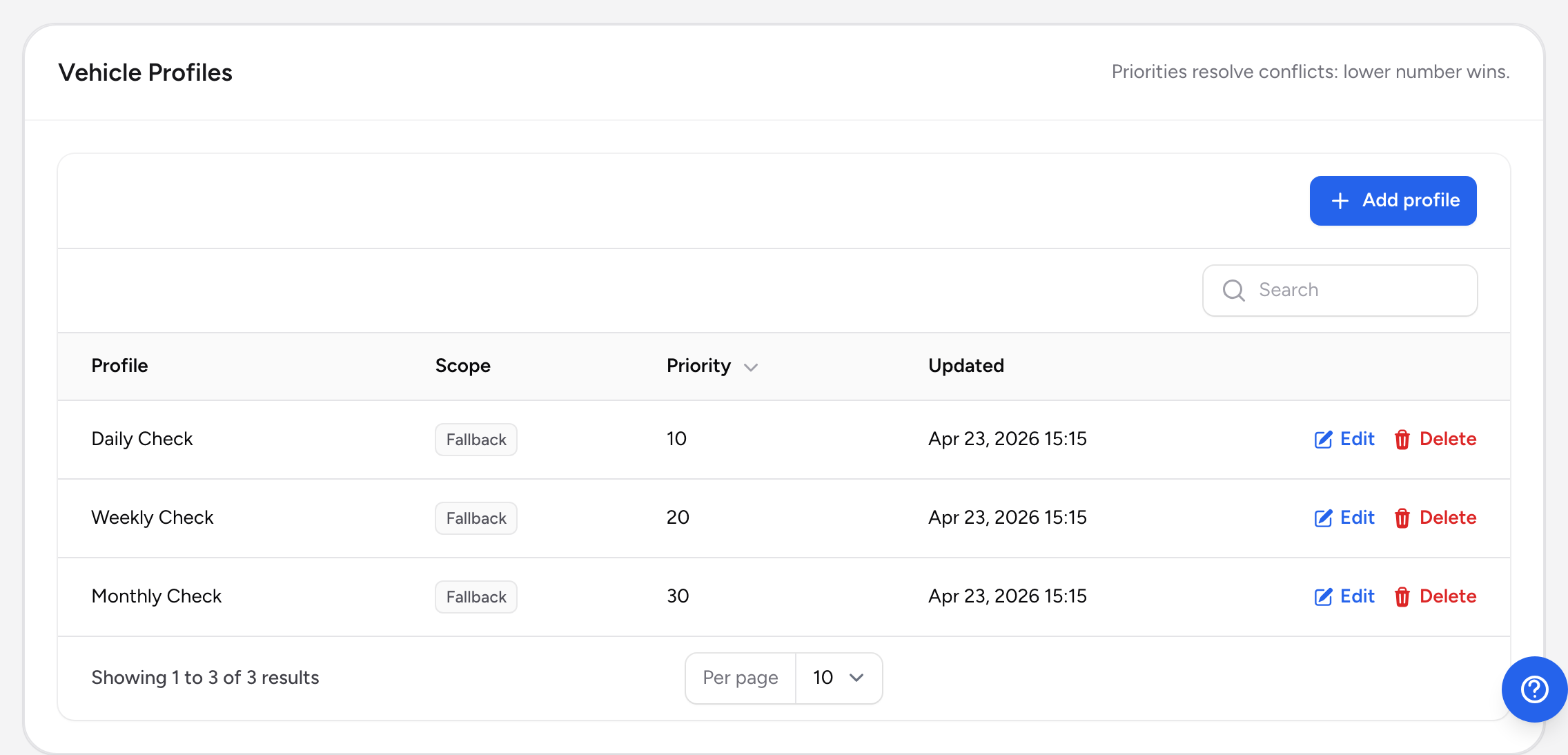
Opening profile management
- From the menu, click Truck Checks Admin.
- Scroll down to the Vehicle Profiles section at the bottom of the page.
The profile table
You will see a table listing all your profiles. The columns are:
- Profile -- the profile name and which checklist it uses.
- Scope -- how the profile matches to vehicles (Category, Specific vehicle, Filtered group, or Fallback).
- Priority -- a number that breaks ties when two profiles could match the same vehicle. Lower numbers win.
- Updated -- when the profile was last changed.
Creating a new profile
- Click Add profile above the table.
- Enter a Profile name (for example, "ALS Ambulance Check").
- Choose a Scope type:
- Category -- matches all vehicles in a category (like "Engine" or "Ambulance"). Pick the category from the dropdown.
- Specific vehicle -- matches one particular vehicle. Pick the vehicle from the dropdown.
- Filtered group -- matches vehicles based on custom filter criteria you enter as JSON.
- Fallback / default -- catches any vehicle that does not match another profile. You usually only need one fallback.
- Choose a Checklist from the dropdown. These come from CheckSheets.
- Optionally choose a Fallback checklist that is used when the primary one is unavailable.
- Toggle Allow crews to override at runtime on or off.
- Optionally choose an Inventory location from Drug Tracking. This links a vehicle's drug bag, cabinet, or other container so the inventory step is pre-loaded. Picking a rig automatically includes its nested bags and boxes.
- Set a Priority number between 1 and 1000. Lower numbers take precedence when multiple profiles could match the same vehicle. The default is 100.
- Click Save profile.
Example setup
Your agency has three ambulances and four engines. You might create:
- A category-based profile called "ALS Ambulance" scoped to the "Ambulance" category, priority 100, with an ALS checklist and each ambulance's drug bag as the inventory location.
- A category-based profile called "Engine Company" scoped to the "Engine" category, priority 100, with an engine checklist and no inventory.
- A fallback profile called "General Check" with a basic checklist, priority 200.
If you later get a specialized rescue vehicle, you can create a vehicle-specific profile at priority 50. Because 50 is lower than 100, it will always win over the category-based profiles.
Editing and deleting profiles
Each row in the table has Edit and Delete actions. Use Edit to change any field and click Update profile to save. Use Delete to remove a profile -- be careful, because deleting a profile means vehicles that relied on it will fall through to a lower-priority profile or the fallback.