
If you need to step away before finishing a truck check -- maybe a call comes in, or you need to look something up -- you can save your progress and come back later.
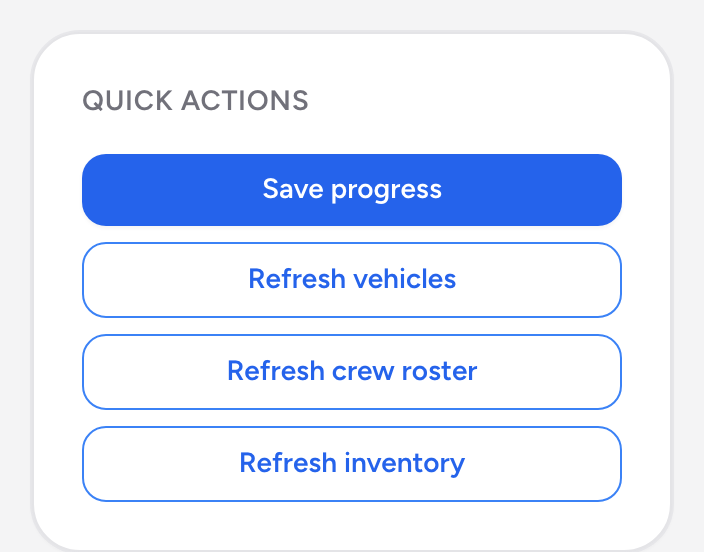
How to save
- Click Save progress in the Quick actions panel on the left side of the screen.
- You will see a confirmation message: "Progress saved. You can resume this run later."
What gets saved
The draft saves your selected vehicle, your checklist responses, your inventory entries, your wrap-up notes, and where you left off in the workflow. Everything you have entered so far is preserved.
Resuming a draft
When you return to Truck Checks, the app detects your in-progress run and restores it. You pick up right where you left off. Your vehicle is already selected, your previous responses are filled in, and you can continue from the step you were on.
Important notes
- You can only have one draft at a time per user. Starting a check for a different vehicle will replace your existing draft.
- Drafts must be enabled by your administrator. If the Save progress button does not appear, your agency may have drafts turned off.
- If you select a vehicle but do not save, your work is not preserved. Always click Save progress before leaving the app.
What happens to abandoned drafts
If you never come back to finish a draft, the system marks it as abandoned. It will not count as a completed check. Your administrator can see abandoned runs in the reporting section.