
The admin configuration page controls settings that apply across every truck check profile for your agency. Only users with the Admin role can access it.
Opening configuration
- From the menu, click Truck Checks Admin.
- The configuration settings are at the top of the page.
General settings
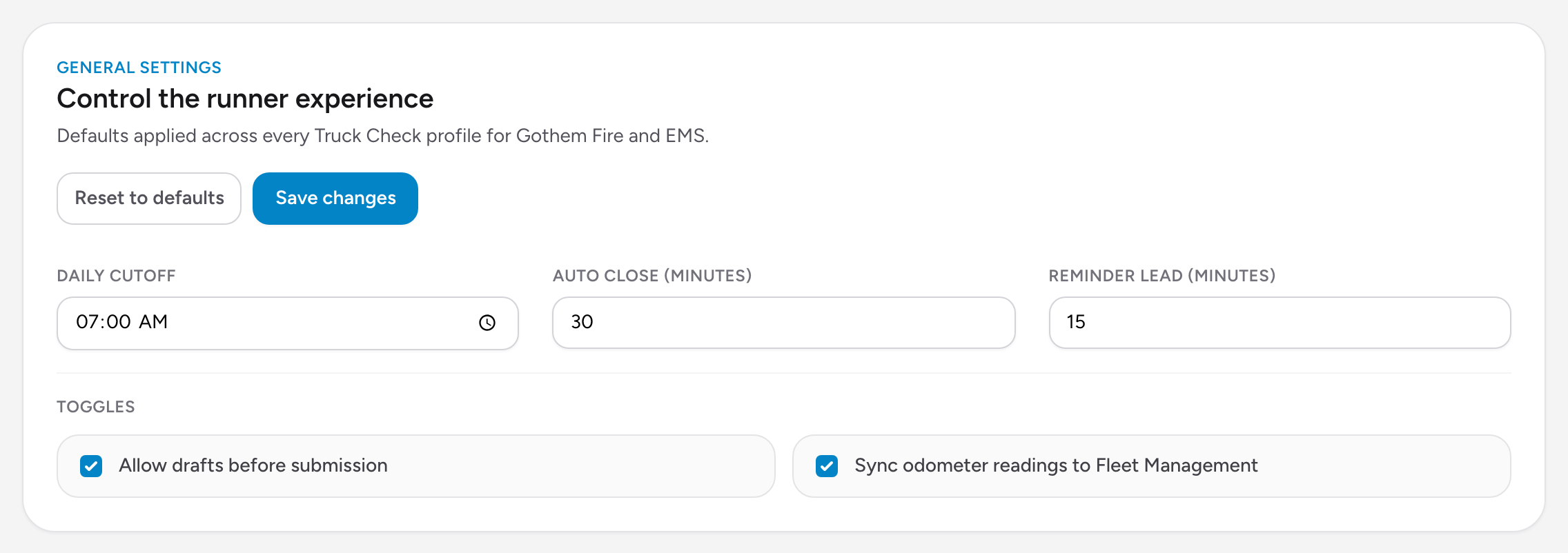
Daily cutoff
The time of day when a new truck check "day" begins. If your shifts start at 07:00, set the cutoff to 07:00. Checks submitted before the cutoff belong to the previous day. Checks submitted after belong to the current day.
Auto close (minutes)
How many minutes after the daily cutoff an in-progress run is automatically closed. For example, if the cutoff is 07:00 and auto close is set to 60, any draft still open at 08:00 will be closed by the system. Set this to 0 to disable auto-close.
Reminder lead (minutes)
How many minutes before the daily cutoff a reminder is sent to crews who have not submitted their check yet. If the cutoff is 07:00 and the lead time is 30, the reminder goes out at 06:30.
Toggles
Allow drafts before submission
When turned on, crews can save their progress mid-check and come back later. When turned off, crews must complete and submit the check in one session.
Sync odometer readings to Fleet Management
When turned on, the odometer reading entered during the vehicle step is sent to Fleet Management after the check is submitted. Turn this off if your agency tracks mileage elsewhere.
Module status
Below the general settings, you will see a panel showing the integration modules available for your agency. Each module (Fleet Management, CheckSheets, Crew Scheduling, Drug Tracking) shows whether it is Enabled or Disabled. These are managed from your agency's company record -- you cannot change them from this page. If a module you need is disabled, contact your Unified Solutions support contact.
Connectivity tests
Click Run tests to verify that Truck Checks can reach each connected app. Each test shows one of three results:
- Success -- the connection is working.
- Skipped -- the module is disabled, so the test was not run.
- Error -- something went wrong. The error message gives you a starting point for troubleshooting.
If a test fails, the most common causes are: the other app is temporarily down, your agency's subscription to that app has lapsed, or there is a network issue. Try running the tests again in a few minutes.
Saving changes
After adjusting any setting, click Save changes at the top of the section. To undo all your changes and go back to the defaults, click Reset to defaults.