
The Run Exports page shows every truck check run that has been submitted for your agency. Use it to review past checks, confirm that data synced to other systems, and look up details about a specific run.
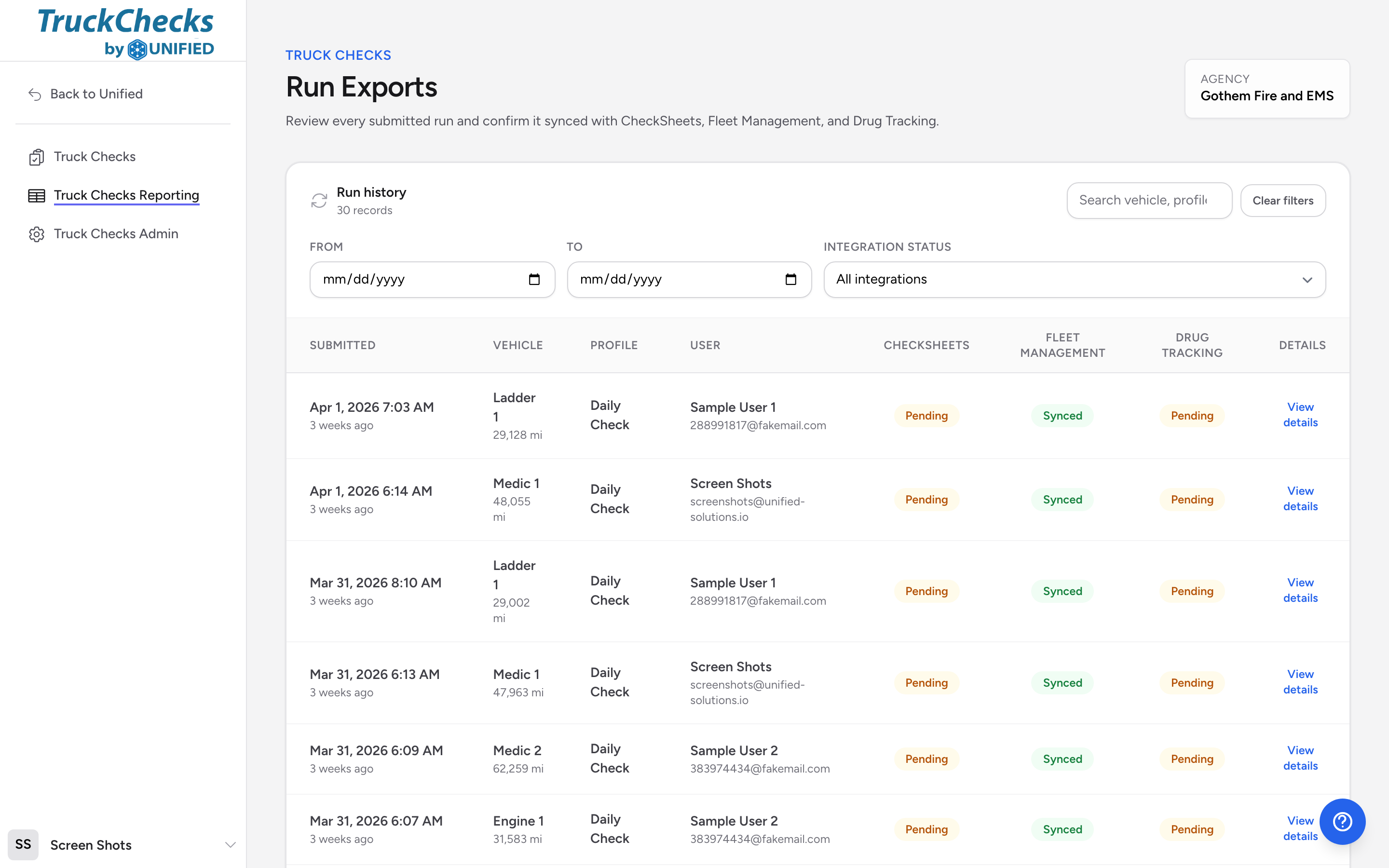
Opening reporting
- From the menu, click Truck Checks Reporting. You must have the Admin role to see this option.
What you see
The page heading is Run Exports. Below the header is a Run history table with these columns:
- Submitted -- when the check was submitted.
- Vehicle -- which vehicle was checked and the recorded mileage.
- Profile -- which profile was used.
- User -- who performed the check.
- CheckSheets, Fleet Management, and Drug Tracking -- each integration shows Synced, Pending, or (for Fleet Management) Not sent when no mileage was recorded.
- Details -- a link to open the run detail panel.
Searching
Type in the search box (placeholder "Search vehicle, profile, user...") to find runs. For example, type Engine 4 to find every check on Engine 4, or type Smith to find checks performed by someone named Smith.
Filtering
Use the filters below the search box to narrow results:
- From and To date fields let you set a date range. For example, set From to the first of the month and To to today to see this month's checks.
- Integration status lets you filter by sync status. Options are All integrations, CheckSheets pending, Fleet Management pending, and Drug Tracking pending.
Click Clear filters to reset everything and see all runs again.
Viewing run details
- Find the run you want to look at.
- Click View details on the right side of that row.
- A detail panel opens below the table showing three integration status cards, the vehicle, the operator, the run's metadata, and any attachments.
- If photos or signatures were captured, they appear in an Attachments section at the bottom with a Download link for each file.
Resyncing a run
If an integration shows "Pending" and you believe it should have synced, you can resend the data from the detail panel. Click Resend to CheckSheets, Resend mileage, or Restart inventory depending on which system needs the push. You can also click Refresh to reload the run or Close to dismiss the detail panel.
Example
It is the end of the week and your supervisor asks for a summary of all checks on Medic 1. You type Medic 1 in the search box and set the From date to Monday and the To date to today. Five runs appear. You click View details on the one from Wednesday and see that Fleet Management shows "Pending." You click Resend mileage and the status updates to "Synced."