
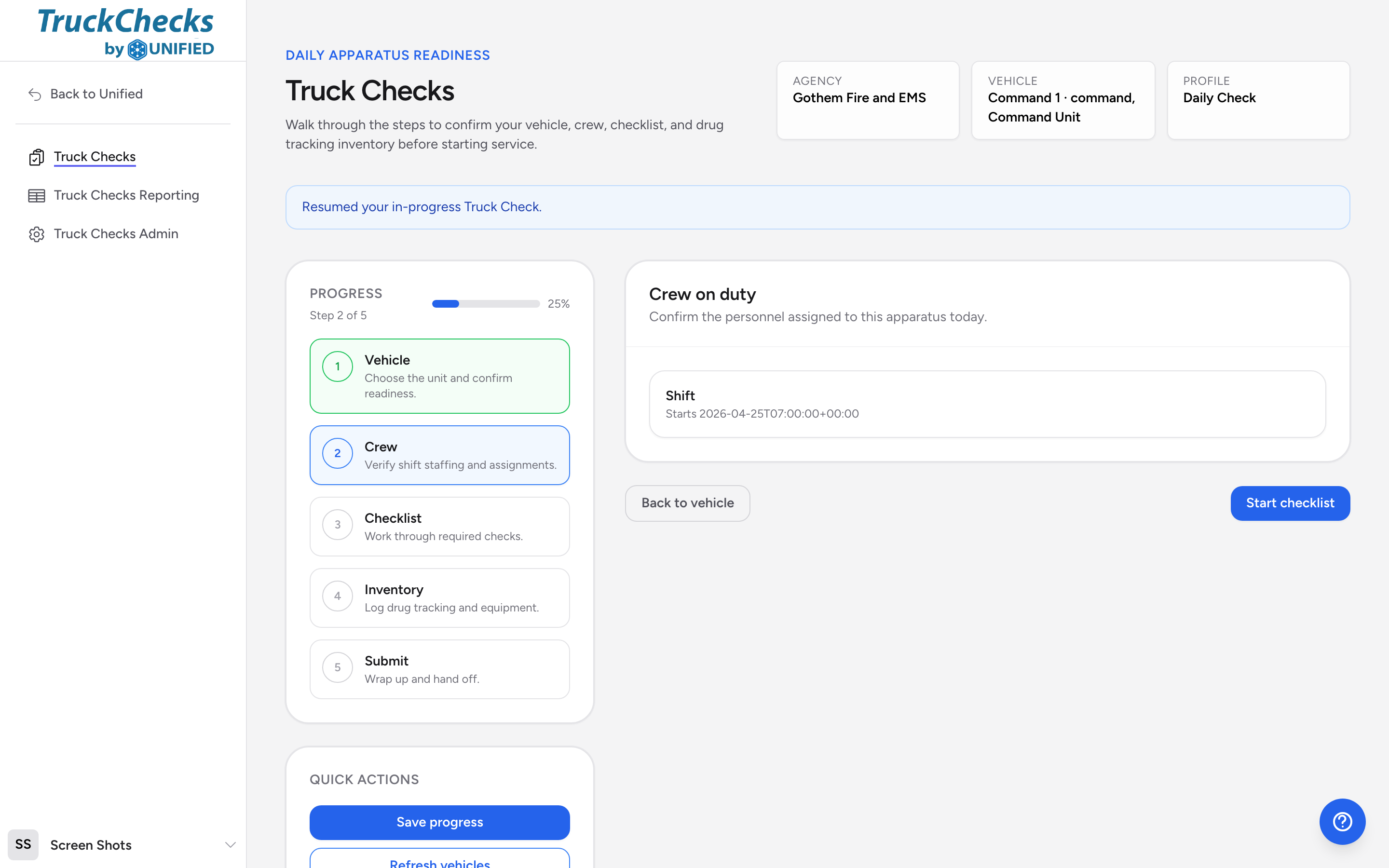
After selecting a vehicle, the next step is confirming who is on the crew today. The crew step shows the people assigned to this apparatus so you have a record of who performed the check.
When crew scheduling is connected
If your agency uses Crew Scheduling, the app pulls in the crew roster automatically. You will see one or more shift blocks, each listing the crew members and their roles (driver, attendant, officer, and so on).
Overnight crews are on the list too. A 24 hour tour or a night shift that started yesterday evening is still on duty when you check the truck this morning, so its block sits alongside the crews coming on today. If your agency runs long tours and you used to see only a couple of units here, you should now see the rest.
- Review the shift blocks on screen.
- Click the shift block that applies to your crew. It highlights with a Selected badge.
- Click Start checklist to move on.
When crew scheduling is not connected
If Crew Scheduling is not enabled for your agency, you will see a manual crew entry form instead. Here you can add your crew members one at a time.
- Choose a user from the dropdown.
- Type their role or assignment (for example, "Driver" or "Attendant").
- Click Add crew member to add another person.
- If you need to remove someone, click Remove on their entry. You must always have at least one crew member.
Refreshing the crew roster
If the roster looks out of date, click Refresh crew roster in the Quick actions panel. This pulls the latest schedule data.
Going back
Click Back to vehicle if you need to change your vehicle selection.