
Truck Checks lets administrators send SMS text messages to users in your agency. You can target notifications by qualification, by role, or by picking specific people.
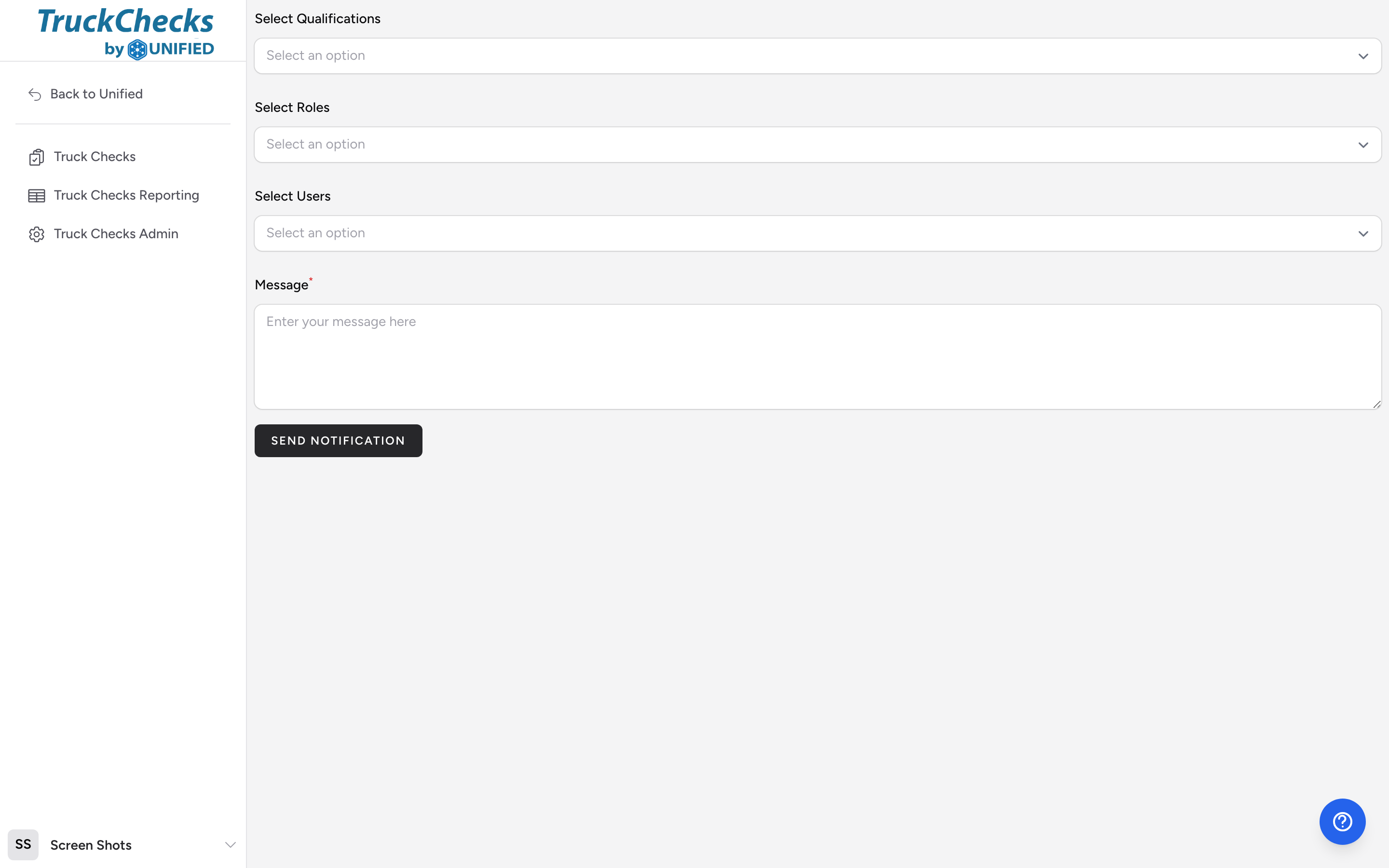
Composing a notification
- Select Qualifications (optional) -- choose one or more qualifications to target. For example, select "Paramedic" to send the message to everyone with that qualification.
- Select Roles (optional) -- choose one or more roles. For example, select "Admin" to reach all administrators.
- Select Users (optional) -- pick specific people from the list. Only users with a verified phone number appear here.
- Type your Message in the text area.
- Click Send Notification.
The app sends the message as an SMS text to every user who matches your selections and has a phone number on file. Each message is prefixed with your agency name and the sender's name so recipients know who it is from.
How targeting works
If you select both a qualification and a role, the message goes to anyone who matches either condition. You do not need to fill in all three fields -- just use the ones that make sense for your situation.
Example
A medication safety alert comes in and you need to notify all paramedics and nurses. You open the notification page, pick "Paramedic" and "RN" under Select Qualifications, type "URGENT: Check the expiration dates on all Ketamine vials. Recall notice posted in quarters." in the Message field, and click Send Notification. Every user with the Paramedic or RN qualification who has a phone number on file receives the text message.
Troubleshooting
- If a user reports they did not receive the message, check that they have a phone number saved and verified in their user profile.
- If no one receives the message, confirm that the SMS integration is working by contacting your Unified Solutions support team.