
Qualifications are labels you assign to users based on their certifications or positions. They are used when sending notifications to specific groups of people. Only users with the Admin role see the Settings menu where qualifications are managed.
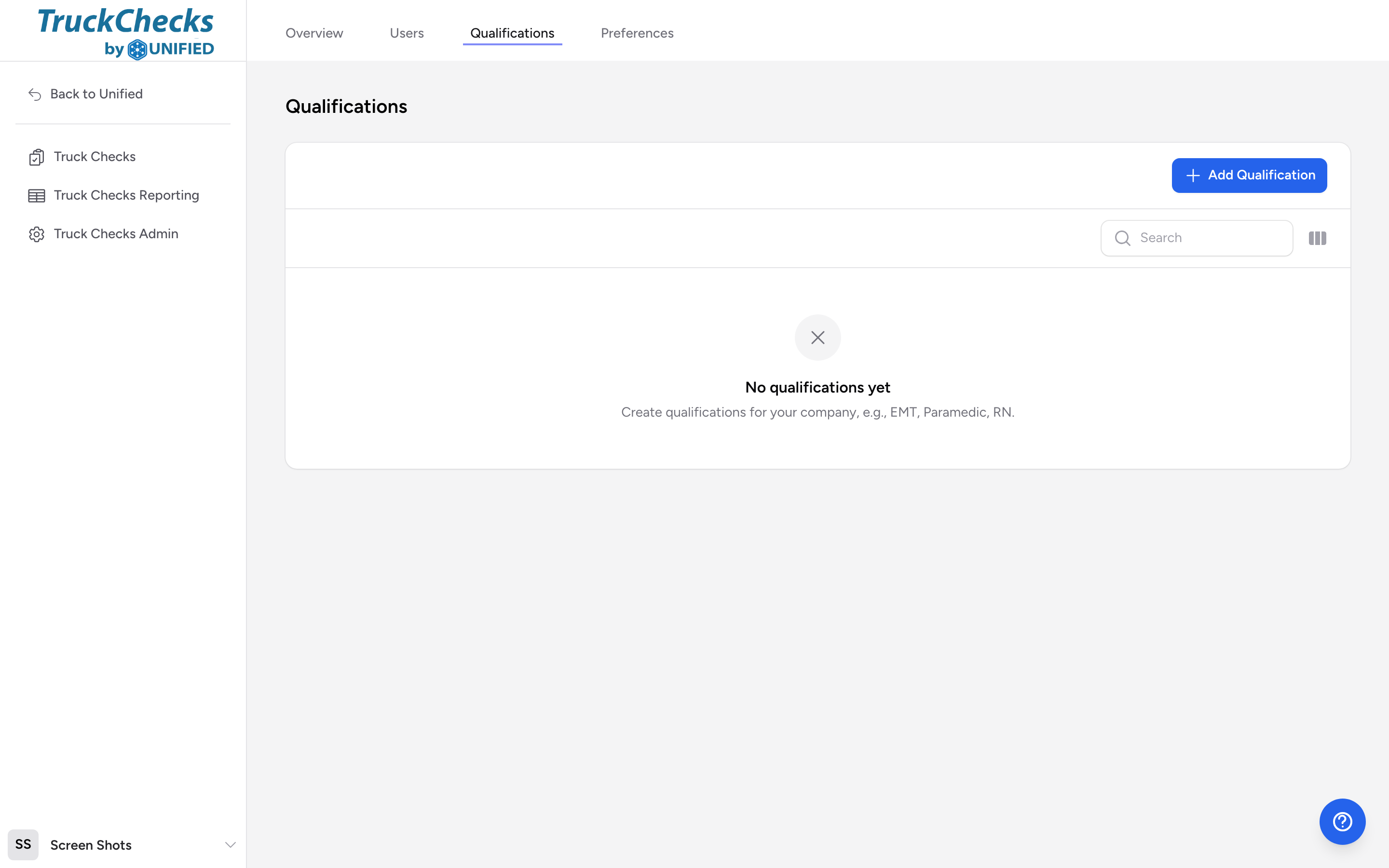
Opening the qualifications page
- Click your name at the bottom of the menu, then click Settings.
- On the Settings overview, click Manage qualifications.
What you see
A table titled Qualifications listing every qualification your agency has created. The columns are Name and Users in Company. Common examples include EMT, Paramedic, RN, Driver, and Officer.
Creating a qualification
- Click Add Qualification above the table.
- Enter a Name (for example, "Paramedic").
- Optionally enter a Description.
- Submit the form.
Once created, you can assign the qualification to users on the Users page.
Editing or removing a qualification
Each row has Edit and Delete actions. Use Edit to change the name or description. Use Delete to remove a qualification -- if you delete one, it will no longer appear as an option when editing users or targeting notifications.
How qualifications are used
- When sending SMS notifications, you can target everyone with a specific qualification. For example, send a message to all Paramedics about a medication recall.
- Qualifications help identify who on a crew is certified for what.
Example
Your agency brings on several new EMTs and a flight nurse. You create a "Flight RN" qualification, then go to the Users page and assign it to the new flight nurse. Later, when a patient transport protocol changes, you send an SMS notification targeted at the "Flight RN" qualification and only that nurse receives it.