
Before your crews start running daily checks in Truck Checks, walk through this checklist in order. Each step builds on the one before it, so completing them in sequence saves you from going back to fix things later.
The checklist
- Set your timezone
- Go to Settings and pick your agency's timezone.
- Add qualifications
- Create the qualifications your team uses, such as EMT, Paramedic, and RN.
- Assign roles and qualifications to users
- Your crew members already exist from SSO.
- Assign their roles and qualifications here.
- Set up truck check profiles
- Create profiles that match vehicles to the right checklist and inventory workflow.
- Profiles can be vehicle-specific, category-based, or a fallback for everything else.
- Configure admin settings
- Set your daily cutoff time.
- Set the auto-close duration.
- Set the reminder lead time.
- Decide whether to allow drafts.
- Check integration modules
- Confirm which modules are connected, such as Fleet Management, CheckSheets, and Drug Tracking.
- Run connectivity tests to make sure everything is working.
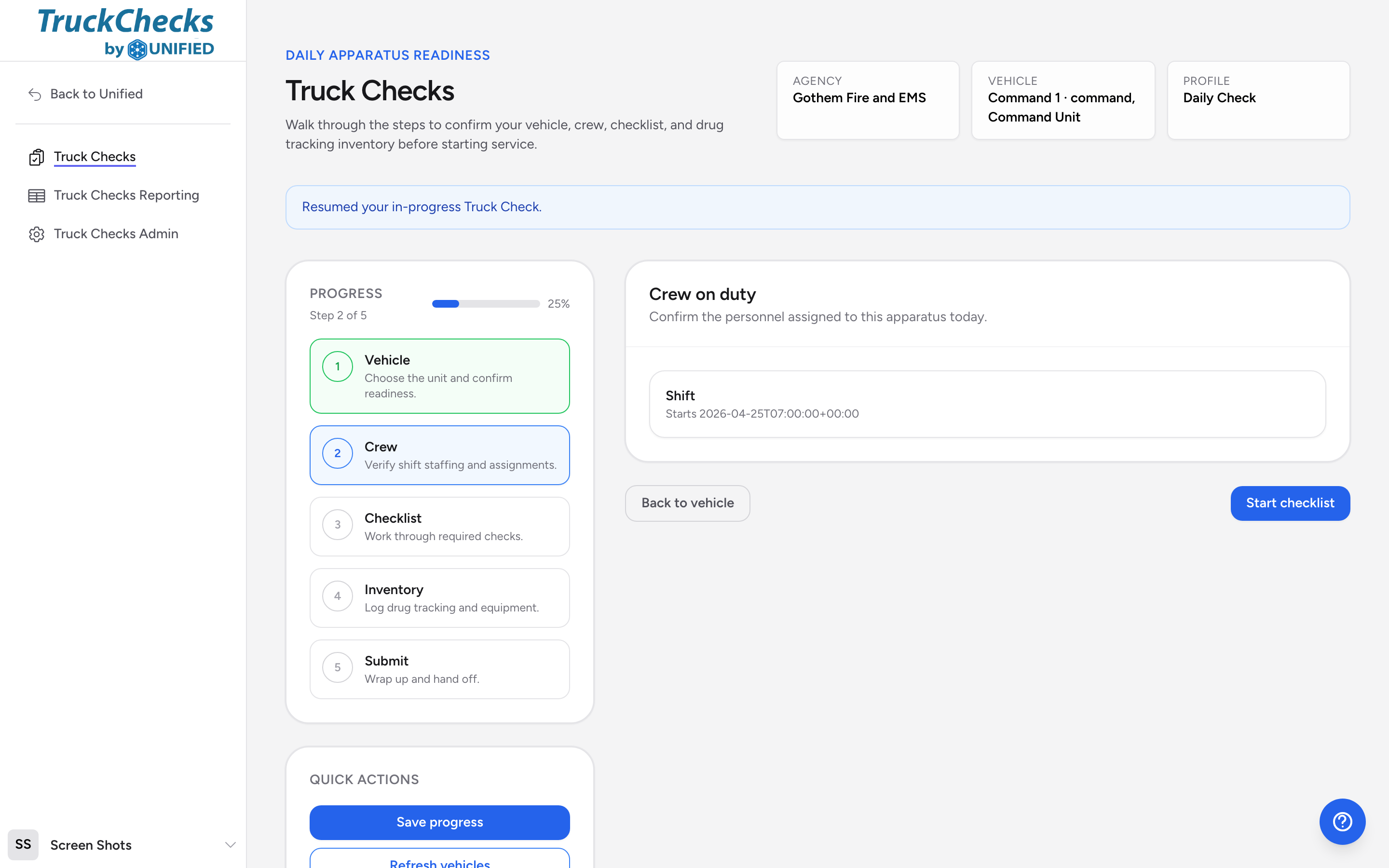
- Have a crew run a practice check
- Pick a vehicle.
- Walk through the checklist and inventory steps.
- Submit the check to make sure everything is configured correctly.