
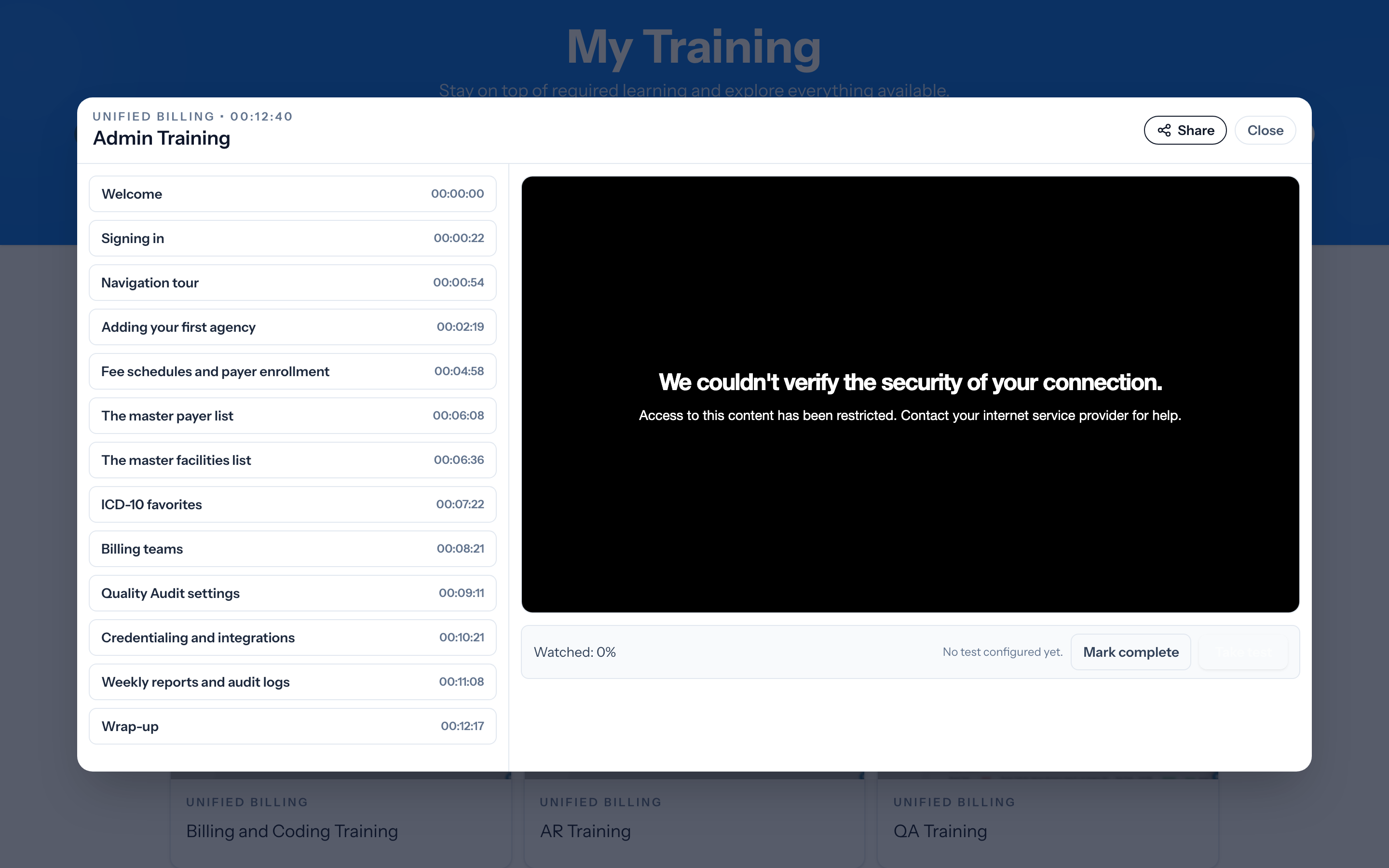
When you open a lesson, it plays in a window with the video on one side and a list of chapters on the other. You watch right in your browser, with nothing to install.
Using chapters
The chapter list breaks the video into named sections with timestamps. Click any chapter to jump straight to that part. Chapters are the fastest way to find one specific step without scrubbing through the whole video.
Your progress is saved
As you watch, the lesson keeps track of how much you have seen. The Watched percentage near the player shows how far along you are. You can close the window and come back later; the lesson remembers where you stopped, and its card on My Training shows a Resume button.
Lessons that ask you to watch it all
Some lessons are set so you cannot skip ahead past the part you have reached. If you try to jump forward and the video snaps back, that lesson is meant to be watched in order. Let it play through, and you can always replay sections you have already seen.
Finishing a lesson
Watching most of a lesson marks it complete on its own. If the lesson has a quiz, you finish it by passing the quiz instead. See Taking a quiz to finish a lesson and Prerequisites and how training is marked complete.
Tip: On a phone, the video opens in full screen when you press play so you get the largest view.