
Assigning training is how you turn a set of lessons into required learning for the people who need it. When you assign an app to someone, its lessons appear under Required Training on their My Training page.
Step by step
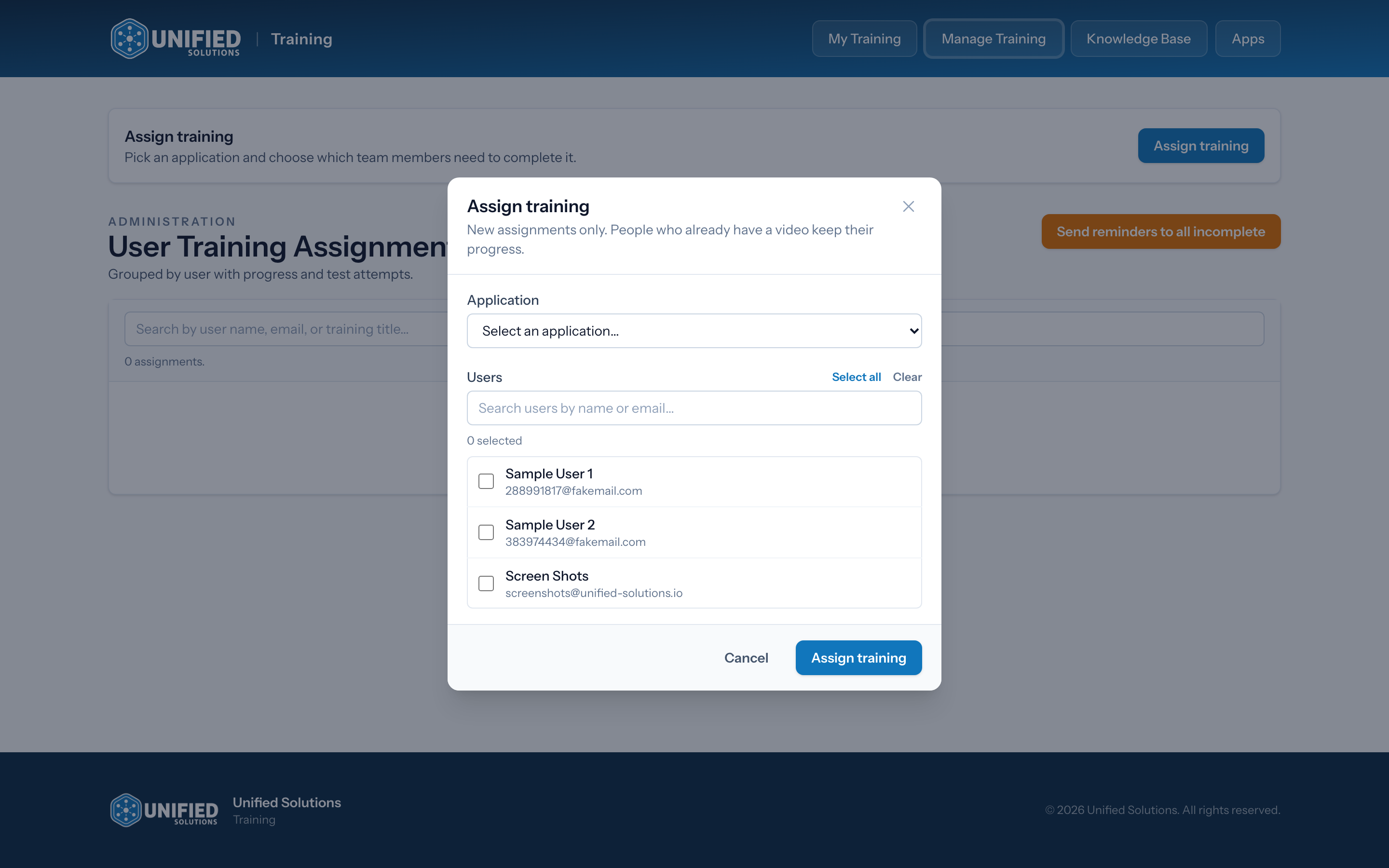
- Open Manage Training and click Assign training.
- Under Application, pick the app whose lessons you want to assign. The list shows how many lessons each app has.
- Choose the people who need it. Search by name or email to find someone quickly, or click Select all to choose everyone. Clear starts the selection over.
- Check the count of selected people, then click Assign training.
Re-assigning is safe
Assigning the same app again only adds lessons to people who did not already have them. Anyone who already had the training keeps their progress, so you never reset someone's work by assigning again. After you assign, a short message confirms how many lessons went to how many people, or tells you everyone already had it.
After you assign
The new assignments show up right away in the assignments table below, where you can follow each person's progress. See Tracking your team's training progress.
Tip: You assign by app, not by single lesson. Pick the app that covers what your team needs, and everyone you select gets its lessons.