
What quick actions are
The + button on the dashboard opens a list of common tasks you can start without leaving the dashboard. Instead of clicking into an app, finding the right page, and clicking "New," you do it in one step from here.
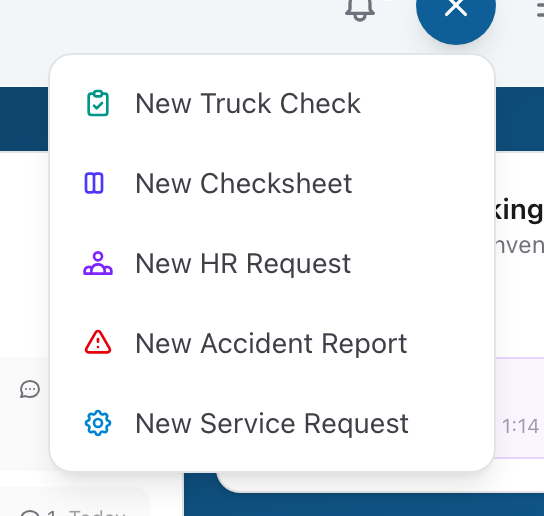
What is available
- New Truck Check — opens the truck check app so you can start a new vehicle inspection.
- New Checksheet — opens the checksheet app so you can start a new equipment or station checksheet.
- New HR Request — opens a form right on the dashboard where you can submit an HR request.
- New Accident Report — opens a form on the dashboard to file a vehicle accident report.
- New Service Request — opens a form on the dashboard to report a vehicle issue that needs repair.
How to use them
- Click the + button on the dashboard.
- Pick the action you want.
- For Truck Check and Checksheet, you will be taken to the other app to fill out the form there.
- For HR Request, Accident Report, and Service Request, a form opens right on the dashboard. Fill it out and submit it without leaving the page.
An example
You back the ambulance into the bay after a call and notice the rear bumper is cracked. You pull out your phone, sign in, click the + button, pick New Accident Report, fill in the vehicle, date, location, and damage description, and submit it. The whole thing takes two minutes. Your supervisor gets a notification and the report is on file before you even finish cleaning the truck.