
What HR requests are for
The HR request form lets you send a message to your agency's human resources team. Use it for questions about benefits or payroll, to flag equipment issues, to request a personnel change, or for any other HR-related issue your agency handles through this channel.
How to submit one
- On the dashboard, click the + button.
- Click New HR Request.
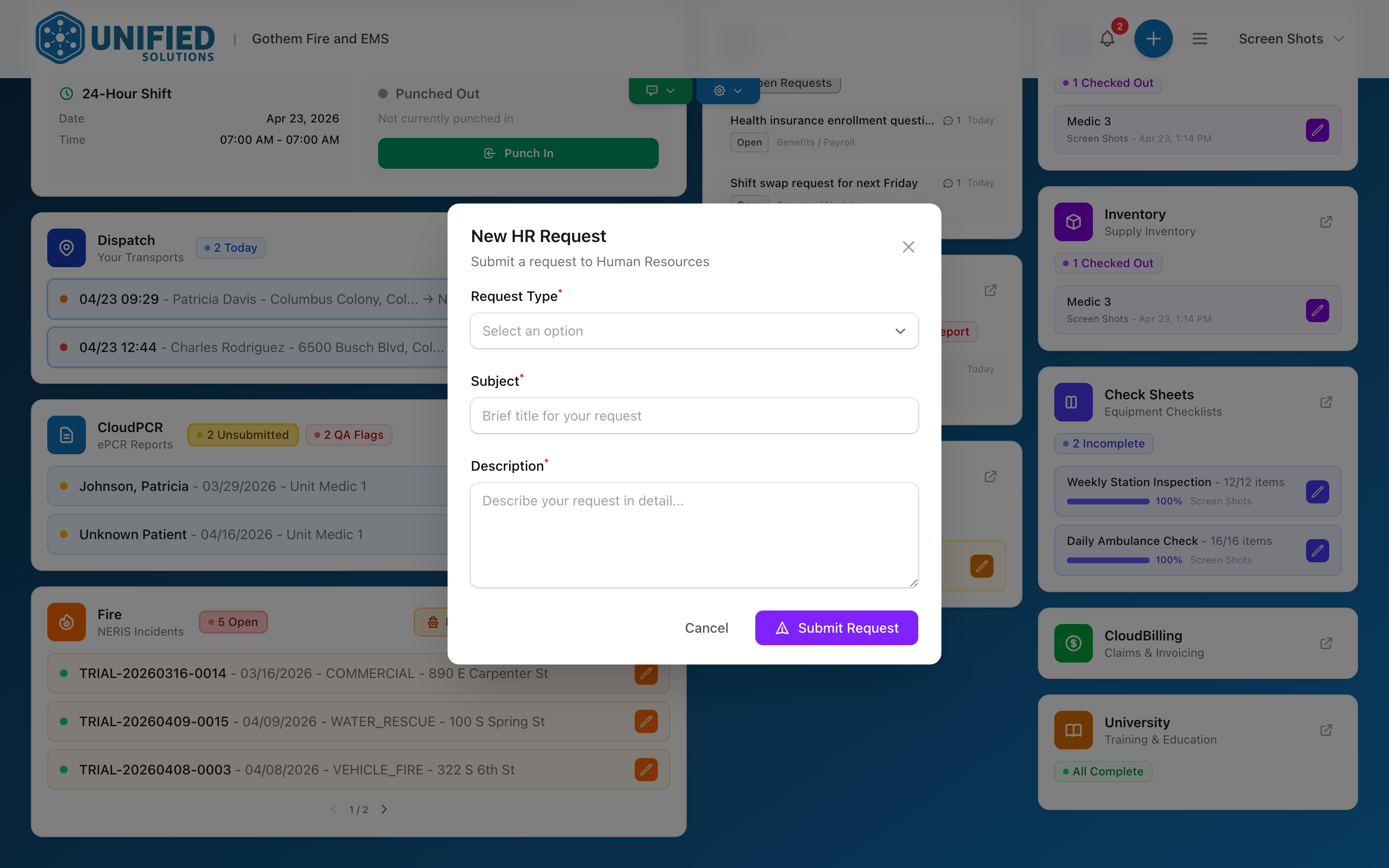
- A form opens on the dashboard.
- Pick the Request Type from the list. Options include Personnel Update, Equipment Issue, Benefits / Payroll, and Other.
- Enter a Subject — a short summary of what you need. For example: "New uniform request."
- Enter a Description with the details. Include dates, context, and anything else your HR team needs to know.
- Click Submit Request.
What happens next
Your request is saved and your HR team is notified. You can check the status of your request later if your agency has set up tracking. If your HR team has questions, they may reach out to you directly or update the request.
An example
Your agency-issued jacket has a broken zipper and you need a replacement. You click the + button, pick New HR Request, select Equipment Issue as the type, enter the subject "Replacement jacket needed — broken zipper," and in the description write "The zipper on my issued winter jacket failed during yesterday's shift and will not close. Need a replacement before next week." You click Submit Request and your HR coordinator gets a notification.
Tip: The more detail you put in the description, the fewer follow-up questions your HR team will have. Include dates, shift details, and any arrangements you have already made.