

What the tiles are
Every app your agency uses gets its own tile on the dashboard. You might see tiles for CloudPCR, Fire, Dispatch, and others, depending on what your agency has set up.
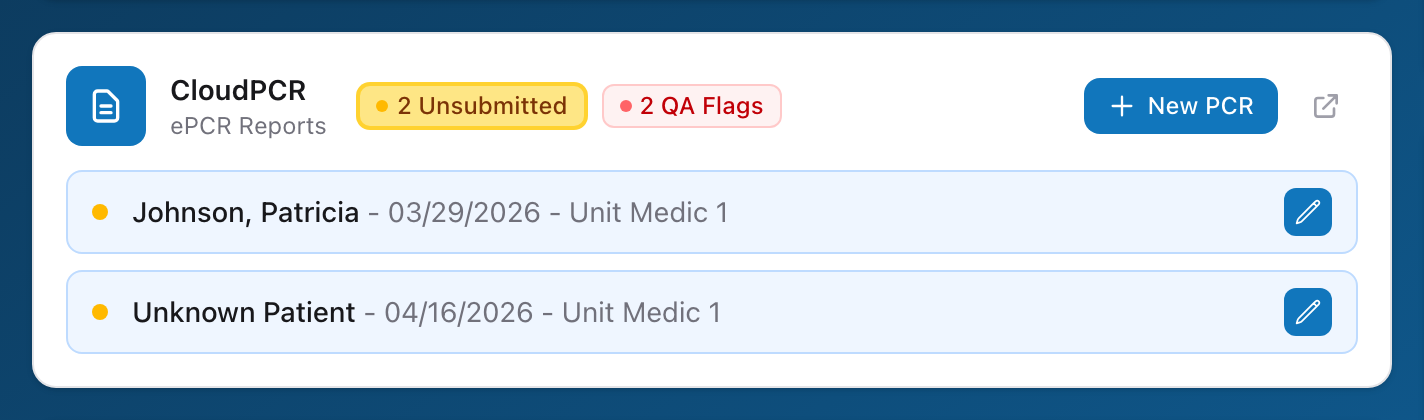
What the numbers mean
Each tile can show a number. That number is a summary pulled from the app itself. For example:
- The CloudPCR tile might show the count of PCRs you have started but not yet submitted.
- The Fire tile might show the number of open incidents.
- The Truck Checks tile might show the number of checks due for your vehicles.
The exact meaning depends on the app. The number is always something that needs your attention — think of it as a to-do count.
Clicking a tile
Click any tile to open that app. You do not need to sign in again. The app opens and you land on its main page, ready to work.
If a tile is missing
There are two common reasons a tile might not show up:
- Your agency does not use that app. Your administrator decides which apps are active.
- The tile has been hidden in your dashboard settings. You can show it again — see Choosing which tiles to show.
An example
You sign in at the start of your shift and see three tiles: CloudPCR shows 2, Truck Checks shows 1, and Dispatch shows 0. That tells you there are two PCRs waiting for you, one truck check to finish, and nothing pending in Dispatch. You click the CloudPCR tile, knock out those two PCRs, come back to the dashboard, click the Truck Checks tile, and finish the truck check. Now all three tiles show zero and you are caught up.