
If you have hydrant data in a spreadsheet, you can import it in bulk instead of adding each hydrant one at a time. The import tool reads a CSV file, maps its columns to the correct fields, and creates hydrant records in the background.
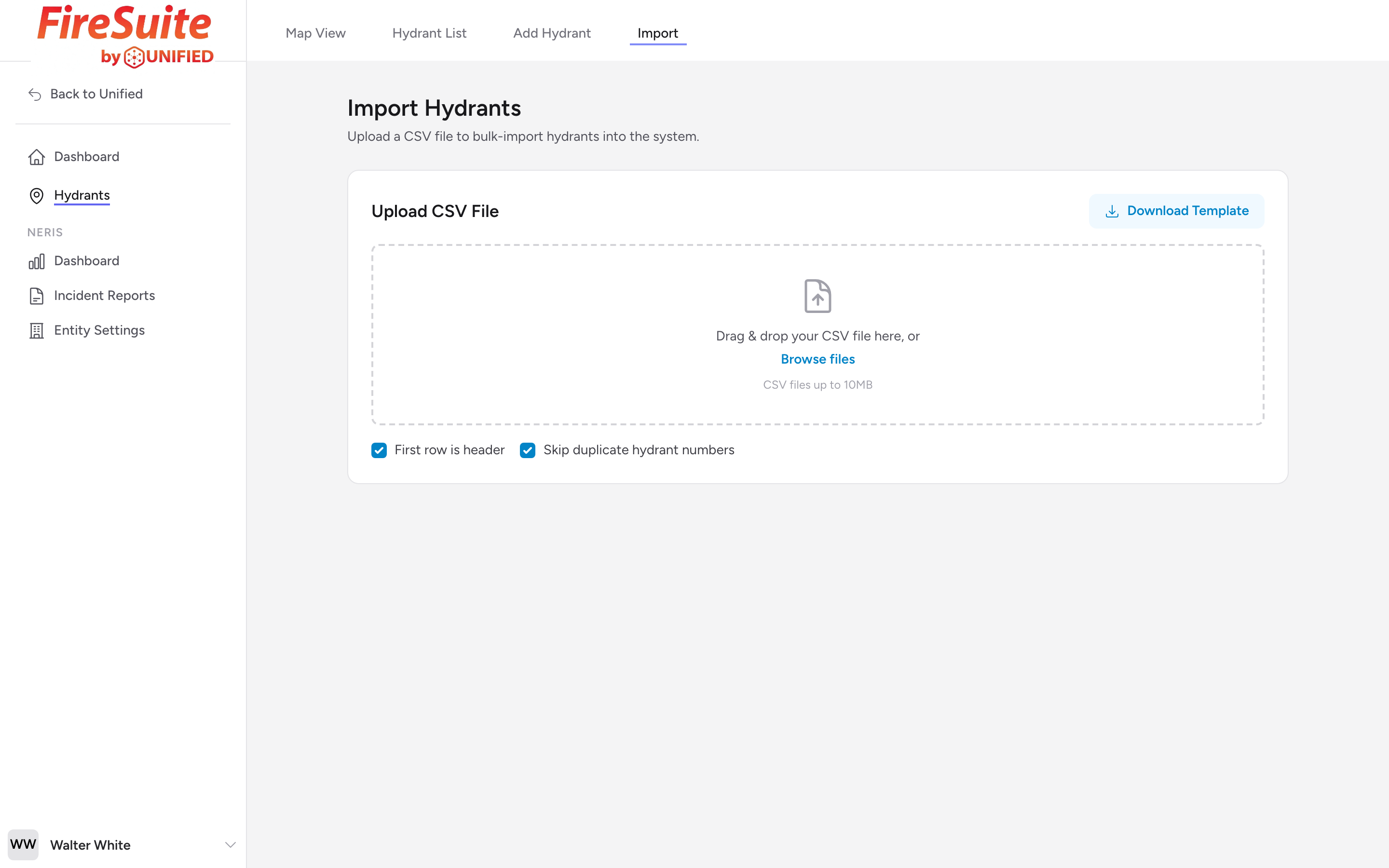
Step by step
- Click Import in the menu.
- Click the upload area or drag a CSV file onto it. The file must be in CSV format and under 10 MB.
- The system reads your file and shows a preview of the first few rows.
- Review the column mapping (see below). Adjust any columns that were not mapped correctly.
- Decide whether the first row is a header row and whether to skip duplicate hydrant numbers.
- Click the Import button (it shows the total row count, for example Import 400 Hydrants) to start the process.
Column mapping
The system reads your column headers and tries to match them to the correct fields automatically. It recognizes many common header names. For example, any of these headers will be mapped to the hydrant number field: "hydrant_id", "hydrant number", "hydrant #", "hydrant no", or just "id".
If a column is not mapped automatically, you can set it yourself using the dropdown next to each column. If a column in your file does not match any field in the system, leave it set to -- Skip Column -- and it will be ignored.
At minimum, you must map the Hydrant Number column. Everything else is optional.
First row header toggle
If your CSV file has column names in the first row, leave the First row is header checkbox on. If your file goes straight into data with no header row, turn it off. The system uses this setting to know whether to skip the first row during import.
Skip duplicates
The Skip duplicate hydrant numbers checkbox is on by default. When it is on, any row whose hydrant number already exists in your system will be skipped instead of creating a duplicate. Turn it off only if you know your file has no duplicates and you want the import to fail if one is found.
Background processing
After you start the import, the system processes your file in the background. The page checks for progress automatically every few seconds and shows a notification when the import finishes. You can stay on the page and watch, or you can leave and come back later.
Results summary
When the import finishes, you see a summary with three numbers:
- Imported -- How many new hydrants were created.
- Skipped -- How many rows were skipped because they were duplicates.
- Errors -- How many rows could not be imported because of bad data (missing hydrant number, invalid coordinates, etc.).
If there are errors, the system lists them so you can fix the problem rows in your spreadsheet and re-import just those.
Downloading the template
Click Download Template on the import page to get a sample CSV file with all of the available columns and one example row. This is the easiest way to get your data into the right format before uploading.
Example
Your water department sends you a spreadsheet with 400 hydrants. Save it as a CSV file, upload it, confirm the column mapping, and click Import 400 Hydrants. Two minutes later, you have 400 hydrants on your map, each with an address, coordinates, and a status.
Tip
Before importing a large file, test with a small file of 5-10 rows first. That way you can check that the column mapping is correct and the data looks right before committing to the full import.