
The hydrant list is a table view of every hydrant in your agency's inventory. It is the best way to work with large numbers of hydrants at once, or to find a specific hydrant when you know its number or address.
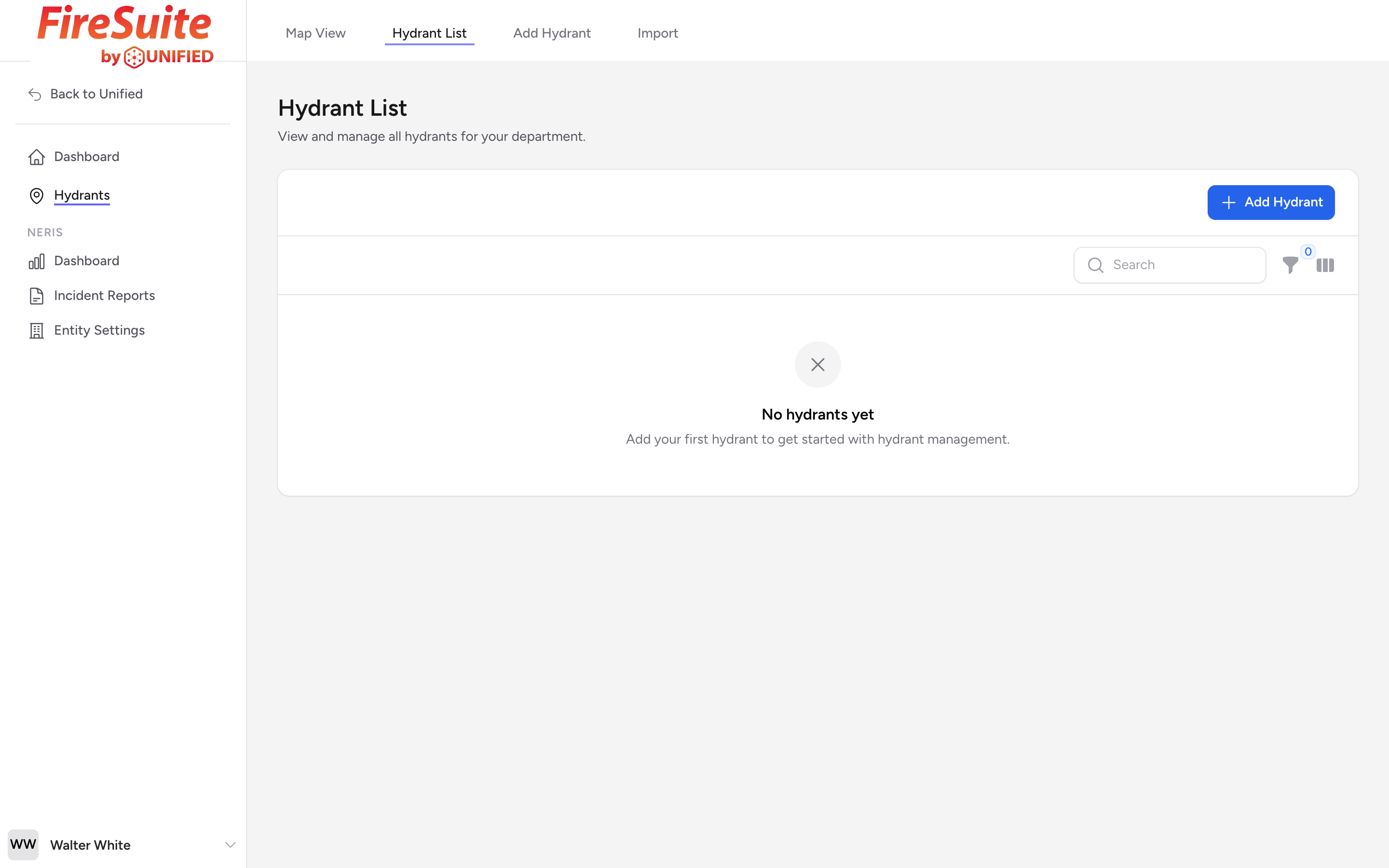
Columns
The table shows these columns by default:
- Hydrant # -- The hydrant number your agency uses.
- Address -- The street address.
- Status -- A colored badge showing Active, Inactive, or Out of Service.
- Type -- Dry barrel or wet barrel.
- Last Inspection -- The date of the most recent completed inspection, or a dash if none has been recorded.
Some columns are hidden by default but can be turned on: Ownership, Installed, and Added. Click the column visibility toggle to show or hide them.
Searching
Type in the search box above the table to search by hydrant number or address. Results update as you type.
Example
You received a complaint about hydrant H-305. Type "H-305" in the search box and the table narrows to that one hydrant. Click View to open its detail page.
Sorting
Click any column header to sort by that column. Click again to reverse the sort order. The table sorts by hydrant number by default.
Filtering
Click the filter icon to open the filter panel. You can filter by:
- Status -- Active, Inactive, or Out of Service
- Type -- Dry Barrel or Wet Barrel
- Ownership -- Public or Private
Filters stay active as you page through results and are remembered for your session.
Pagination
If you have more hydrants than fit on one page, use the pagination controls at the bottom of the table. You can choose to show 10, 25, 50, or 100 hydrants per page.
Row actions
Each row has two actions:
- View -- Opens the hydrant's detail page.
- Edit -- Opens the hydrant's edit form.
Tip
Sort by Last Inspection to find hydrants that have not been inspected recently. The ones with a dash (no inspection on record) should be at the top of your list.