
To add a new hydrant, click Add Hydrant in the menu. This opens a blank form with several sections. You only need to fill in the hydrant number -- everything else is optional but helpful.
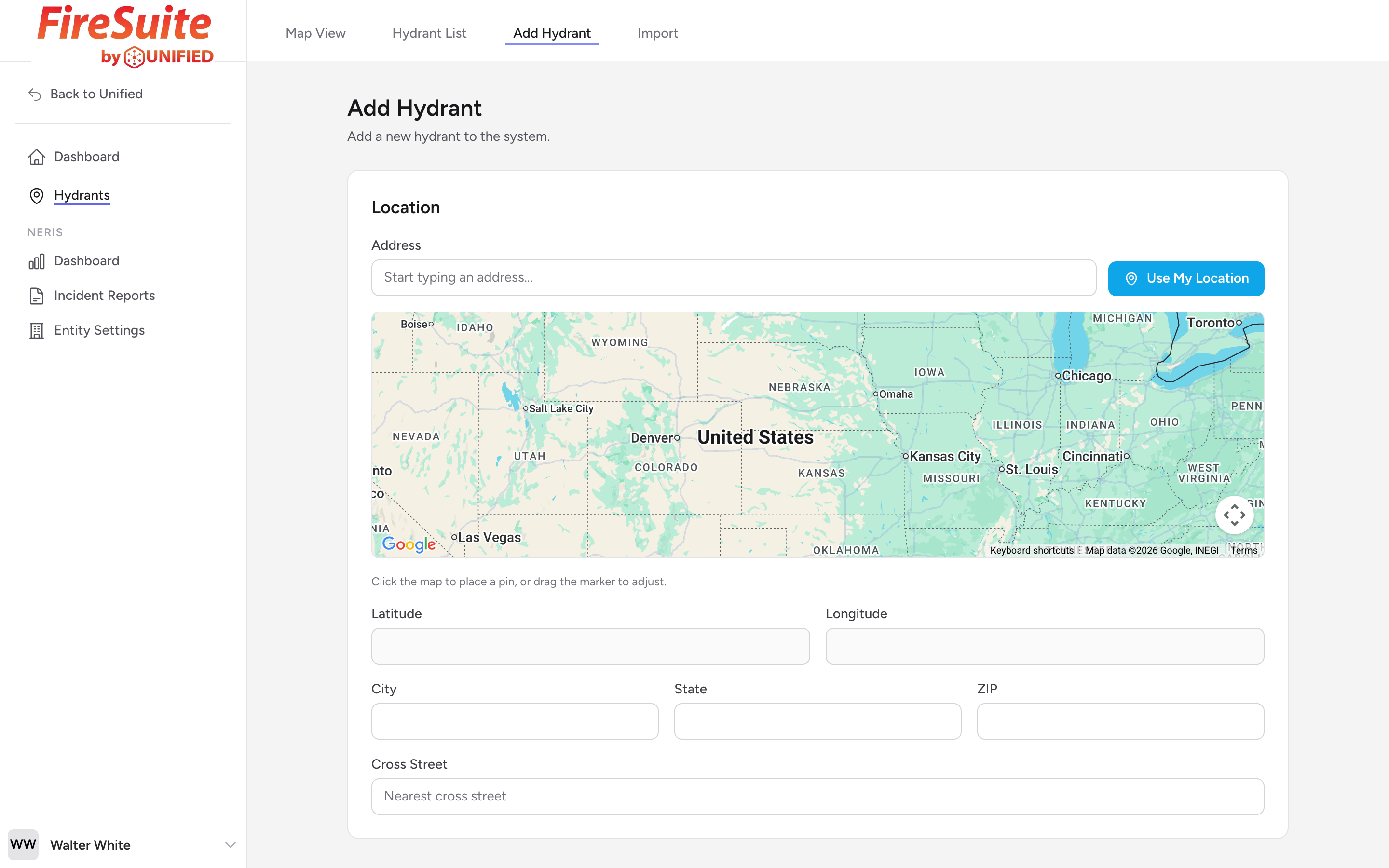
Setting the location
There are three ways to set where the hydrant is:
- Type an address -- Start typing in the address field. As you type, suggestions appear. Pick one and the address, city, state, ZIP, and GPS coordinates fill in automatically. The system also tries to find the nearest cross street.
- Click the map -- Click anywhere on the map to drop a pin. The latitude and longitude fill in based on where you clicked.
- Enter coordinates manually -- If you have GPS coordinates from a survey or another system, type the latitude and longitude directly.
Identification
- Hydrant number -- Required. This is the ID your agency uses, such as "H-1042" or "FH-200." It must be unique.
- Status -- Active, Inactive, or Out of Service. Defaults to Active.
- Type -- Dry barrel or Wet barrel. Leave blank if you are not sure.
- Ownership -- Public or Private. Defaults to Public.
- Color code -- The paint color of the hydrant body or caps, if your agency tracks it.
Physical details
- Make -- The manufacturer, such as Mueller, Waterous, or Kennedy.
- Model -- The specific model, such as Super Centurion or Pacer.
- Year installed -- The year the hydrant was put in the ground.
Connections
Click + Add Connection to add an outlet. For each connection, enter:
- Size -- The diameter in inches. Common sizes are 2.5" and 4.5".
- Type -- The fitting type. Options include NST (National Standard Thread), Storz (quick-connect), Camlock, or Other.
You can add as many connections as the hydrant has. To remove one, click the X icon next to it.
Example
A typical hydrant has two 2.5" NST outlets and one 4.5" Storz steamer. You would click + Add Connection three times and fill in each one.
Notes
Use the notes field for anything that does not fit in the other fields. For example: "Located behind the gas station, hard to access in winter" or "Cap on the east port is stuck."
Saving
Click Create Hydrant when you are done. You are taken to the detail page for the new hydrant. If anything is missing or invalid, you will see an error message next to the field that needs to be fixed.