
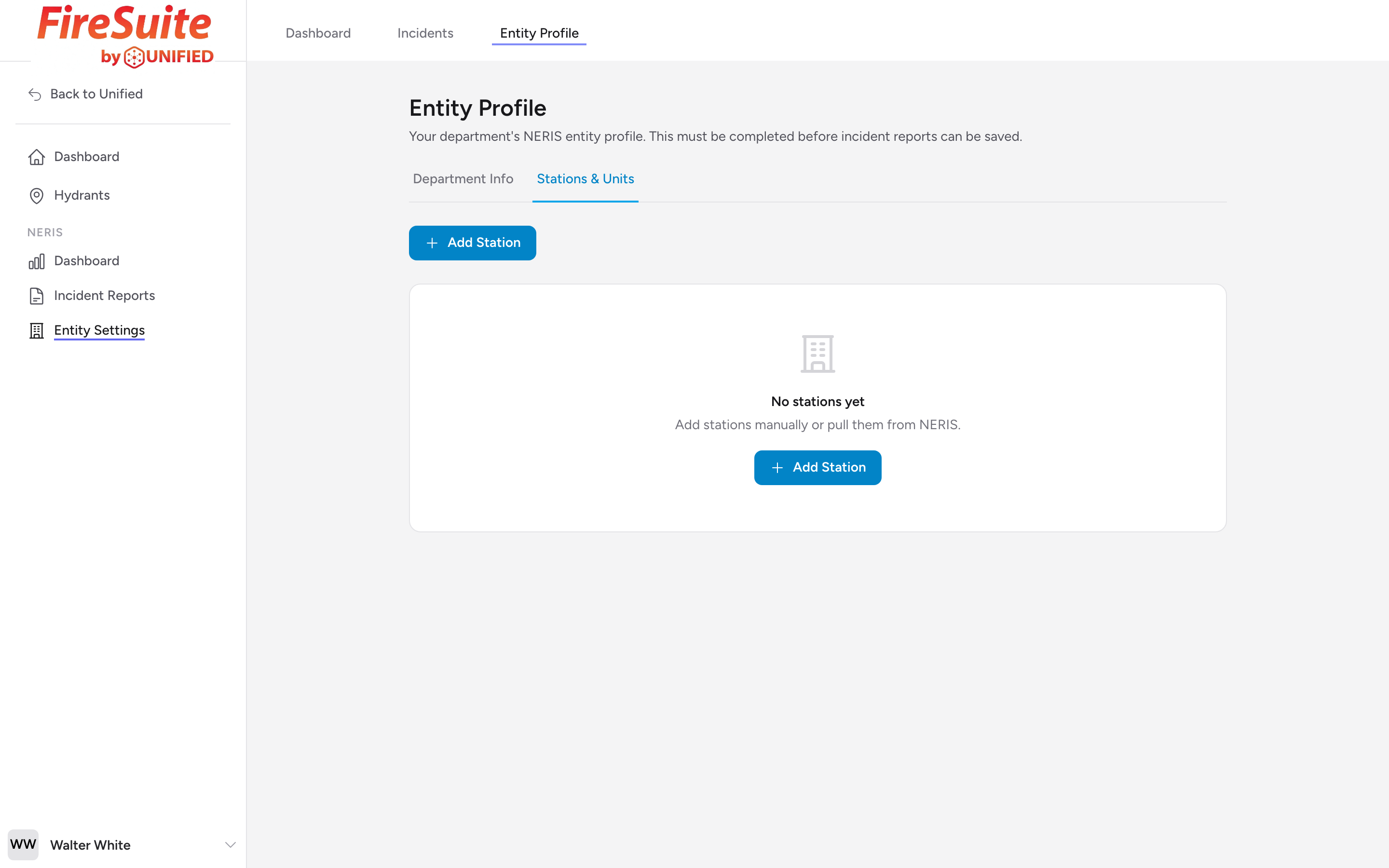
Where to find stations and units
In Entity Settings, switch to the Stations & Units tab. This is where you set up the stations your department operates and the units (apparatus) assigned to each station.
Adding a station
Click the Add Station button. A modal appears where you enter:
- Station ID -- The station's name or number (like "Station 1" or "North Station").
- Internal ID -- An optional internal identifier if your department uses a different code.
- Address Line 1 and 2, City, State, and ZIP Code -- The station's address.
- Staffing -- The number of personnel typically assigned to this station.
Click Add Station at the bottom of the modal to save it.
Adding units to a station
Once a station exists, you can add units to it. Click the Add Unit button on the station. A modal appears where you enter:
- Unit Type -- Pick from the list of apparatus types (engines, ladders, rescues, ambulances, and more).
- CAD Designation 1 -- The identifier your dispatch center uses for this unit (like "E1" or "L3").
- CAD Designation 2 -- Optional second designation if your unit has an alternate identifier.
- Staffing -- The typical crew size for this unit.
- Dedicated Staffing -- Yes if this unit has its own dedicated crew, No if it shares staffing with another unit (cross-staffing).
Click Add Unit at the bottom of the modal to save it.
Example
Your department has two stations. Station 1 has Engine 1, Ladder 1, and Rescue 1. Station 2 has Engine 2 and a brush truck. You would:
- Add Station 1 with its address and staffing of 12.
- Add Engine 1 as a unit under Station 1, with a structural engine unit type, CAD designation "E1," staffing 4, dedicated staffing Yes.
- Add Ladder 1 under Station 1, ladder unit type, CAD designation "L1," staffing 4, dedicated staffing Yes.
- Add Rescue 1 under Station 1, a rescue unit type, CAD designation "R1," staffing 2, dedicated staffing No (because Rescue 1 is cross-staffed from Engine 1).
- Add Station 2 with its address and staffing of 6.
- Add Engine 2 under Station 2 and the brush truck as a separate unit.
Editing and removing
Each station and unit has an edit icon and a delete icon. Click the edit icon to reopen the modal with the current values; change any field and click Update Station or Update Unit to save. Click the delete icon to remove the station or unit.
Tip: Set up your stations and units before you start entering incident reports. When you add units to an incident in the Units & Response step, the form can pull from your predefined unit list, which speeds up data entry.