
Where to start
You get to the Fire app the same way you get to every Unified Solutions app: through SSO. SSO stands for single sign-on, and it is the one place you sign in to reach all of your tools.
Step by step
- Open your browser and go to sso.unified-apps.com.
- Enter your email and password, then click Sign In.
- If your account belongs to more than one agency, pick the agency you want to work in.
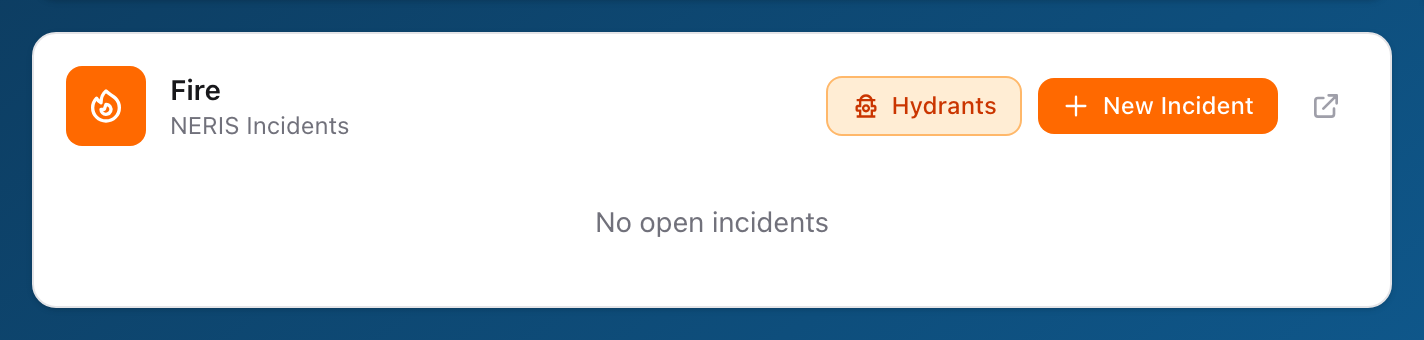
- You will land on the SSO dashboard. Find the Fire tile and click one of its buttons -- Hydrants, New Incident, or the open-in-new-window icon to go to the NERIS dashboard.
- The Fire app opens, and you are already signed in.
What if you do not see the Fire tile?
The Fire tile only appears if your agency has the Fire module turned on and your account has permission to use it. If the tile is missing, ask your department administrator to check your access.
Tips
- You do not need a separate username or password for Fire. Your SSO credentials work everywhere.
- If you forget your password, use the Forgot password? link on the SSO sign-in page to reset it.
- Bookmark sso.unified-apps.com for quick access.