
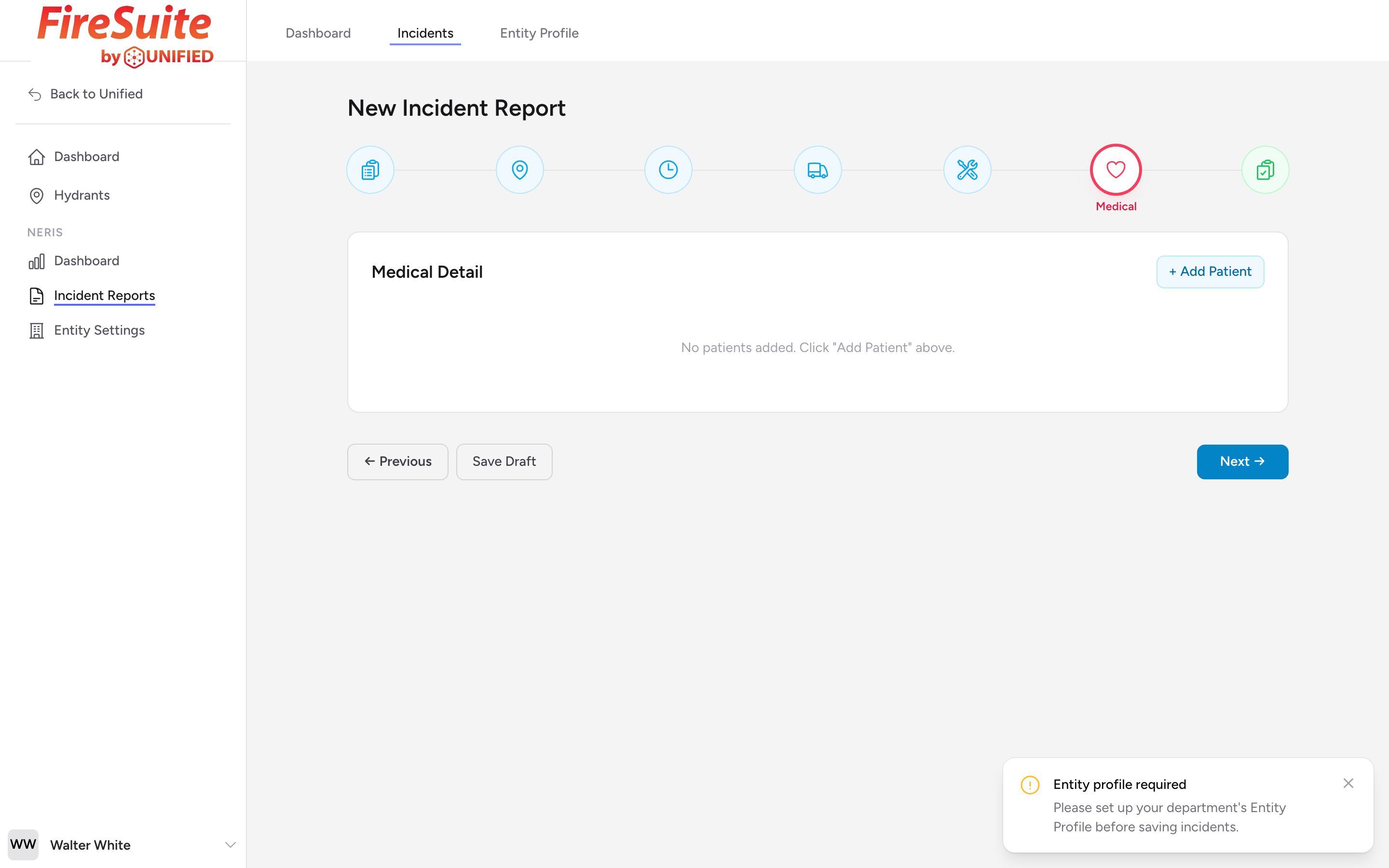
When this step appears
This step only appears if you selected a medical-related incident type (such as a medical call, injury, or illness) in step 1.
Patient records
You can add one or more patient records. Each record captures basic information about a patient your crews evaluated or treated. Click + Add Patient to add a new patient card. Click Remove on a card to delete it.
What to enter for each patient
- Patient Care Report ID -- If you use a separate system for patient care reports (like CloudPCR), enter the report ID here. This links the fire incident to the detailed medical record.
- Patient Care Evaluation -- Pick from the list (for example, Patient Evaluated and Care Provided; Patient Evaluated, No Care Required; Patient Refused Evaluation/Care; Patient Dead on Arrival).
- Patient Status -- Pick Improved, Unchanged, or Worse.
- Transport Disposition -- Pick from the list (for example, Transport by EMS Unit, Transport by Other Agency, Patient Refused Transport, No Transport).
Example
You respond to a two-car accident with three patients. Patient 1 has a broken arm and is transported by your EMS unit. Patient 2 has minor cuts and refuses transport. Patient 3 is uninjured. You add two patient cards (you typically do not need to record uninjured people). For Patient 1, enter your PCR number, pick Patient Evaluated and Care Provided, set Patient Status to Unchanged, and Transport Disposition to Transport by EMS Unit. For Patient 2, pick Patient Refused Evaluation/Care, Unchanged, and Patient Refused Transport.
Tip: If you use CloudPCR for patient care reports, enter the PCR number here so your records are linked together. That way, anyone reviewing the fire report can find the detailed medical record.