
QR code pairing ties a printed QR label to each individual vial. Once it is on, every covered drug must be scanned whenever it is stocked, removed, or replaced. This gives you a record of exactly which vial was where, who placed it, and who pulled it, instead of just a running count. It is built for controlled substances, but it can cover every drug — and other inventory items can use the same labels, one product at a time (see Scanning barcodes).
Before you start: Only an agency admin can turn this on. Print and apply your QR labels before you enable it, or stocking and removing the covered drugs will ask for a scan you do not have yet.
Labels to buy
Drug Tracking prints QR sheets sized for Uline S-16986 labels — ½ inch by ¾ inch, 224 labels per sheet. Use these so the codes line up with the sheet.
- Buy the laser version. The QR sheets are laser-printed.
- Each printed QR includes the short code (for example
RX4G2KQ) next to it as a backup you can read by eye.
Turn it on
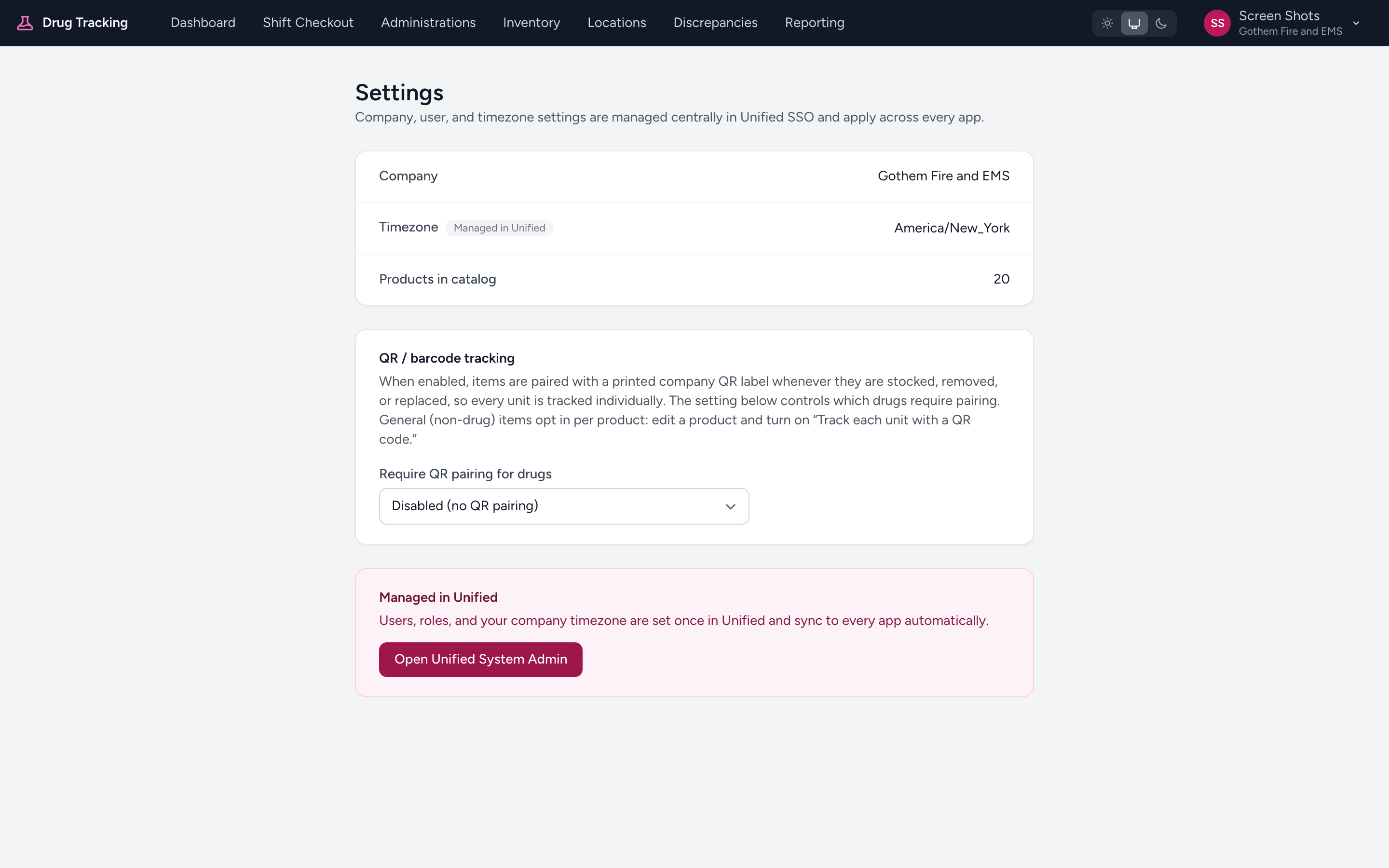
- From the menu, click Settings.
- Find the QR / barcode tracking card. (You only see it if you are an agency admin.)
- Open the Require QR pairing for drugs dropdown and choose one:
- Disabled (no QR pairing): pairing is off. This is the default.
- Controlled drugs only: only controlled substances need a QR label.
- All drugs: every drug needs a QR label.
- Your choice saves right away.
Print your labels
Once pairing is on, the card shows a Generate QR labels link. Click it to open the Company QR Labels page, enter how many labels you need, and click Generate PDF. The sheet downloads as a PDF you print on Uline S-16986 stock. Apply one label to each vial before you stock it. See Scanning barcodes for how scanning works.
Covering items that are not drugs
The same labels can track any product by unit. Edit the product and turn on Track each unit with a QR code. Every unit of that product then needs its own label when it is stocked, removed, or replaced, just like a controlled drug. Pairing must be on for this to take effect — pick either drug option rather than Disabled (no QR pairing). The choice between Controlled drugs only and All drugs changes which drugs are covered; items that are not drugs always opt in per product.
How pairing works day to day
After pairing is on, the app asks for a scan at three points:
- Stocking a drug in. When you add a covered drug to a location, scan a fresh QR label for that vial. The label is now tied to that exact vial — its drug, lot number, and expiration. Each label covers one vial.
- Removing a drug. To remove a covered drug, scan the QR on the vial. The app checks that it matches before it lets the vial go. If a label is missing or damaged, there is an override that gets recorded.
- Replacing a drug during a checkout. Scan the old vial's QR to take it out, then scan the new vial's fresh QR to put it in. The swap happens together — see Replacing a drug during checkout.
Example
Your agency wants every controlled substance tracked by vial. An admin opens Settings, sets Require QR pairing for drugs to Controlled drugs only, then clicks Generate QR labels and prints two sheets. The crew applies a label to each controlled vial as they stock it. From then on, pulling a vial for a call means scanning its label, so the controlled substance log shows the exact vial every time.
Who can change it
Only agency admins see the QR / barcode tracking card. Regular crew members scan labels during their work but cannot turn pairing on or off.