
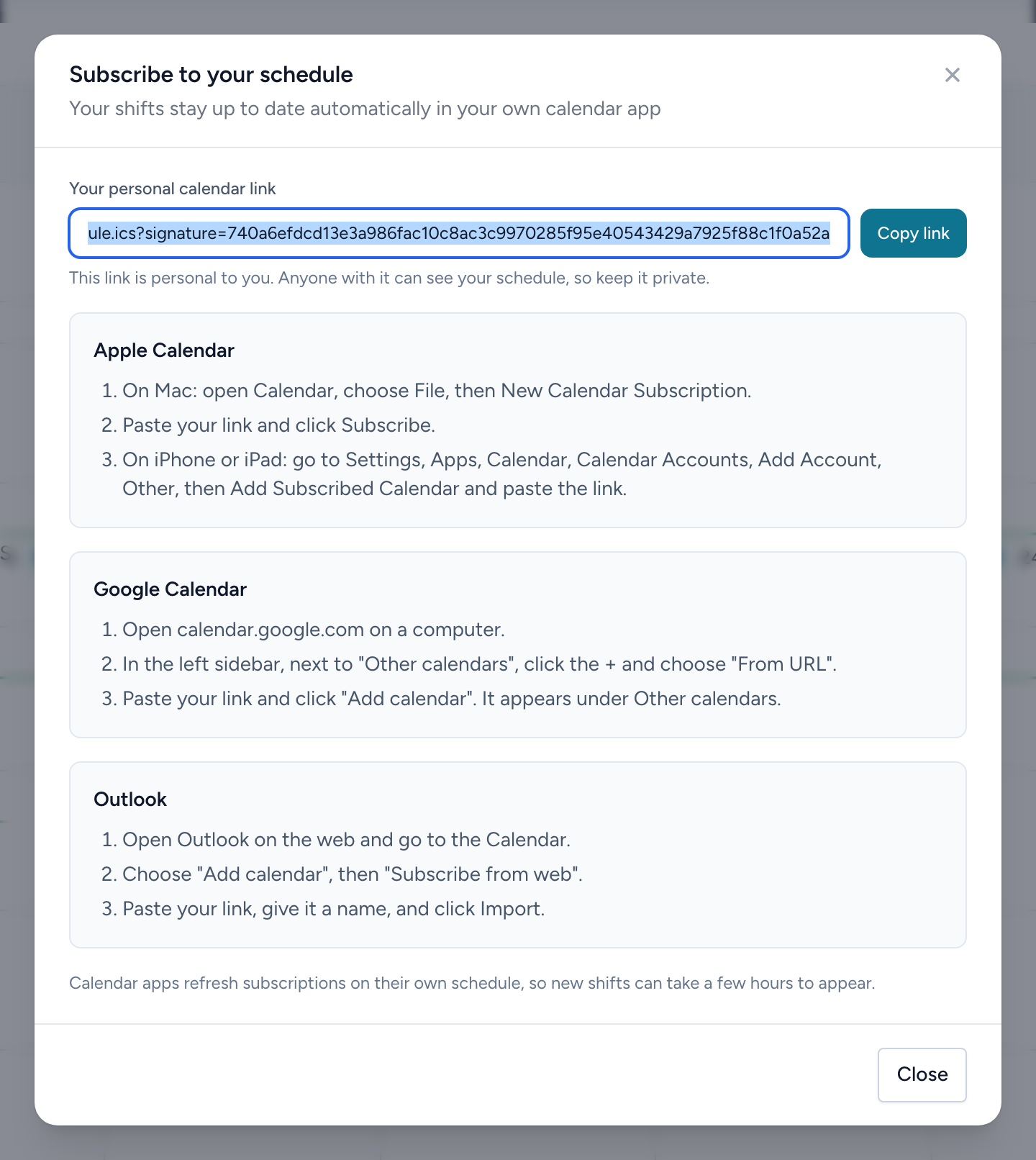
You can subscribe to your Crew Scheduling shifts from the calendar app you already use. New and changed shifts flow in on their own — no re-importing.
Getting your link
- From the navigation, click My Schedule.
- Click Subscribe to your schedule above the calendar.
- Click Copy link. This link is personal to you — anyone who has it can see your schedule, so do not share it.
Adding it to your calendar app
The same window lists the exact steps for each app:
- Apple Calendar — on a Mac: File, then New Calendar Subscription, paste the link, click Subscribe. On iPhone or iPad: Settings, Apps, Calendar, Calendar Accounts, Add Account, Other, Add Subscribed Calendar.
- Google Calendar — on a computer, open
calendar.google.com, click the + next to "Other calendars," choose From URL, paste the link, click Add calendar. - Outlook — in the web calendar, choose Add calendar, then Subscribe from web, paste the link, click Import.
Calendar apps refresh subscriptions on their own timetable, so a brand-new shift can take a few hours to appear in your phone calendar. The app itself is always current.