
Instead of picking your crew, vehicle, and call sign on every chart, you can set them once at the start of your shift. Every PCR you create after that starts with your crew and unit information already filled in on the Incident tab.
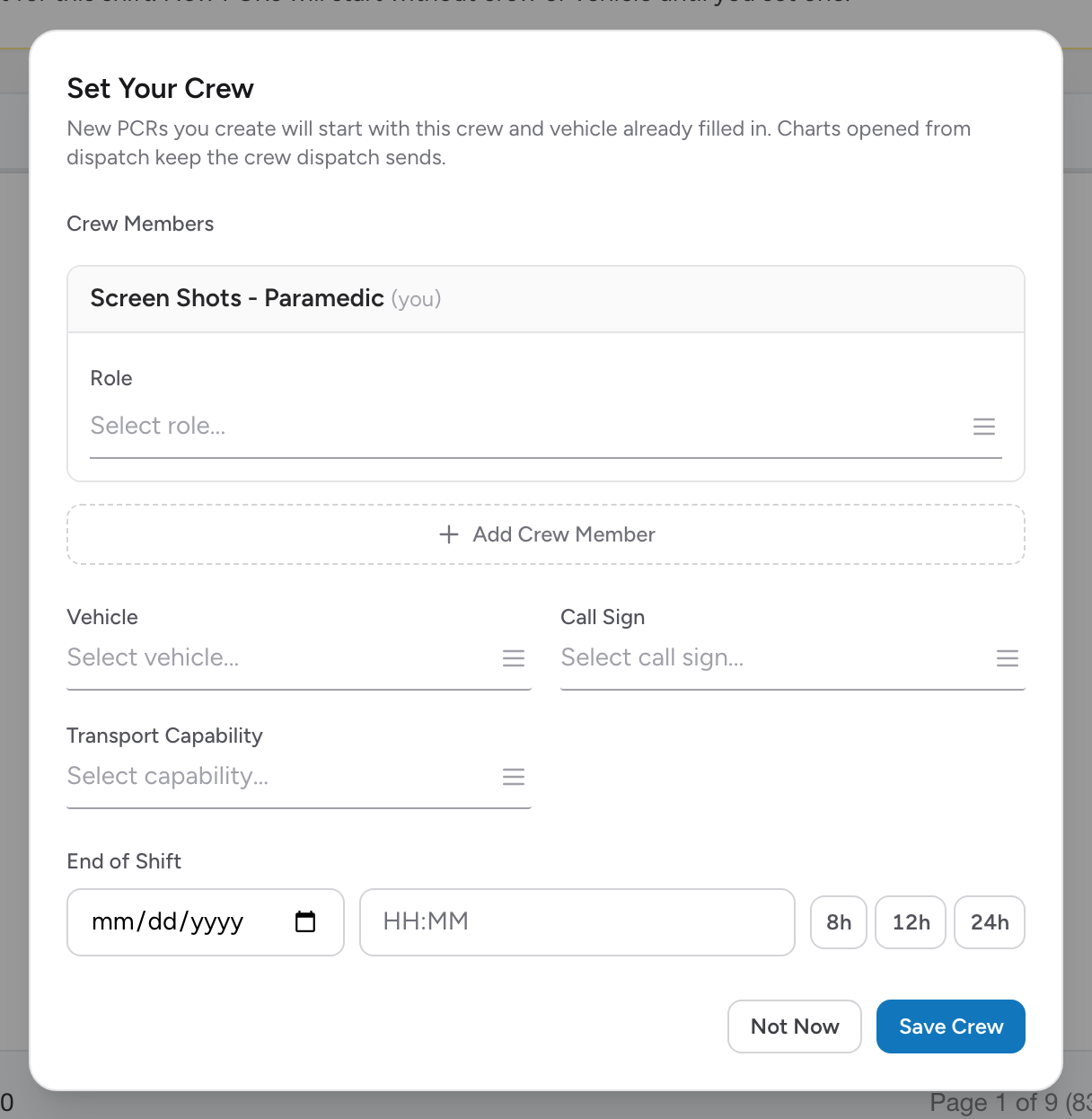
Setting your crew
Click Set Crew (or Change Crew if a crew is already set) in the crew box at the top of the My PCRs page to open the Set Your Crew window.
- You are always the first crew member and cannot be removed. Click Add Crew Member to add everyone else riding with you. Search by name, click each person to add them, then click Done.
- Give each crew member a Role if you want. Roles are optional because crews often swap roles from call to call. You can pick more than one role per person.
- Pick the Vehicle. If the vehicle has a call sign on file, the Call Sign fills in by itself. You can change it.
- Pick the Transport Capability for the unit.
- Set the End of Shift date and time. The time is 24 hour, and you can type it fast: type 1830 and it becomes 18:30. The 8h, 12h, and 24h buttons fill in the end of shift that many hours from now with one click.
- Click Save Crew.
What happens when you start a PCR
Click New PCR and the new chart already has your crew members (with their roles and levels), the unit, the call sign, and the transport capability filled in on the Incident tab. You can still change any of it on the chart — this just saves you the typing on every call.
Charts that come from dispatch are different: they keep the crew and unit that dispatch sends, so nothing from your crew box overwrites them.
Changing or clearing your crew
- Change Crew opens the same window so you can swap people, the vehicle, or the end of shift mid-shift.
- Clear Crew removes the crew completely after you confirm. New PCRs start empty again until you set a new crew.
- When your end of shift time passes, the crew expires on its own. The crew box shows Set Crew again so you can set one for the new shift.
Good to know
- Setting a crew is never required. You can create PCRs without one, they just start without crew or vehicle information.
- The crew you set is yours. Each crew member sets their own, so your partner setting theirs does not change yours.
Next: Starting a new PCR.