
Every dropdown on the PCR form can be tuned from Form Configuration: pin the values your crews pick constantly to the top, hide the ones that never apply to your agency, rename options into the words your crews use, and add your own custom options. Crews get shorter lists and faster charting; your data stays mapped to the right values underneath.
Before you start: Settings is admin-only. Open Settings → Form Configuration, find the dropdown you want on its page, and click it open — the editing tools appear right inside the option list.
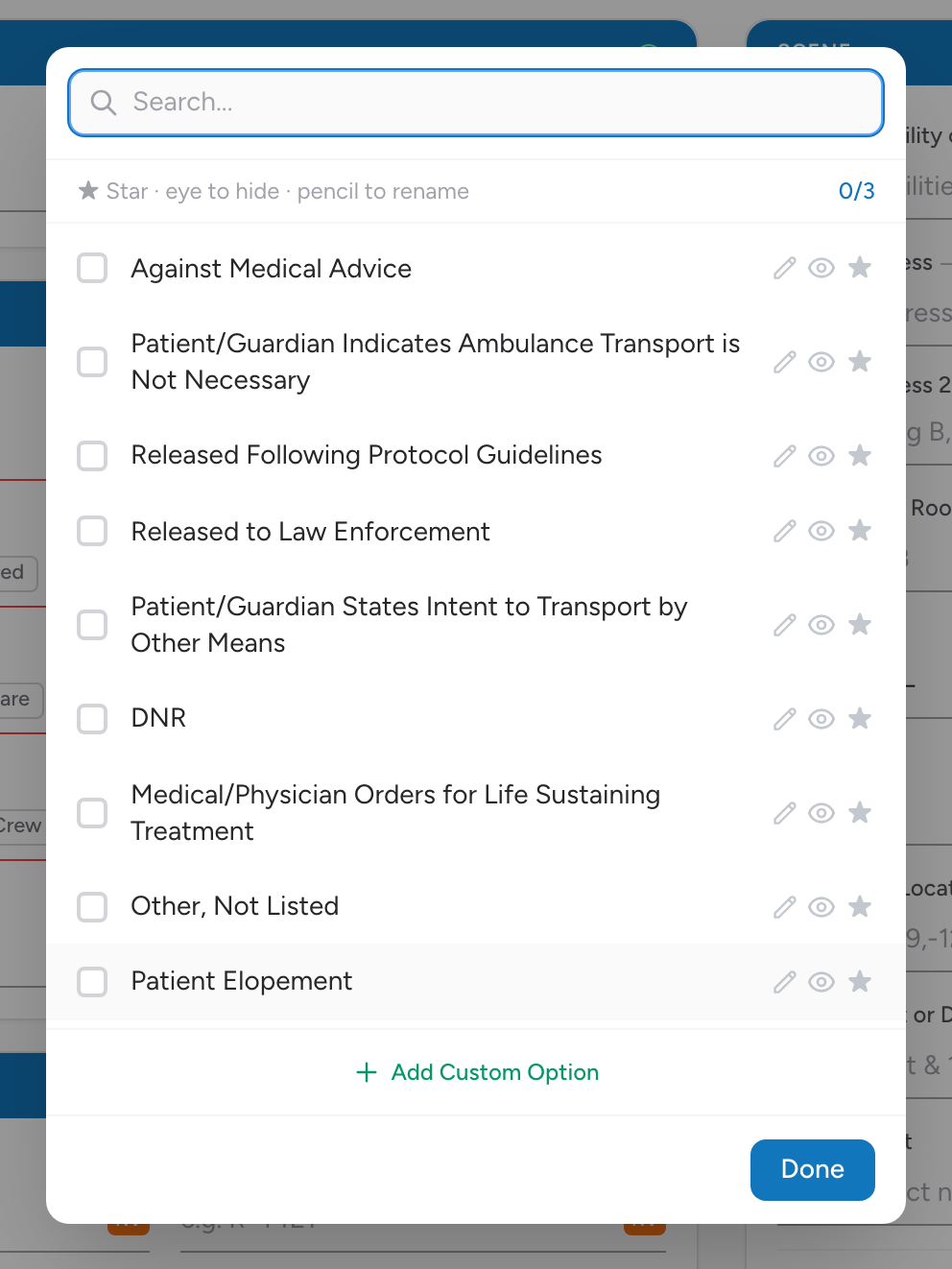
A hint bar at the top of the open list reminds you what the icons do: ★ Star · eye to hide · pencil to rename.
Quick access: star up to three options
Click the star on an option to add it to quick access. Starred options are pinned where crews can grab them instantly instead of searching the full list. Each dropdown holds at most three — the counter next to the hint bar shows how many you have used. Star what your agency picks on most calls: your two or three usual dispositions, your common response mode, your usual destination types.
Hide options your agency never uses
Click the eye on an option to hide it. Hidden options show dimmed to you in configuration mode and vanish from the crew's list entirely. A ground ambulance service can hide the aircraft options from transport dropdowns; an agency that never does interfacility work can hide those values from the call type list. Click the eye again to bring one back.
Rename an option
Click the pencil to rename an option, type the wording your crews actually say, and click Save. The underlying value stays the same — your state still receives the standard value — only the label on screen changes. Useful when the official wording is a mouthful and your protocols use a plainer name.
Add a custom option
- At the bottom of the open list, click Add Custom Option.
- Type the label your crews should see.
- Pick the standard value it maps to under Map to NEMSIS code... — this is what gets reported to your state when a crew picks your custom option.
- Click Add Option.
Custom options carry a CUSTOM badge in the list and have a trash icon to delete them. Click Done to close the list when you are finished.
An example
Your crews chart "signal 7" but the standard list says something longer. Open the dropdown in Form Configuration, click Add Custom Option, label it Signal 7, map it to the matching standard value, and click Add Option. Crews now see and pick "Signal 7"; the state submission carries the proper standard value.
Things to know
- Changes save immediately — there is no Save button.
- Hiding an option does not touch old charts; it only trims the list going forward.
- Keep renames close to the official meaning. The label is what your crews chart by, and a label that drifts from the mapped value produces misleading records.