
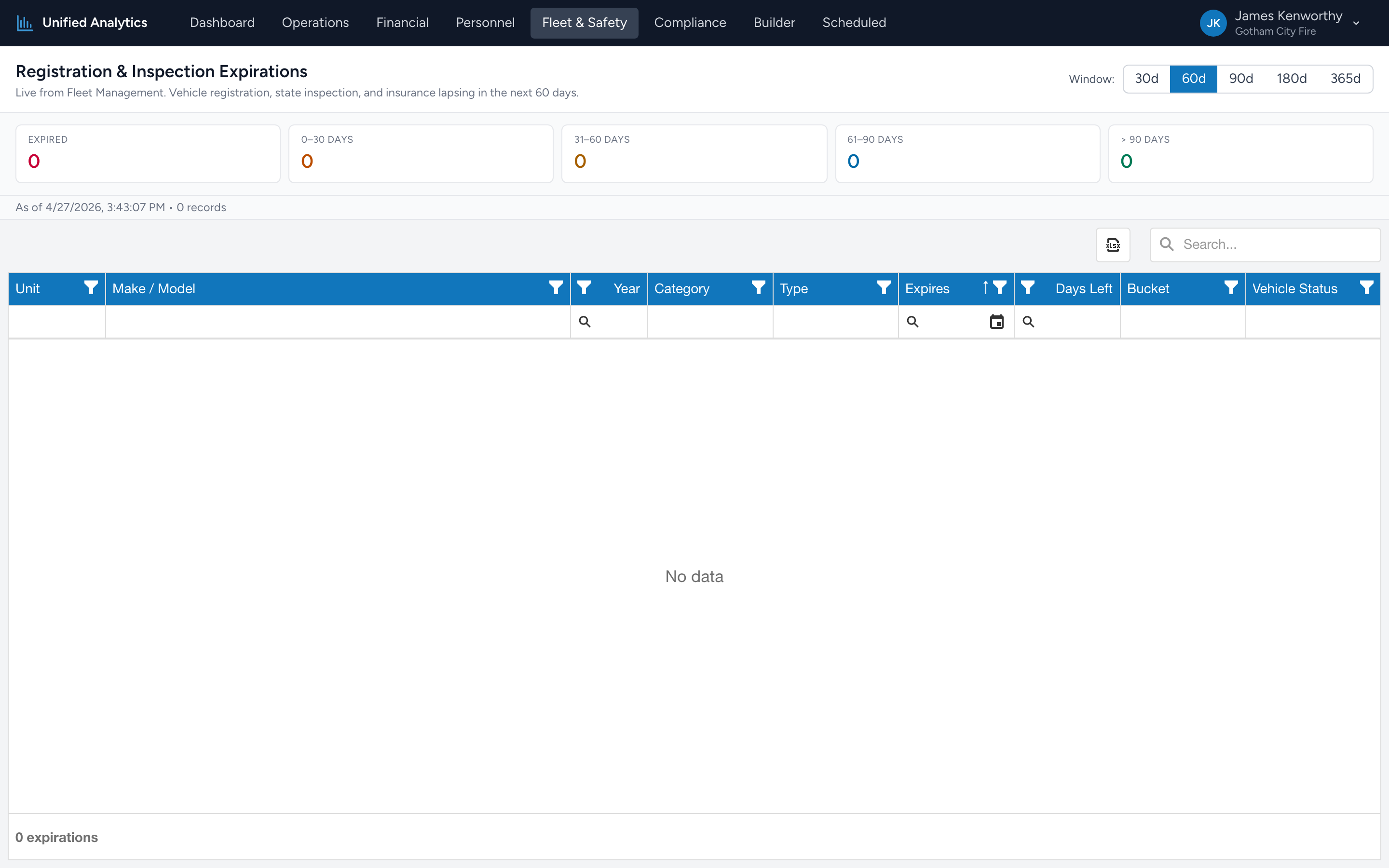
Registration & Inspection Expirations is a forward-looking list. It shows every vehicle whose registration, state inspection, or insurance is about to lapse in the chosen window — plus anything already expired. Open it weekly to make sure nothing slips.
How to use it
- Open Fleet & Safety → Registration & Inspection Expirations.
- Pick a Window — 30d, 60d, 90d, 180d, or 365d.
- The summary tiles bucket the expirations. The grid lists every expiring item.
The summary tiles
- Expired — anything already past its expiration date. The most urgent bucket.
- 0–30 days — expiring within the next month.
- 31–60 days — expiring in the second month out.
- 61–90 days — expiring in the third month out.
- > 90 days — visible only when the window is 180d or 365d.
The grid
Columns: Unit, Make / Model, Year, Category, Type, Expires, Days Left, Bucket, Vehicle Status. The Type column tells you which document is expiring (Registration / State Inspection / Insurance).
Tips
- Run weekly with a 60-day window. That gives the fleet manager about a month of lead time on every renewal without burying them in items 90+ days out.
- Filter Vehicle Status = In Service to focus on what is actively being driven. Reserve and Out of Service expirations matter less day-to-day.
- Filter Type = Insurance for the kind of expiration that creates the highest legal exposure if missed.
- Click Export to ship the list to whoever handles renewals.
Where the data comes from
Fleet Management tracks every regulatory document and its expiration date. If a date is missing on a vehicle, that vehicle does not appear in the report — fix the source record so it does.