
NERIS Submission Status tells you, for every Fire incident in the chosen window, where it sits in the review-and-submit pipeline. It surfaces the incidents stuck in pending review, the ones that failed at submission, and the recurring backlog you have to chip away at.
How to use it
- Open Compliance → NERIS Submission Status.
- Pick a Range — 3m, 6m, 12m, or 24m.
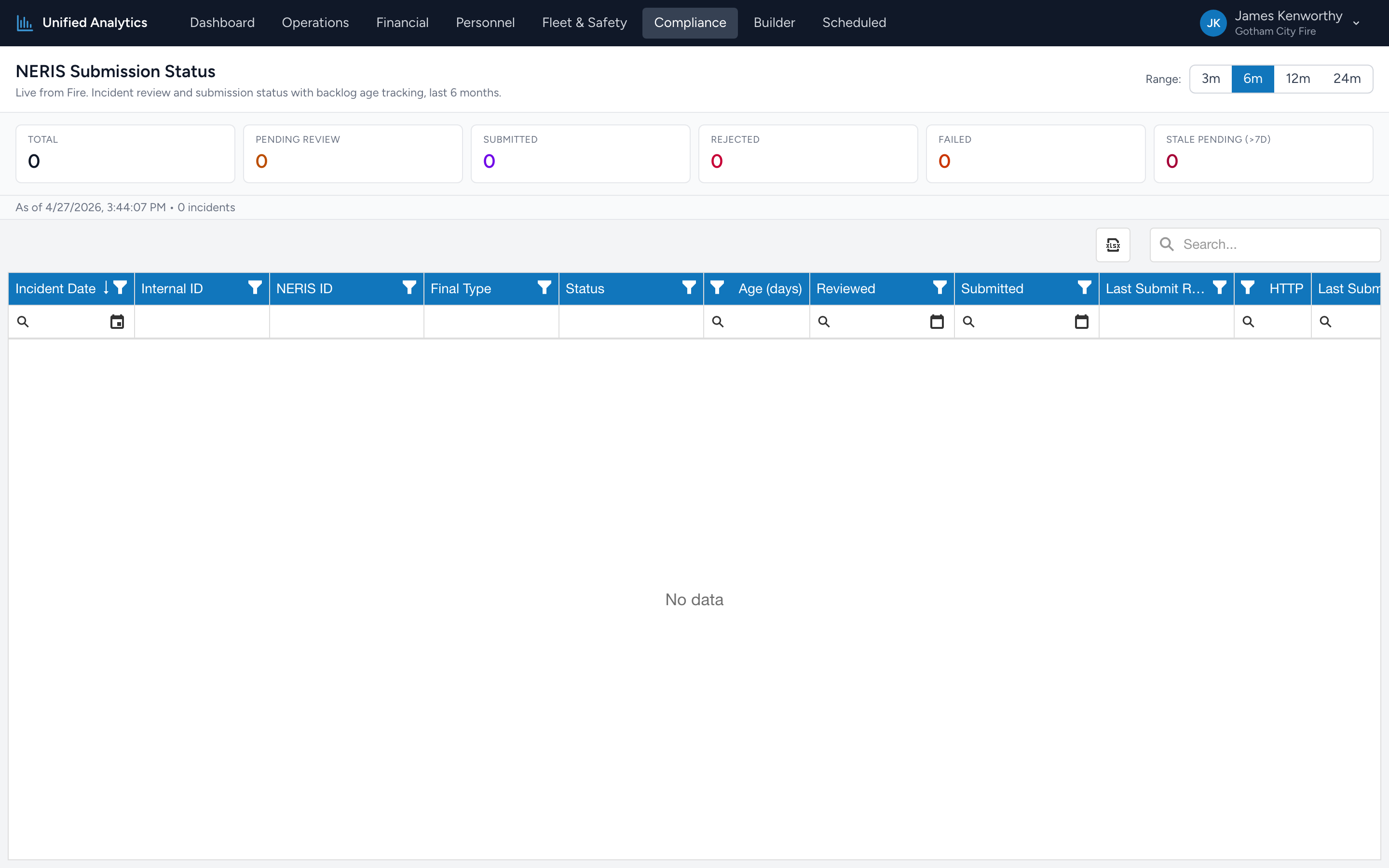
- The summary tiles give you the headline counts. The grid lists every incident.
The summary tiles
- Total — every incident in the window.
- Pending Review — incidents waiting for someone to approve them. The first bucket to drain.
- Submitted — incidents successfully sent to NERIS.
- Rejected — incidents NERIS refused. Each one needs to be fixed and resubmitted.
- Failed — incidents where the submission attempt errored (network, validation, server). Often retryable; check the Last Error column.
- Stale Pending (>7d) — incidents in pending review for more than seven days. The audit-finding bucket.
The grid
Columns: Incident Date, Internal ID, NERIS ID, Final Type, Status, Age (days), Reviewed, Submitted, Last Submit Result, HTTP, Last Submit At, Last Error.
Tips
- Sort by Age desc in the Pending Review filter to find the longest-stalled incidents.
- Filter Status = Failed, then sort by Last Submit At desc to see the most recent failures. The Last Error column usually tells you what to fix.
- Group by Last Submit Result to see if many incidents are failing for the same reason — usually a documentation-process change is the right fix.
- Click Export for a list to assign in your fire reporting meeting.
Where the data comes from
The Fire app tracks every NERIS submission attempt, response, and validation result. The report reads from that record and re-computes status counts each time it loads.