
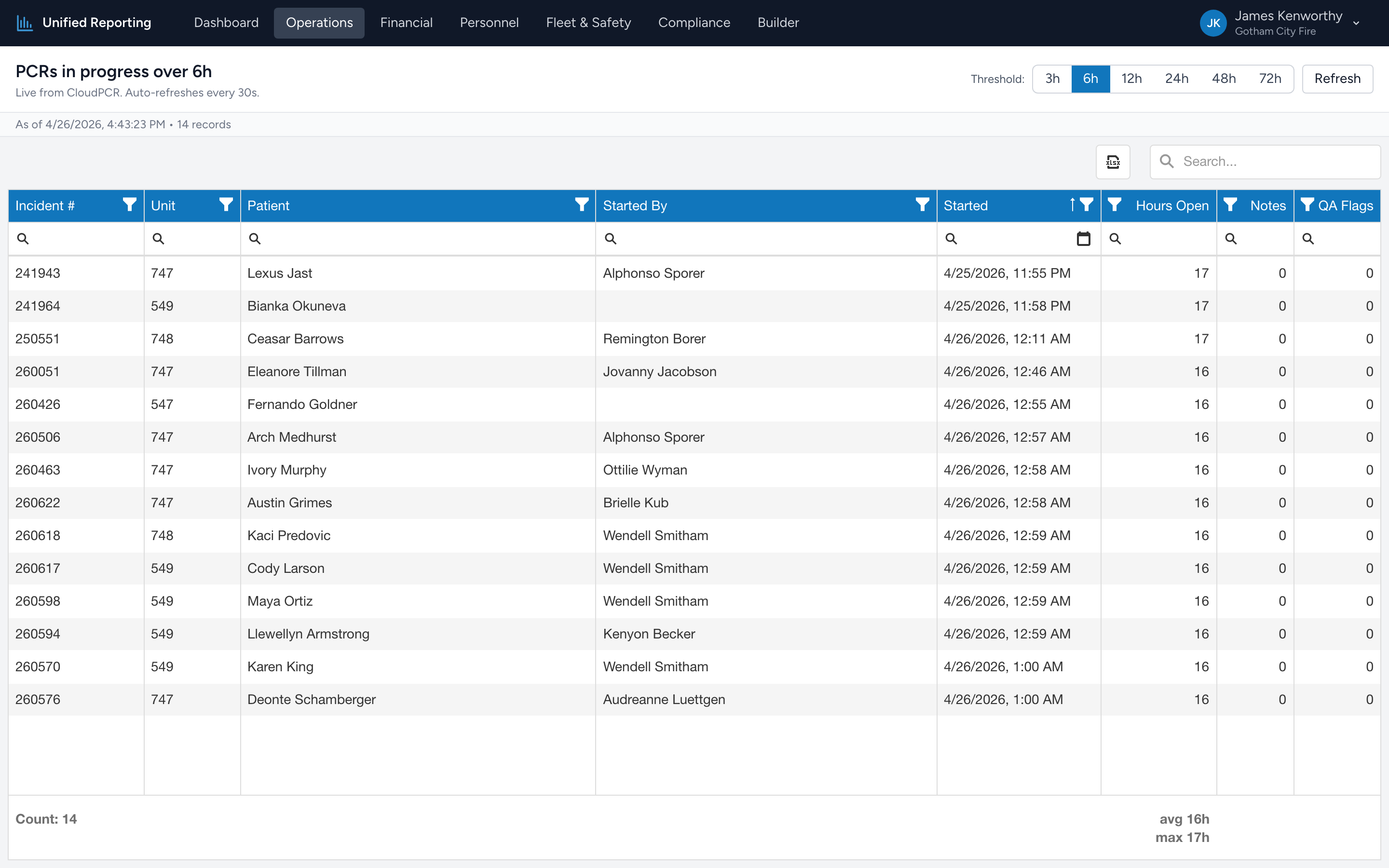
The In-Progress PCRs report shows you every PCR currently in in_progress status that has been open longer than a chosen threshold. It auto-refreshes every 30 seconds, so you can leave it open during a shift and it stays current.
How to use it
- Open Operations → In-Progress PCRs.
- Pick a threshold — 3h, 6h, 12h, 24h, 48h, or 72h. The grid filters in real time.
- The grid shows incident number, unit, patient name, the crew member who started it, when it was started, hours open, note count, and QA flag count.
- Click any column header to sort. Use the search box for quick lookup by incident number, unit, or name.
What "in progress" means
An in-progress PCR is one that the crew has started but not yet submitted. There are legitimate reasons a PCR sits in this state for a while — busy shift, batch documentation at the end of the day, waiting for hospital information. The report is not flagging "broken" runs, just open ones.
What the thresholds mean in practice
- 3–6 hours: normal flow. Crews finishing up after a long call.
- 6–12 hours: usually still fine. End-of-shift documentation often lands here.
- 12–24 hours: worth checking on. PCRs should typically close within a shift.
- Over 24 hours: the bucket to act on. These are runs that have stalled.
- 48h / 72h: use these when most of your in-progress are old (e.g. legacy migration data). The 24h filter would include everything; 48–72h lets you exclude the stale baseline and focus on what is actually new.
Tips
The auto-refresh runs every 30 seconds. If you want a manual refresh, click the Refresh button. Hours Open is computed live, so you do not need to re-query to see a PCR move from 5h to 6h.