
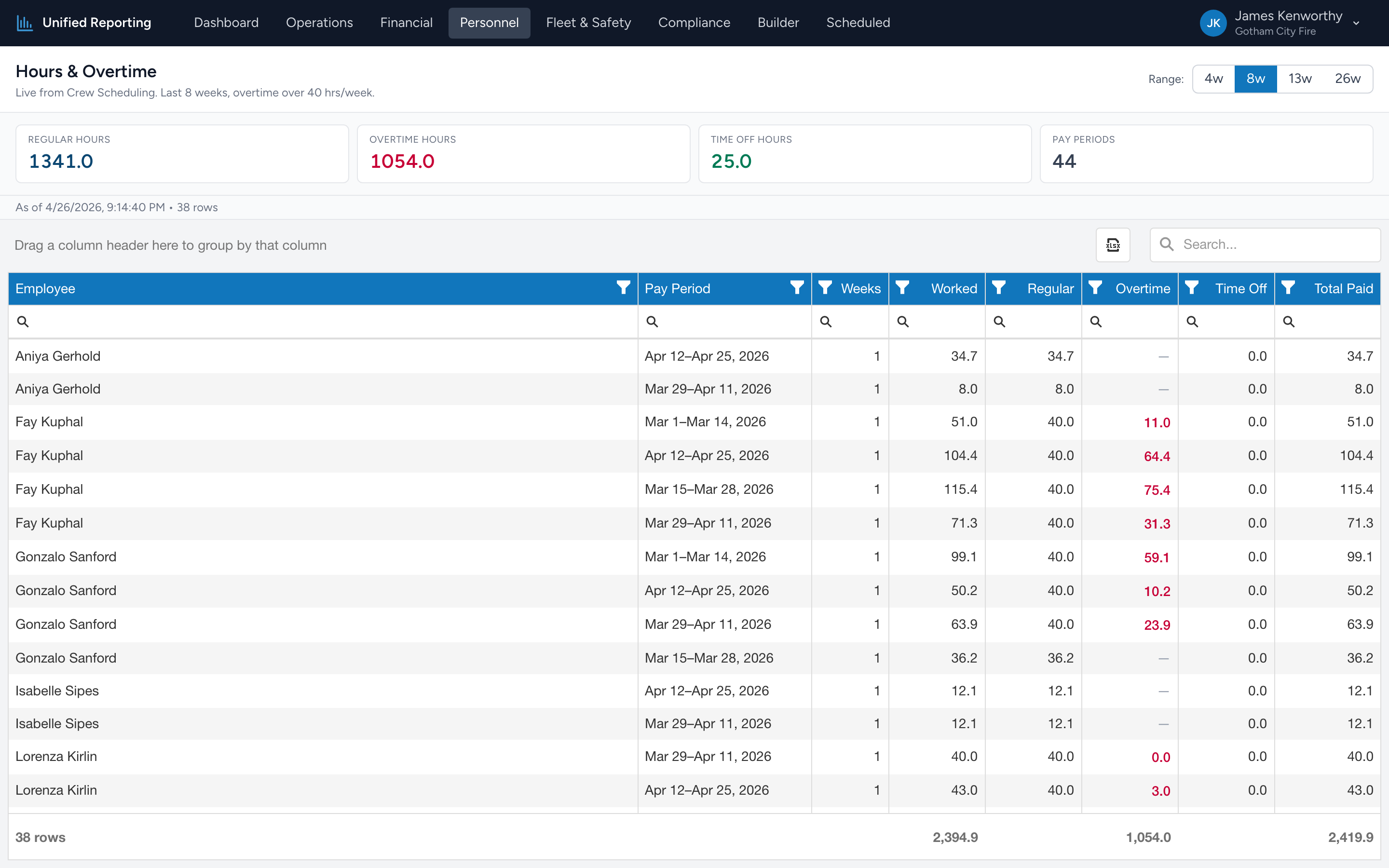
The Hours & Overtime report breaks down how much each employee worked, how much of that was overtime, and how much was time off. Use it to spot burn-out risk and to plan payroll.
How to use it
- Open Personnel → Hours & Overtime.
- Pick a range using the buttons at the top right: 4w, 8w, 13w, or 26w. The grid covers every pay period that overlaps the window.
- Each row is one employee for one pay period. Sort by Overtime to find your highest-overtime earners, or by Total Paid to see who is closest to your hours cap.
What is in the grid
- Employee and Pay Period — who and when.
- Hours Worked — clock-in / clock-out hours for the period.
- Time Off — paid time-off hours for the period.
- Regular and Overtime — Hours Worked split into regular hours and overtime, based on the overtime threshold (default 40 hrs/week).
- Total Paid — Regular + Overtime + Time Off.
Tips
- Where the data comes from. The report is live from Crew Scheduling — every clocked shift and every approved time-off entry.
- Group by employee. Drag the Employee column header into the group panel above the grid to roll up multiple pay periods per person.
- Spot consistent overtime. Sort by Overtime across the longest range. Repeat names at the top are leading indicators of burn-out.