
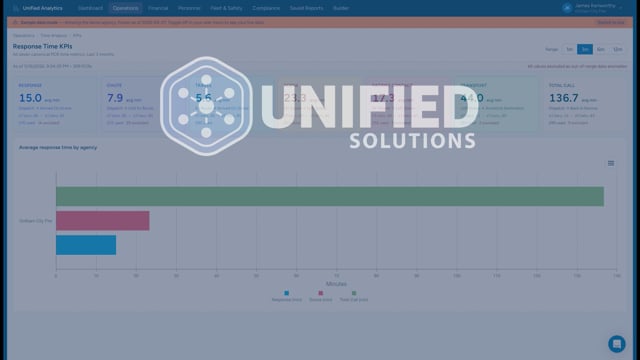
Analytics is organized around the top navigation bar. Each menu item is a category of reports.

Top navigation
- Dashboard — your at-a-glance home page. Period stats for total, completed, and in-progress PCRs, plus colored tiles into every report category.
- Operations — operational reports like volume trend and disposition mix, plus the deeper Time Analysis and Provider Quality categories.
- Personnel — people-focused reports sourced from HR and Crew Scheduling: certification expirations, hours and overtime, time off balances, and employment changes.
- Financial, Fleet & Safety, Compliance — placeholders for upcoming reports from Billing, Fleet Management, and the compliance modules.
- Builder — the custom report builder where you can pick a data source, build your own grids and charts, and save them.
- Scheduled — every report you have set up to run on a schedule and email or text the result to a list of recipients. Open it to see when each one ran and who opened it.
Reports landing pages
Most categories show a grid of cards, one per report. Each card has a short description so you can pick the right one without opening it. Categories that contain sub-categories (like Time Analysis and Provider Quality) link to their own landing pages.
How filtering works
Every report defaults to a recent time window (typically last 30 days, last 3 months, or last 12 months depending on the report). You can change the range using buttons at the top of the report. Most reports also let you switch which date field they filter by — Incident Date is the most common choice.
Data freshness
Analytics queries CloudPCR live for every report. There is no nightly batch — what you see is the current state of your PCRs. The In-Progress PCRs report auto-refreshes every 30 seconds; other reports re-query each time you change the date range.