
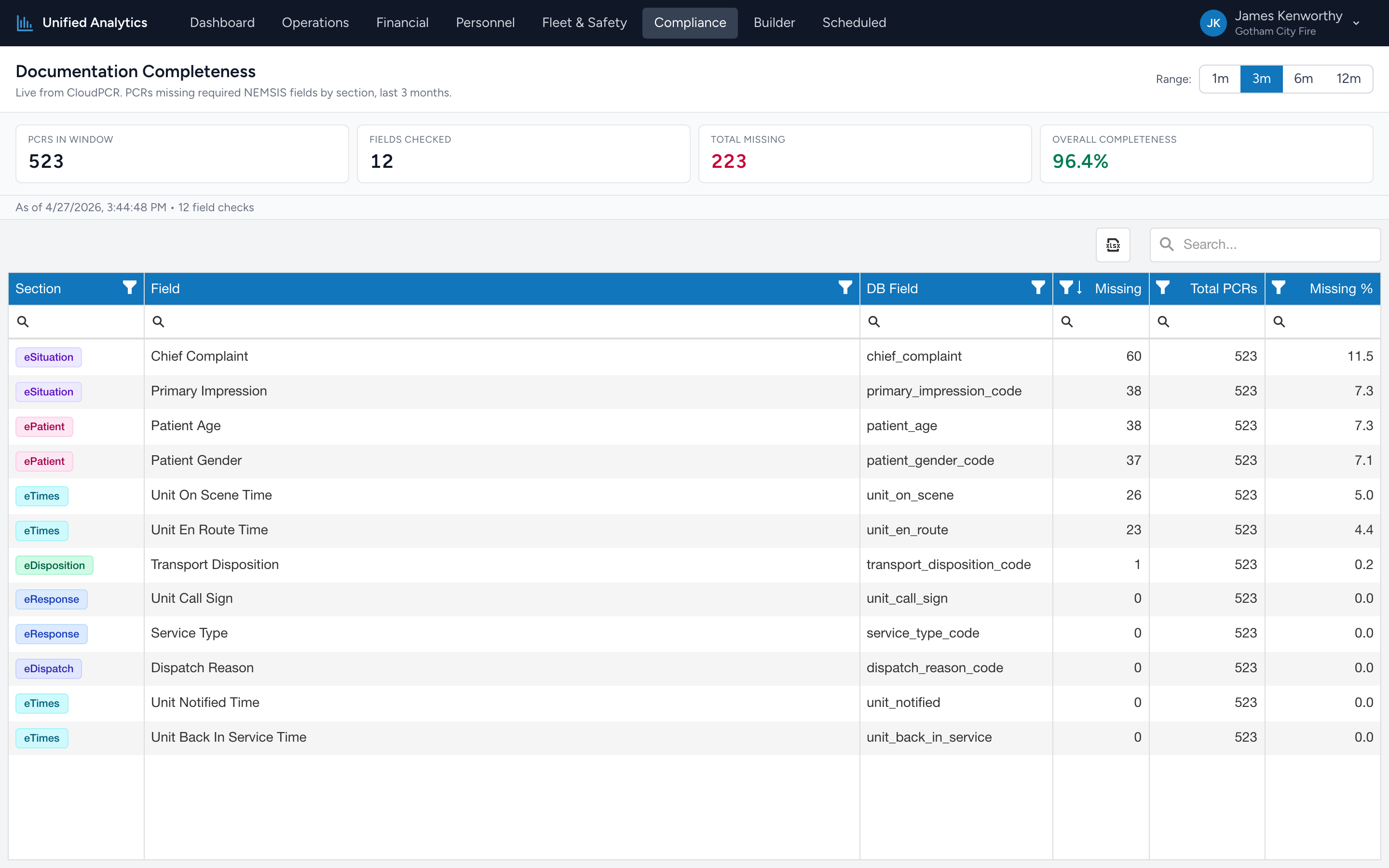
Documentation Completeness measures how often each required NEMSIS field is filled in on your PCRs. The headline tile is your overall completeness percentage; the grid below shows the worst offenders, by section and by field, so you know exactly where to focus a training session.
How to use it
- Open Compliance → Documentation Completeness.
- Pick a Range — 1m, 3m, 6m, or 12m.
- Read the summary tiles, then sort the grid to find the fields with the highest missing rate.
The summary tiles
- PCRs in Window — how many PCRs were checked for the percentage.
- Fields Checked — how many distinct fields the report evaluates per PCR.
- Total Missing — the total number of "this field was empty" instances across all PCRs in the window.
- Overall Completeness — the agency-wide completeness percentage. A 95% number means 5% of all required-field instances were left blank. Shown as a dash if there is not enough data.
The grid
Columns: Section, Field, DB Field, Missing, Total PCRs, Missing %. Each row is one required NEMSIS field; the section it belongs to is the same as the section name in the PCR (eResponse, eDispatch, eTimes, eSituation, eDisposition, ePatient).
Tips
- Sort by Missing % desc to find your worst-completed fields. The top of the list is your training agenda.
- Group by Section to see which sections drag your overall percentage down. A section that is consistently incomplete usually has a UI / workflow snag worth fixing.
- Watch fields with very high Missing % (above 50%). Sometimes that means crews are skipping them; sometimes it means the field genuinely does not apply to most calls. Investigate before you call it a training problem.
Where the data comes from
CloudPCR stores every NEMSIS field on every PCR. The report walks each required field, counts how often it is empty, and divides by the PCR count for the window. The list of "required" fields is the standard NEMSIS required set per section — it is not configurable from this page.