

The Certification Expirations report shows you every approved credential at your agency and how soon each one expires. Use it as the single source of truth for "who needs to renew, and when?"
How to use it
- Open Personnel → Certification Expirations.
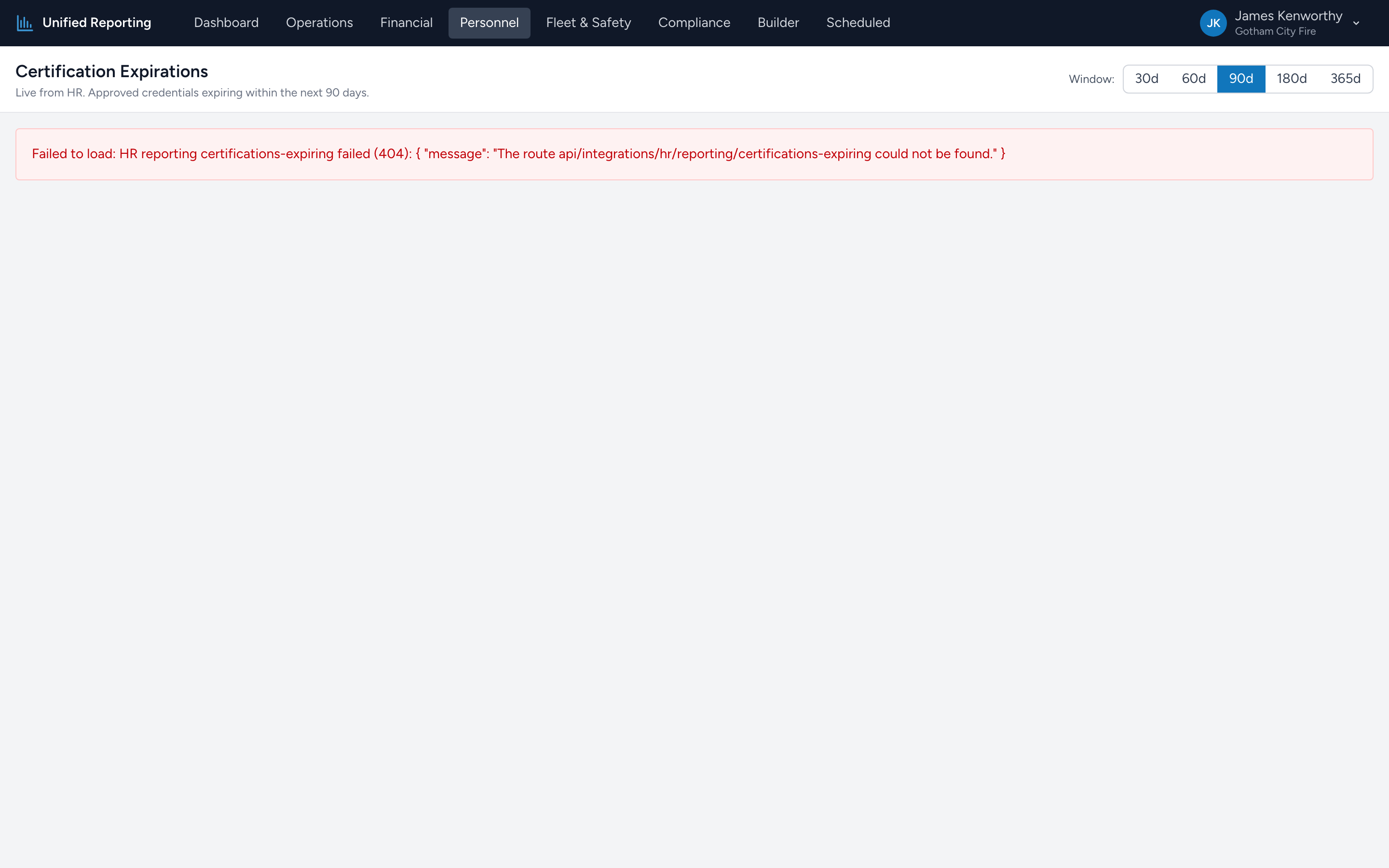
- Pick a window using the buttons at the top right: 30d, 60d, 90d, 180d, or 365d. The grid only includes credentials that expire within that window (plus everything already expired).
- Read the colored summary tiles across the top — Expired, 0–30 days, 31–60 days, 61–90 days, and > 90 days — to see how the workload is distributed.
- Sort the grid by Expires or Days Left to plan renewal outreach.
What is in the grid
Each row is one credential for one employee. The columns:
- Employee, Emp #, Rank, Department — who the credential belongs to.
- Certification and Category — what kind of credential it is (EMT, Paramedic, ACLS, PALS, etc.).
- Credential # — the credential number itself when one is on file.
- Issued and Expires — the dates from HR.
- Days Left — calculated against today. Negative numbers mean the credential has already expired.
- Bucket — a color-coded badge: Expired (red), 0–30 days (amber), 31–60 days (yellow), 61–90 days (sky), > 90 days (green), or Unknown when no expiration is on file.
Tips
- Where the data comes from. The report is live from HR — the same credential records you maintain on each employee's HR profile.
- Filter to one rank or one certification type. Use the column header funnel on Rank or Certification to focus on, say, just paramedic credentials.
- Export to Excel. The grid has an Export button at the top right — useful for sending a list to your training coordinator.