
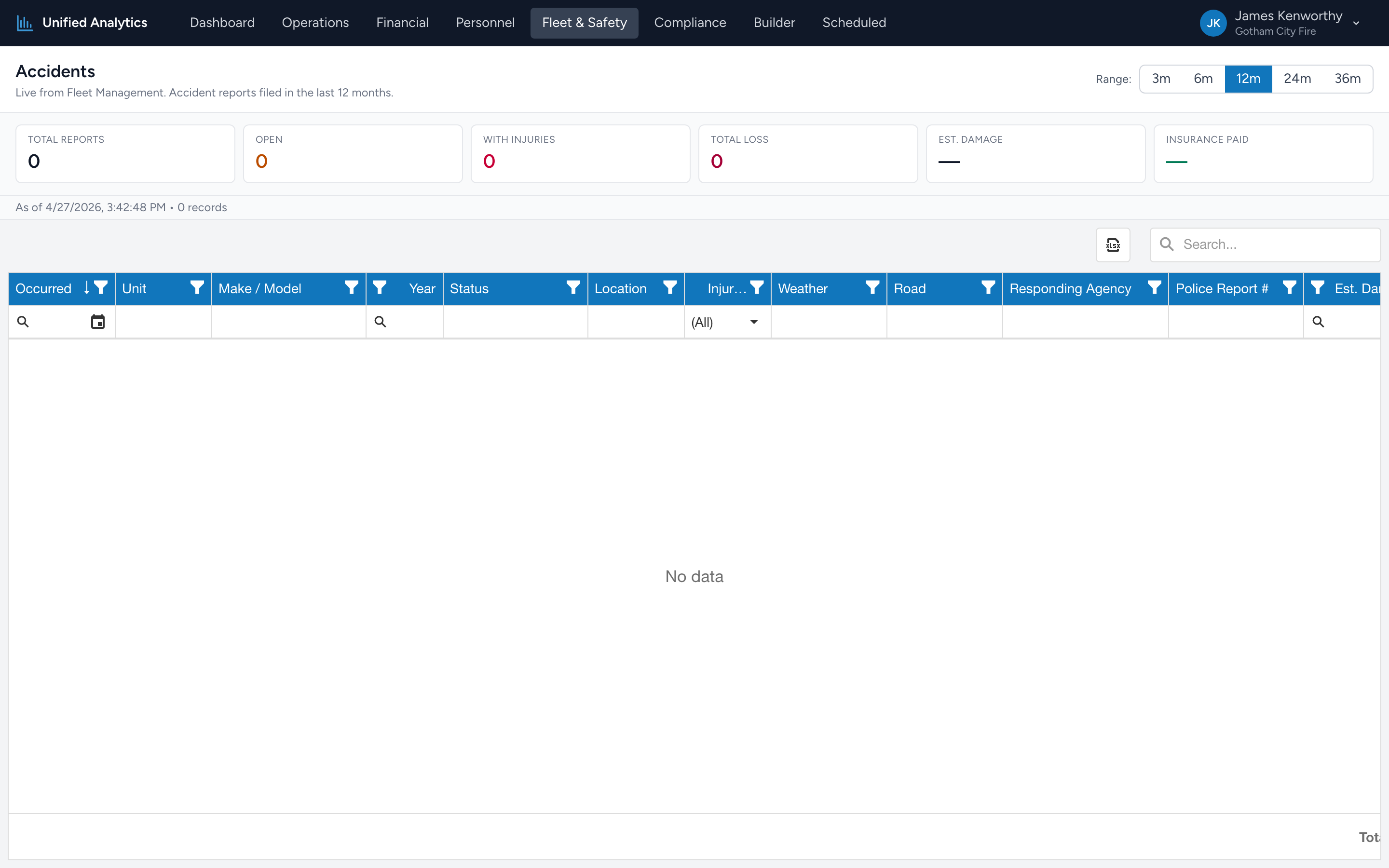
Accidents lists every accident report filed in Fleet Management over the chosen window. The summary tiles tell you how many happened and how serious they were; the grid lets you read each one in detail.
How to use it
- Open Fleet & Safety → Accidents.
- Pick a Range — 3m, 6m, 12m, 24m, or 36m.
- Read the summary tiles. Drill into the grid below for any accident you want to inspect.
The summary tiles
- Total Reports — number of accident reports filed in the window.
- Open — reports still open (not yet resolved or closed).
- With Injuries — reports where injuries were documented.
- Total Loss — reports where the vehicle was declared a total loss.
- Est. Damage — estimated dollar damage across all reports.
- Insurance Paid — insurance recovery received across all reports.
The grid
Columns include Occurred, Unit, Make / Model, Year, Status, Location, Injuries, Weather, Road, Responding Agency, Police Report #, Est. Damage, Repair Cost, Total Loss, Insurance Status, Insurance Paid, Claim #, Description, and Damage Description.
Tips
- Filter Status = Open to drive the open-claims meeting.
- Compare Est. Damage to Insurance Paid over a 12-month window to see your effective recovery rate.
- Group by Unit (drag the column header to the group panel) to see if the same vehicle keeps appearing — usually a driver-pairing issue worth investigating.
- Click Export for an Excel snapshot suitable for an insurance renewal packet.
Where the data comes from
Fleet Management is the system of record for every accident report. The report fetches a fresh snapshot each time it loads.