

Where it is
The notification bell is in the top right of the dashboard. If you have unread notifications, a small badge shows the count.
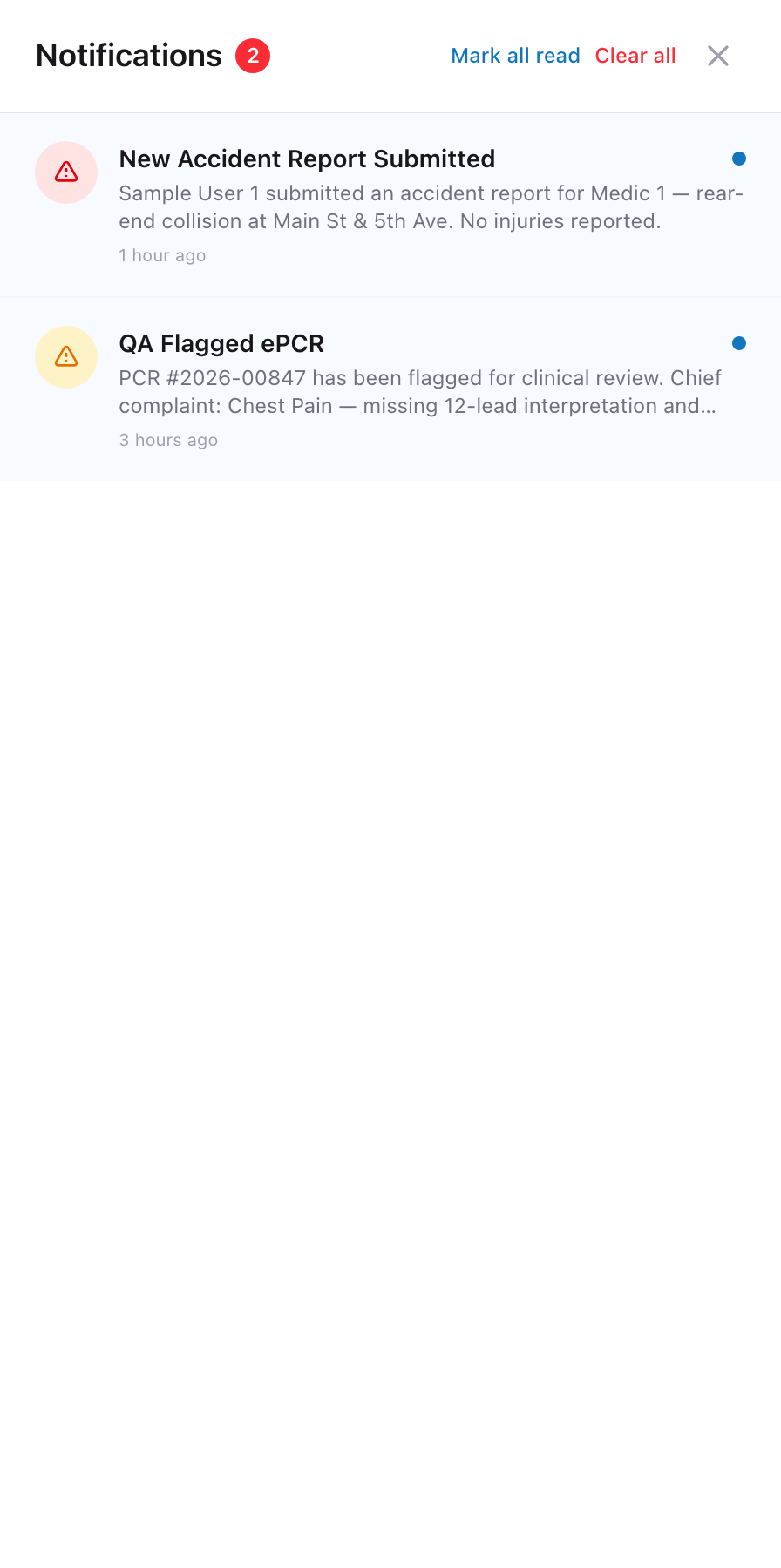
Viewing your notifications
- Click the bell icon.
- A drawer slides open with a list of your recent notifications, up to 50 at a time.
- Each notification shows a title, a short message, and when it arrived.
Marking notifications as read
Click on any notification to mark it as read. The unread count on the badge goes down by one. If you want to clear all of them at once, click Mark all read at the top of the notification list.
What kinds of notifications you get
Notifications come from all the apps your agency uses. Some examples:
- A QA reviewer sent a PCR back to you with a note.
- A truck check is overdue for your assigned vehicle.
- An HR request you submitted has been updated.
- A supervisor sent a message to your crew.
An example
You sign in and see a 3 on the bell. You click it and see three notifications: a PCR was returned by QA, a checksheet is due today, and an accident report you filed last week was marked as reviewed. You click the QA notification to mark it as read and then click through to fix the PCR. When you come back, the badge says 2. You click Mark all read to clear the rest.
Tip: Check the bell at the start of each shift. It only takes a few seconds, and you will catch things that came in while you were off duty.