
How to reset your password
- Go to sso.unified-apps.com.
- Click Forgot password? below the password field.
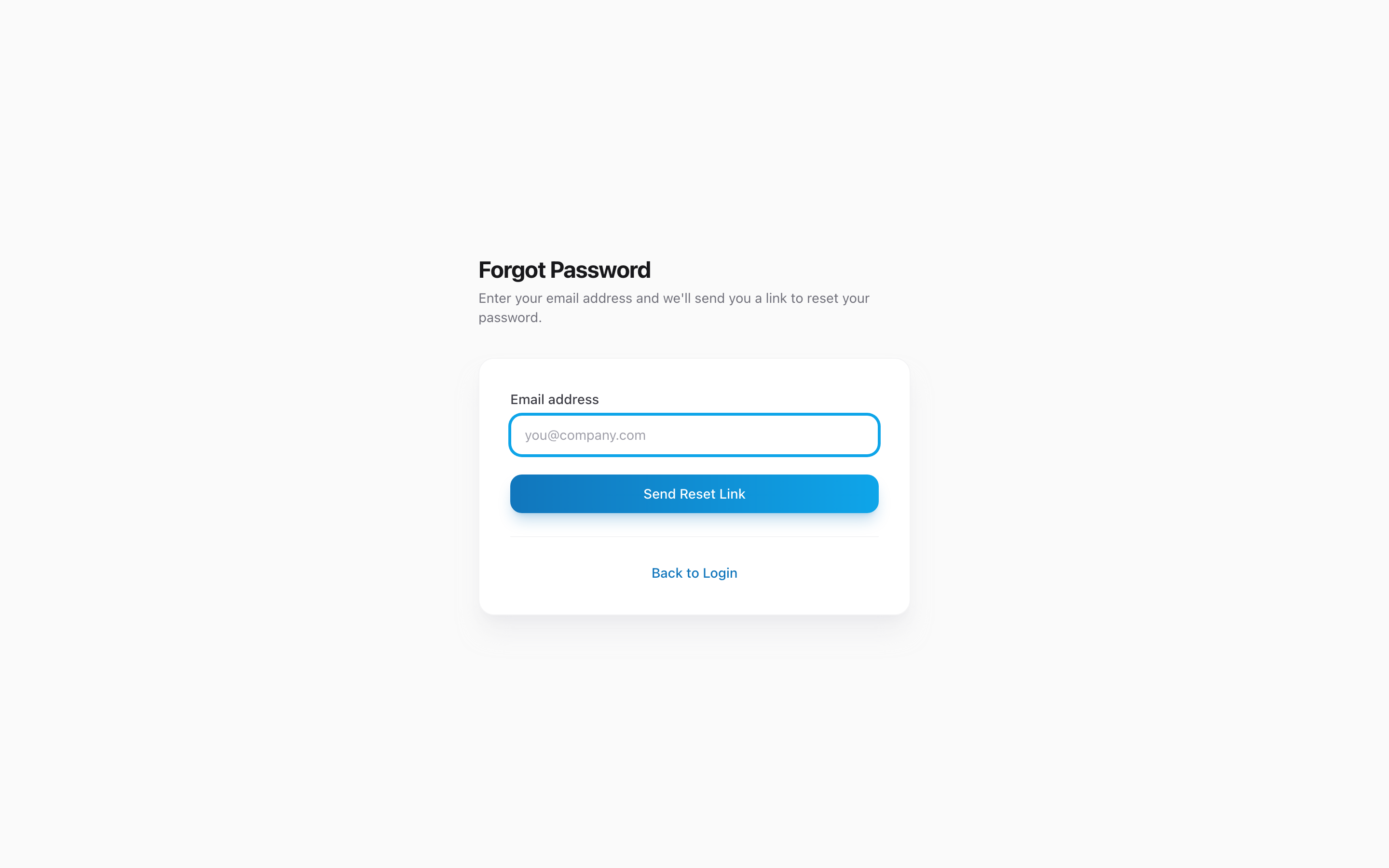
- Enter the email address you use to sign in.
- Click Send Reset Link.
- Check your email. You will receive a message with a link to set a new password.
- Click the link, enter your new password, confirm it, and click Reset Password.
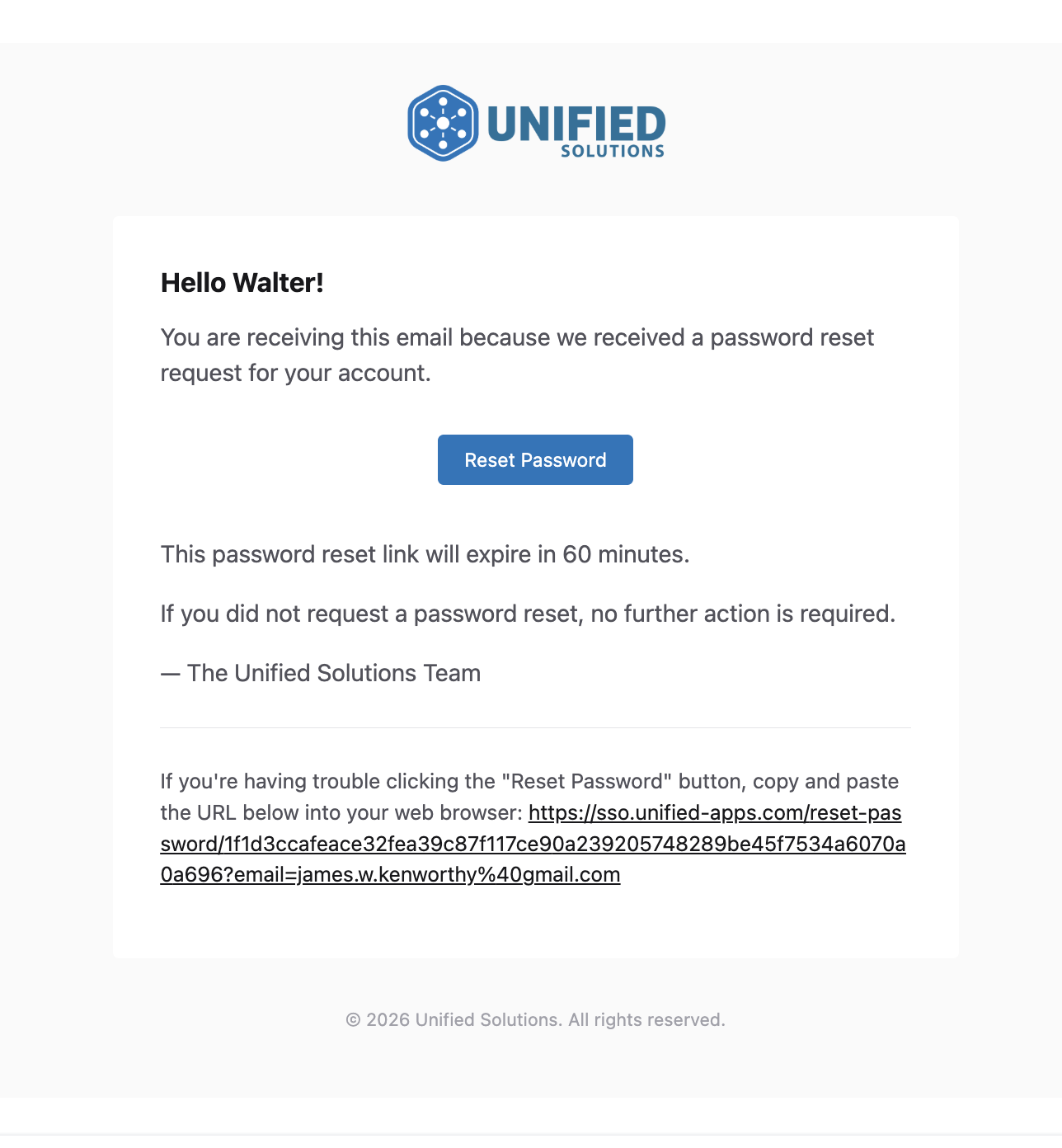
What the email looks like
After you request the reset, the email that arrives looks like this:
How long the link lasts
The reset link is good for one hour. After that it stops working. If you waited too long, go back to the sign-in page and request a new one.
If you do not see the email
- Check your spam or junk folder first. This is the most common reason.
- Make sure you typed the same email address your agency set up for you. If you are not sure which email that is, ask your supervisor.
- Some agency email systems delay messages by a few minutes. Wait five minutes before trying again.
Choosing a good password
Your new password must be at least eight characters. Use a mix of letters, numbers, and symbols. Avoid passwords you use on other websites. A short phrase you can remember is usually stronger and easier to type than a random string of characters — for example, SunnyDay$2026 is better than p@55.