

Why add a phone number
If you add and verify a phone number, Unified Solutions can send you text message notifications in addition to (or instead of) email notifications. This is useful if you want real-time alerts on your phone during a shift.
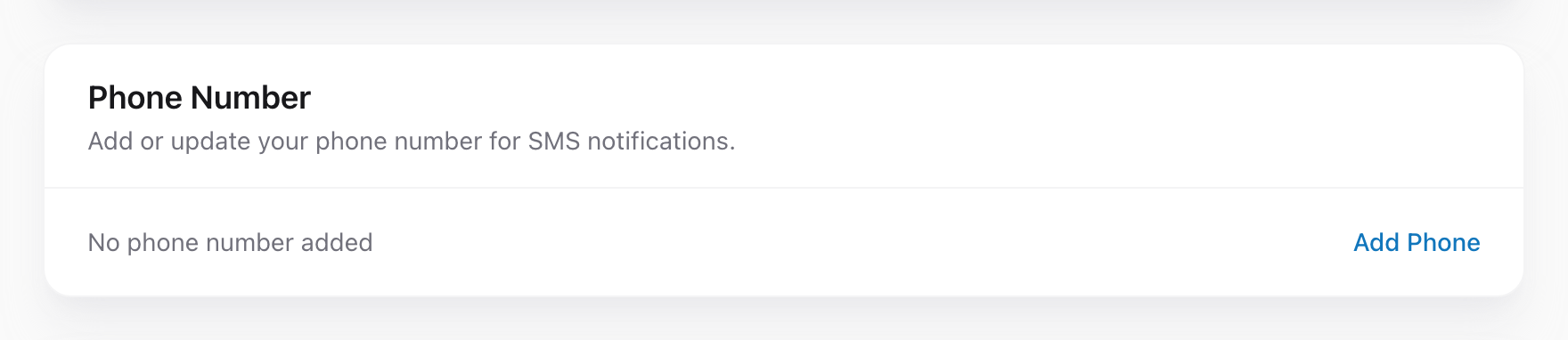
Step by step
- Click your name in the menu.
- Click My Settings.
- In the Phone Number section, enter your mobile number.
- Click Send Code.
- You will receive a text message with a six-digit verification code.
- Enter the code on the screen and click Verify.
Why the code
The six-digit code proves that the phone number actually belongs to you. Without it, anyone could type in any number and start sending texts to strangers. The code is sent by SMS and usually arrives within a few seconds.
If the code does not arrive
- Make sure you entered a mobile number, not a landline. Text messages cannot be sent to landlines.
- Check that you included the correct area code.
- Wait up to a minute — cell networks can sometimes be slow.
- If it still has not arrived, click Resend Code to get a new one.
Changing your number later
If you get a new phone number, go back to settings, update the number, and verify the new one the same way. The old number is removed automatically.