
The map is the first thing you see when you open Hydrants. It shows every hydrant in your agency's inventory on a Google Map, with each marker colored by its status.
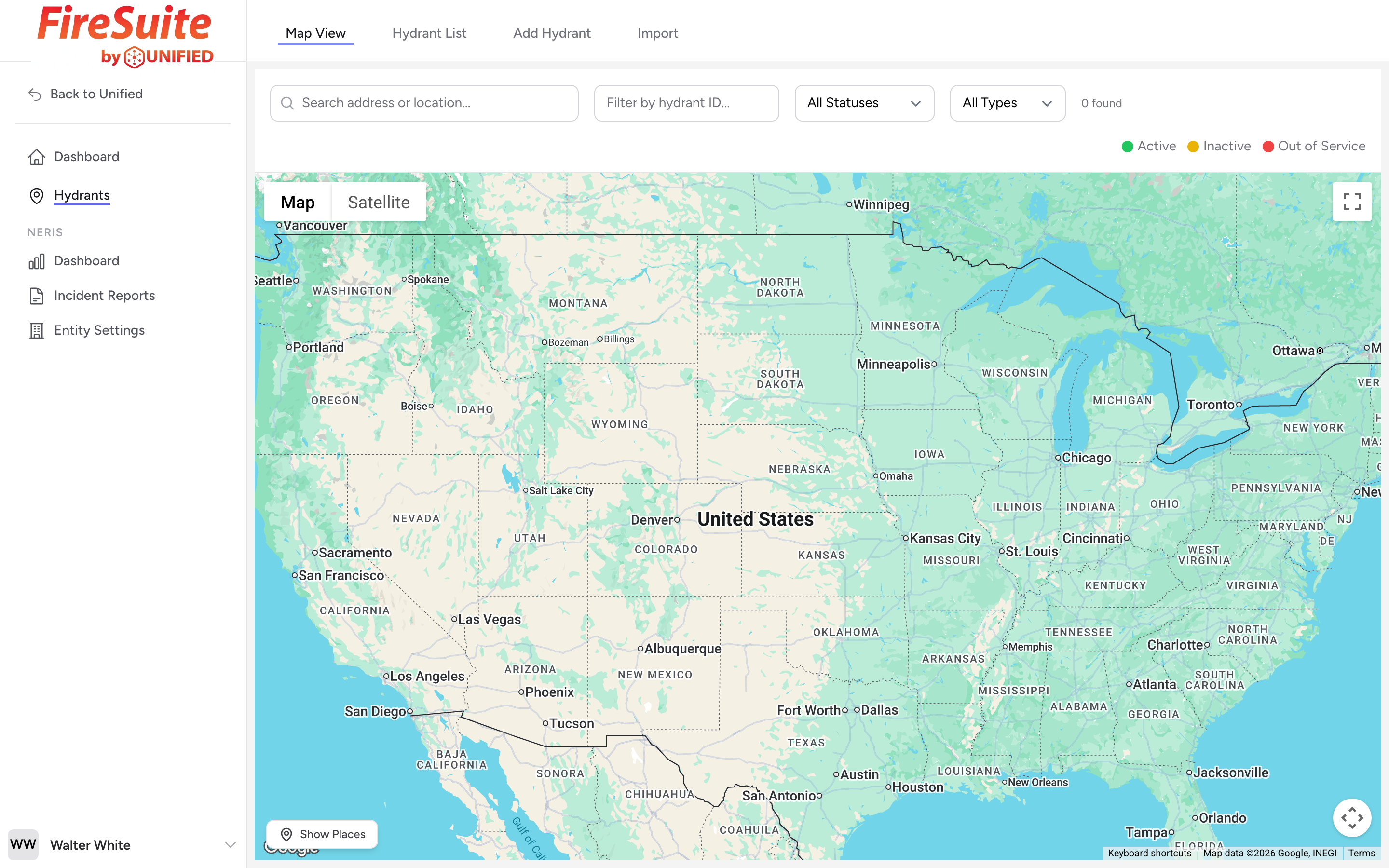
Marker colors
- Green -- Active. The hydrant is in service and ready to use.
- Yellow -- Inactive. The hydrant exists but is not currently in service. It might be awaiting a repair or waiting to be commissioned.
- Red -- Out of service. The hydrant cannot be used. It may have a broken valve, no water supply, or another serious problem.
Clustering
When you zoom out and many hydrants are close together, the map groups them into clusters. Each cluster shows a number (how many hydrants are in the group) and is colored to reflect the worst status in the group. For example, if a cluster of 20 hydrants contains even one out-of-service hydrant, the cluster circle is red. This helps you spot problem areas quickly without zooming all the way in.
Click a cluster to zoom into that area and see the individual markers.
Clicking a marker
Click any hydrant marker and a panel slides in from the right side of the screen. The panel shows the hydrant number, address, status, type, and a Street View preview image. From there you can click View Details to open the full detail page, or Edit Hydrant to go straight to the edit form.
Map controls
You can zoom with the scroll wheel, pinch on a touchscreen, or use the zoom buttons. Drag the map to pan. A Show Places / Hide Places button in the bottom-left corner toggles points of interest (restaurants, stores, etc.) on and off so you can reduce clutter when you are working.
Tip
If you respond to incidents on a particular engine, zoom to your first-due area and look for red markers. Those are the hydrants your crew should know about before a call comes in.