
What this step covers
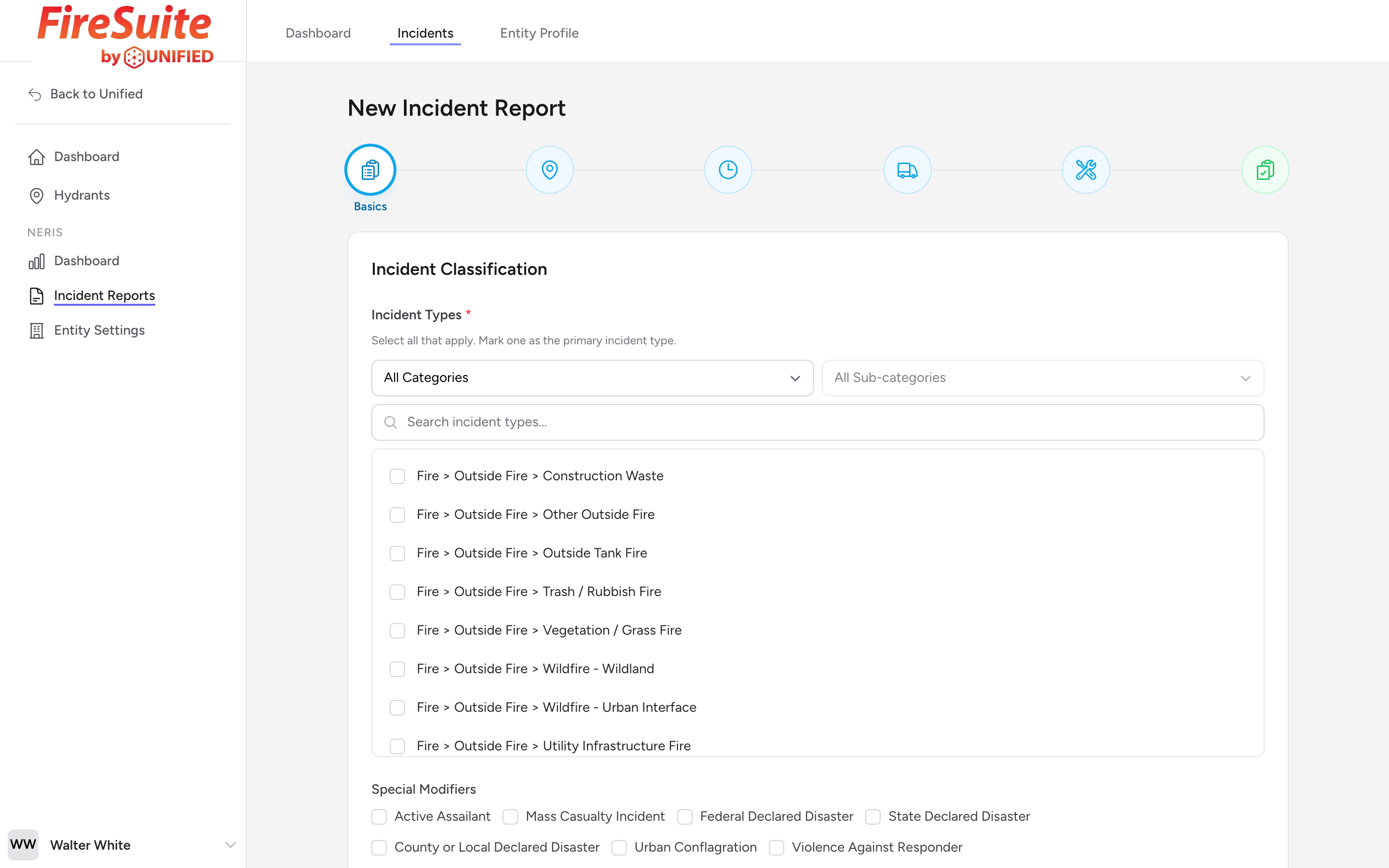
The Incident Basics step is always the first step in the form. Its section is titled Incident Classification. This is where you tell the system what kind of call it was and turn on any optional sections you need.
Incident Types
Under Incident Types, select one or more types from the list. You can use the category and sub-category dropdowns or the search box above the list to narrow it down. Most calls have a single type, but some have more than one. For example, a car fire with injuries would have both a fire type and a medical type.
When you select multiple types, you need to mark one as the Primary type using the radio button that appears next to each selected type. The primary type is the main reason your department responded. If you only select one type, it is automatically set as the primary.
Example
Your engine company responds to a reported structure fire. On arrival, you find a working kitchen fire with one occupant who has minor burns. You would select both a fire type and a medical type, then mark the fire type as primary because that was the reason for the dispatch.
Special Modifiers
Below the incident types, you can select Special Modifiers. These are additional tags that describe unusual circumstances. Not every incident needs a modifier.
Optional Modules
At the bottom of this step, under Optional Modules, you will see four checkboxes:
- Firefighter Rescues / Casualties -- Turn this on if a firefighter was rescued or injured during the incident.
- Civilian Rescues / Casualties -- Turn this on if a civilian was rescued or injured.
- Alarm / Suppression Systems Present -- Adds the Risk Reduction step. This step is added automatically for fire incidents; turn the checkbox on for other call types if you need to record alarms or suppression systems at the scene.
- Exposed Properties Damaged -- Turn this on if the incident exposed other properties to damage (for example, a fire that spread to neighboring buildings).
Each checkbox adds a new step to the form. Only turn on what you need -- you can always come back to step 1 and add more later.